
Odin is the Windows flashing utility commonly used to install Samsung firmware packages, recover a soft-bricked Galaxy device or return a modified phone to stock software. Version 3.14.4 remains the newest normal release I can verify, so I have kept the working direct ZIP instead of labelling an unverified file as newer.
One thing you should know about this build. I opened the ZIP and compared it with v3.14.1. The program code is identical, and only the version details and one extra DLL differ. Samsung never published Odin, so I can’t tell you who made that change. I wrote up everything I found on Get Odin Tool.
Odin loads Samsung-compatible .tar and .tar.md5 packages into the BL, AP, CP and CSC slots. Samsung does not maintain a public consumer download page for Odin, so treat every copy carefully and scan the extracted files before running them. Odin is Windows software; this guide does not recommend unofficial cross-platform replacements.
Some Key Features of Odin3 v3.14.4
There are some key features available for odin3 v3.14.4 compatible with Windows offering a better firmware flashing experience to Samsung Galaxy device users.
1. Stock Firmware Flashing: You can only flash the stock firmware to upgrade or downgrade on your Samsung Galaxy smartphone/tablet devices.
2. Flash Samsung-format images: Odin can flash compatible Samsung .tar or .tar.md5 packages, including certain custom recovery images. It does not directly install a normal recovery ZIP or make firmware built for another model compatible.
3. Flash Root and Kernel Package: Odin3 can also be able to flash root on Samsung Galaxy devices to gain superuser access over the Android subsystem. Flashing the kernel package will help improve the overall device performance and include some additional features.
4. Flash a Custom Recovery: Having a custom recovery on your Android device can be crucial at times to wipe cache partitions, flash zip/img files, install software update files, perform a factory reset, or create device backups, etc.
| Software Name | Odin3 v3.14 |
|---|---|
| Release Year | Current verified build: 3.14.4 |
| Supported File Formats | *.bin, *.img, *.lz4, *.tar, *.tar.md5 |
| Supported Devices | All Samsung Galaxy phones and tablets running One UI |
| OS Compatibility | Windows 7/8/8.1/10/11 (32 and 64-bit) |
Download Link (Odin v3.14.1 & 3.14.4):
Odin 3.14.4 is widely used with current Samsung firmware packages, but compatibility depends on the device, bootloader and file format rather than the One UI name alone. If you own a Samsung Galaxy S24, S23, S22, S21, S20, or any other Galaxy device released after 2019, you should use Odin3 v3.14.1 or Odin3 v3.14.4.
- Odin3 v3.14.4.zip (latest release) | Odin3 v3.14.1.zip 3B-PatcheD (stable)
- Odin v3.14.1.zip (latest stable release)
- Supported file formats: *.bin, *.img, *.lz4, *.tar, and *tar.md5
For All Versions Including Older Versions Of Odin You can check out getodintool.com (All credits to them for sharing the downloadable files)
Steps to Install Samsung Odin3 Tool on Windows
- Make sure you have a fully charged Samsung Galaxy device and a working Windows PC.
- Download the latest Odin3 flash tool (zip) on your PC.
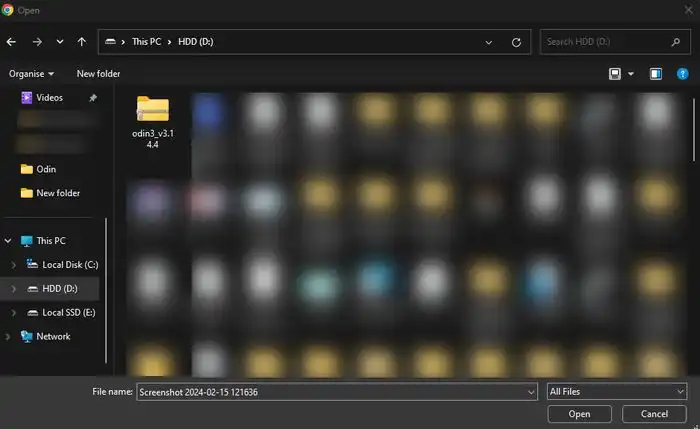
- Extract the compressed file using 7Zip/WinRAR.
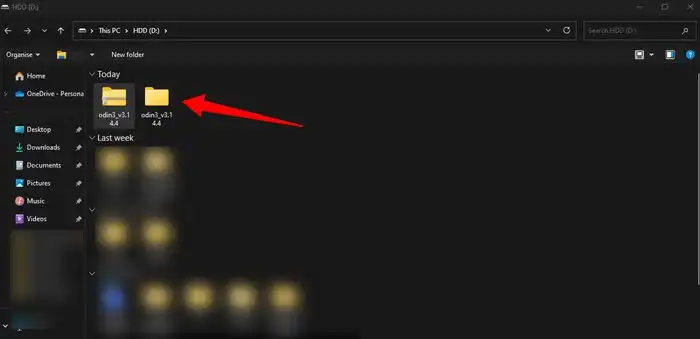
- Go to the extracted folder where you’ve saved it.
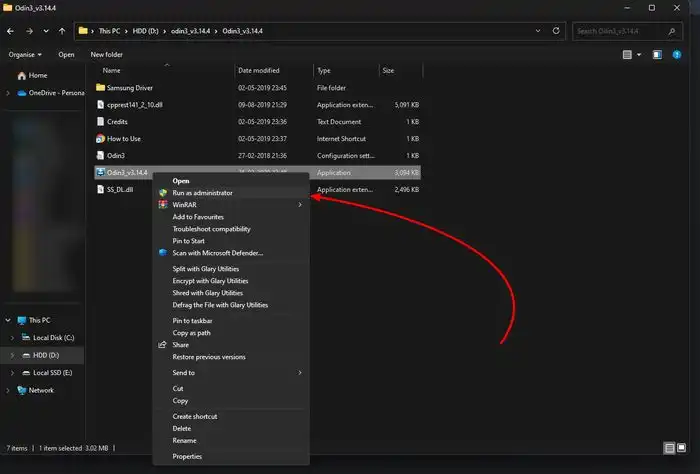
- Now, right-click on the Odin3.exe file.
- Select Run as administrator and hit Yes, if prompted.
- A prompt will appear that says to delete the Google or Samsung account before downloading the binary.
- Then press OK to confirm.
- Next, you’ll see a prompt ‘Do you want to allow this app from an unknown publisher to make changes to your device’.
- Click on Yes to proceed.
- Your beloved Odin3 application will open.
- You’re now ready to flash the firmware on Samsung.
Brief Steps to Flash Firmware on a Samsung Device
Here we’ve mentioned a brief way to flash the ROM on any of your Samsung Galaxy devices.
Not sure how to get your phone into Download Mode first? There is a step by step Download Mode guide for Galaxy phones.
- First, Install the Samsung USB Driver on your PC.
- You’ll find the driver folder inside the Odin3 extracted folder.
- Open the Samsung Driver folder > Double-click on the file.
- if prompted, click on Yes.
- Follow the on-screen prompts to complete the installation.
- Restart your computer.
- Download the latest Samsung Firmware File as per your device model and region variant.
- Then extract the firmware zip file.
- Boot your Samsung phone into the Download Mode.
- Connect your handset to a Windows PC using a USB cable.
- Once the device is detected, go to the Odin3 tool.
- Select BL, AP, CP, and CSC buttons.
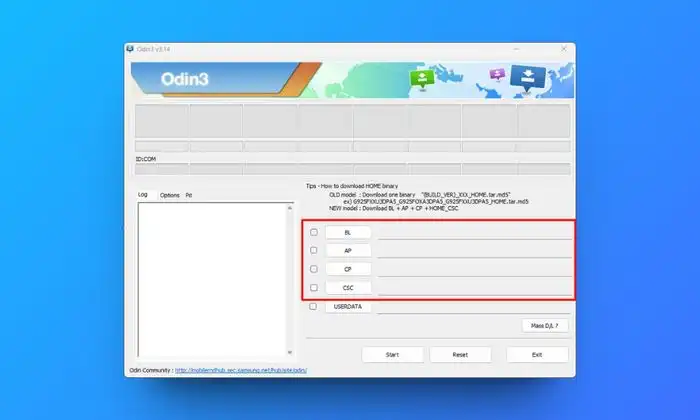
- Add the required firmware binary files.
- Click on Options > Select Auto Reboot and F. Reset Time.
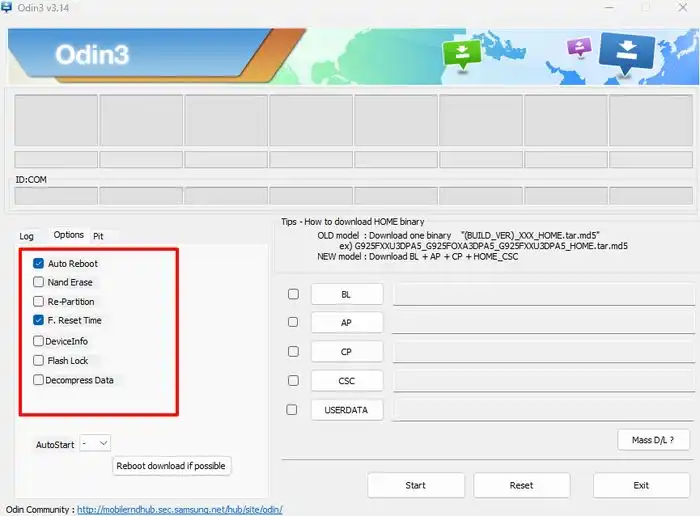
- Now, click on the Start button.
- Wait for it to complete the firmware flashing.
- Once done, your handset will automatically reboot to the system.
- Disconnect the USB cable from the phone and wait for the boot process.
- Finally, navigate through the first-time setup process.
In this way, you can easily install the Odin3 tool on your system and flash the ROM on your Samsung device.
Waiting for One UI 9? Check the One UI 9 update tracker first. If the update is live for your model but not showing on your phone, try those fixes before you flash anything with Odin.
Was this guide helpful?
Your answer helps us keep it accurate.
Comments (0)
Comments are moderated, and published only if they are relevant to the topic and add value in a constructive way. If you disagree with something, please be polite and respectful.