
If One UI 9 isn’t showing on your Galaxy, first check whether Samsung has released it for your exact model and firmware channel. A rollout on another Galaxy phone, or even the same phone in another country, doesn’t confirm that your download is ready.
I’ll help you separate a release that hasn’t reached your phone from a download or installation problem. That matters because the next step is different for each one.
Which update problem do you have?
| What you see | What to check next |
|---|---|
| Your software is up to date | Confirm the model, CSC and original carrier’s rollout. |
| An update is offered but won’t download | Read the error, check Wi-Fi and check available storage. |
| The download finishes but installation fails | Record the error and try Samsung’s update troubleshooting. |
| The phone won’t start after updating | Get help with recovery rather than repeat the ordinary update checks. |
Samsung’s troubleshooting guide treats an unavailable update, a failed download and an installation failure separately. Use the section that matches your screen.
If the download keeps stopping on mobile data, a network reset can help. We show how to reset mobile network settings without losing your saved Wi-Fi.
If the screen specifically says “Your current software version isn’t supported,” use our guide to that Samsung update error to record the right details.
How do you check the right model, CSC and carrier?
Find the model number under Settings > About phone. Then open Software information and note the current build and Service provider software version. Use our CSC guide if you need help reading the region code.
- Open Settings > About phone and write down the model number.
- Open Software information and note the build number.
- Check the Service provider software version for the CSC.
- Compare that combination with the firmware checker and your carrier’s release notes.
The One UI 9 tracker is another starting point. A missing record means our monitored channels haven’t supplied a matching result; it doesn’t prove there is no release anywhere.
For example, Samsung lists an October 21, 2026 Android 17 release for Galaxy S23 SM-S911B on India’s INS channel. That record doesn’t establish availability for a different S23 model or CSC. Our Galaxy S23 update guide has the model-specific links.
What should you try if the update is available for your phone?
Follow Samsung’s software-update instructions: check through Settings and, if needed, see whether Smart Switch offers an update. Neither method guarantees a release that isn’t available for your phone.
- Connect to a working Wi-Fi network.
- Open Settings > Software update > Download and install. The wording can differ on carrier models.
- Read the result. If it reports insufficient storage, free the amount requested before retrying.
- If the release has only just appeared, check again later rather than repeatedly restarting the same request.
- If you have a computer, connect the phone to Smart Switch and check whether it offers Update.
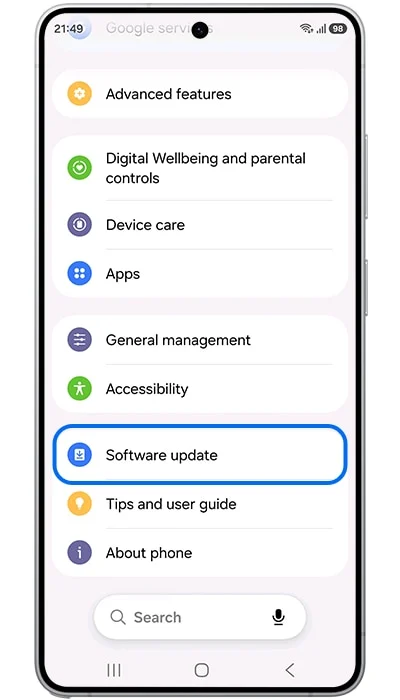
A newly released update can arrive in waves. Check its availability again later if the model and channel match, and record any error rather than treating a failed download as the same problem.
How do you check for an update with Smart Switch?
Smart Switch offers an Update option when software is available for the connected device. It doesn’t guarantee a download just because another model has received One UI 9. These steps follow Samsung’s computer-update instructions. Back up your data before starting the installation.
- Open Smart Switch on your Windows PC or Mac.
- Connect the unlocked Galaxy with a USB data cable and allow the connection on the phone.
- Let Smart Switch identify the device.
- If Update appears, select it and follow the download and installation prompts.
- Keep the cable connected and avoid using the device until the update finishes.
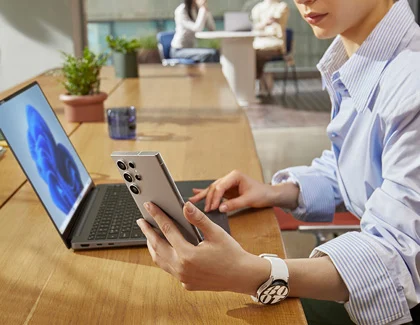
If the computer doesn’t detect your phone, fix the connection first. Our Samsung USB connection guide covers cable checks, the file-transfer setting and Samsung’s driver-reinstallation steps.
Why is an imported or carrier-unlocked Galaxy still waiting?
Check which carrier originally supplied the phone, rather than only the SIM you’re using now. Samsung says the original carrier handles updates for devices sold for that carrier, and some carrier-unlocked phones may need its SIM to download an update. Its update troubleshooting guide explains these cases.
A factory-unlocked model is a different case. I would give support the full model, build and Service provider software version, and ask whether the release is available for that combination. Don’t change the regional configuration just because a different variant has an update.
Should you clear app data, leave the beta or flash firmware?
I wouldn’t start there just because the update is missing. First confirm the release for your exact model and channel. A beta participant should follow the instructions for that beta program before changing enrollment or software.
Manual flashing is a separate procedure with its own compatibility and data-loss risks. If you’ve decided to take that route, read the Odin guide and the CSC and HOME_CSC explanation first.
Are you checking Samsung firmware or a Google Play system update?
Check the screen title before troubleshooting. Samsung firmware is checked under Software update. The Google Play system update has a separate entry under Software information, as Samsung’s app troubleshooting instructions show. If that is the date that won’t change, follow the Google Play system update guide instead.
What if the update fails to install?
Write down the exact message and whether the phone still starts normally. Our guide to Samsung’s couldn’t-install-update error covers that situation. If the phone won’t boot, use Samsung support or the recovery instructions for that device rather than repeatedly flashing unrelated firmware.
Still stuck? Leave your model number, CSC, current build and the message shown on the update screen. I’ll help you work out which part needs checking.
Was this guide helpful?
Your answer helps us keep it accurate.
Comments (0)
Comments are moderated, and published only if they are relevant to the topic and add value in a constructive way. If you disagree with something, please be polite and respectful.