
Before the 2016 Samsung Galaxy devices, the stock firmware used for flashing was only a single file for users with a.tar.md5 extension. But after that, it looks like Samsung has divided the stock firmware file into 4 binaries, such as BL, AP, CP, and CSC, which have been introduced with Odin3 (v3.09). Well, there are two types of CSC firmware files available inside the firmware folder, such as CSC and HOME_CSC. So, you may ask, what is CSC or HOME CSC? Which CSC file should you flash in Odin for Samsung?
The choice is simple but important: HOME_CSC normally keeps user data during a compatible update, while CSC performs a clean installation and wipes the phone. Both files still have to come from the same firmware package as AP, BL and CP.
Not sure what the BL, AP and CP files actually do? Here is a plain breakdown of what each Samsung firmware file is for.
What is Samsung CSC?
CSC stands for ‘Country Specific Code’ or ‘Consumer Software Customization’ which is a major part of the Samsung firmware. This CSC file includes necessary information such as carrier branding, system languages, localizations, APN settings, Samsung FUS, etc.
Carrier Branding:
CSCs can be specific to a country or mobile carrier and Samsung releases the same model of smartphones or tablet devices with different CSCs. This will help developers and even users choose specific stock firmware files according to their device CSCs.
For example, an unlocked Galaxy model in the UK will have CSC with BTU and a carrier-locked Galaxy device model will come with a different CSC, like VOD for Vodafone, TMU for T-Mobile, ORA for Orange, XEU for EE & Three, and more.
System Languages:
Even if you somehow flash the different CSC firmware on your different CSC firmware running Galaxy handset, you won’t be able to use your preferred language as the system languages and keyboard languages. Only the installed CSC firmware language will appear.
Localizations:
Samsung also pushes its Galaxy smartphones and tablet devices with geo-specific applications or preinstalled apps that are relevant to the particular country/region. Localization ships its devices with geo-specific or bloated apps relevant to a country or region.
Localization also includes calendar settings as well as local holidays and festival notifications, depending on the region.
APN Settings:
APN means ‘Access Point Name’ settings that include all mobile carrier-related configurations for the handsets to work seamlessly with the specific region. Without having APN settings, you may not seamlessly enjoy carrier connectivity benefits like calling, messaging, mobile data, etc.
Samsung FUS:
Samsung FUS (Firmware Update Server) can get easily connected with the help of CSC to allow the servers to roll out proper firmware updates to the specific Galaxy device models via OTA channels.
What is Samsung HOME_CSC?
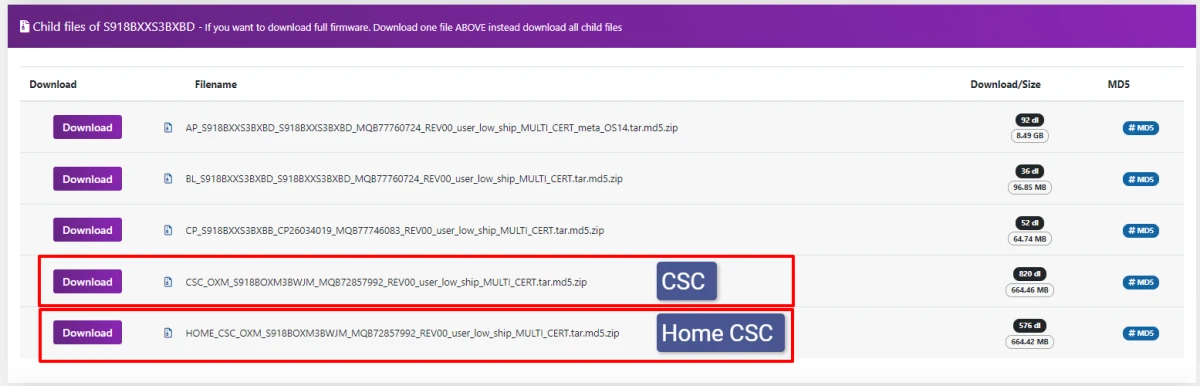
HOME_CSC for Samsung Galaxy devices allows users to flash or reinstall the stock firmware without deleting app data, user settings, user data, installed apps, and more. This can be really helpful to most device users who don’t want to lose their installed apps or data after firmware flashing.
Choose HOME_CSC when you are installing compatible firmware for the same model and active CSC and want to preserve apps and personal data. This is not a substitute for a backup, and it cannot make an incompatible downgrade safe.
Which CSC File Should You Flash in Odin for Samsung?
If you want to perform a factory data reset of your Samsung Galaxy device while flashing the stock firmware to clean up junk/temporary files and wipe corrupted data, you should flash the CSC file only.
But if you’re interested in keeping all existing apps or user data intact while firmware flashing, you should flash the HOME_CSC file on your Galaxy handset.
Choose CSC for a clean flash when you are repairing a boot loop, changing CSC where supported, or deliberately resetting the phone. Odin will not allow a downgrade below the bootloader revision already installed on the device.
Recommended Article: Download Latest Odin Flash Tool v3.14.4 for Windows
How do Flash CSC or Home_CSC on Samsung Galaxy Devices?
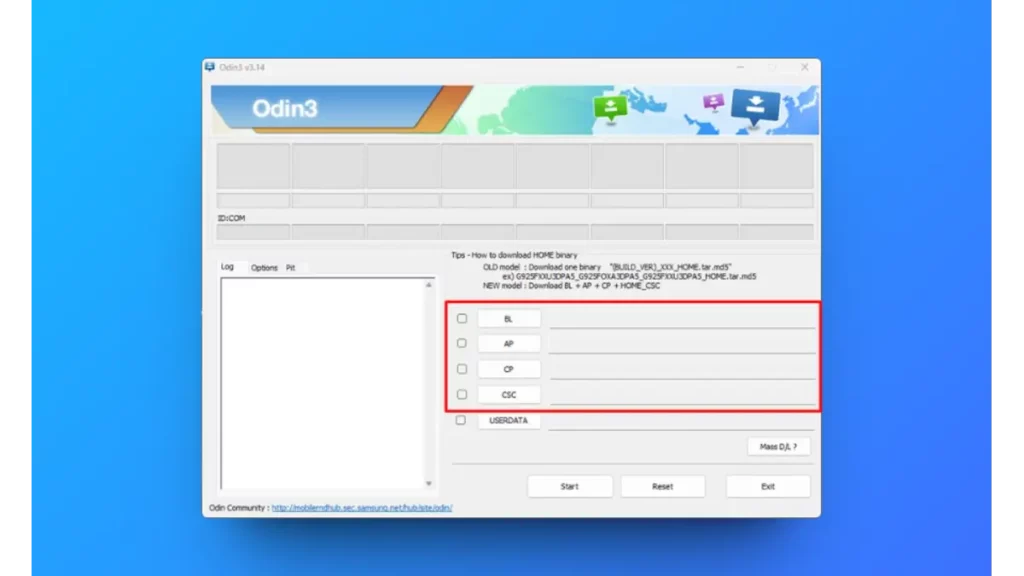
Here we’ve mentioned the easy steps to flash the CSC or Home_CSC file on your Samsung Galaxy device, that you can check below.
- First, download the official stock firmware for the Galaxy device model and variant via Frija or SamFw.
- Once downloaded, ensure to extract the compressed firmware file.
- Next, you’ll need to download and extract the ODIN3 tool on your Windows PC. (You can find the download link above.)
- Load the AP, CP, BL, CSC or Home_CSC files to Odin3.
- Now, connect your Samsung Galaxy device to the PC via a USB cable.
- Boot your Samsung Galaxy handset to the Download Mode.
- Finally, flash the stock firmware file using Odin3 and wait for it to complete.
In this way, you can easily ensure which CSC file you should flash in which scenario and how you perform this step without any additional technical knowledge.
If you only want the latest One UI build, you may not need Odin at all. Here’s what to do when the One UI 9 update is not showing on your phone.
Was this guide helpful?
Your answer helps us keep it accurate.
Comments (0)
Comments are moderated, and published only if they are relevant to the topic and add value in a constructive way. If you disagree with something, please be polite and respectful.