
One UI 9 battery drain is the most common complaint I’ve seen since the update started rolling out. In most cases it settles down on its own within 5 to 7 days. If it doesn’t, clearing the cache of a few system apps, checking which app is eating your battery and restricting the Google app fixes it for most people.
I went through the biggest Samsung Community and Samsung Members threads on this, read what people tried, and sorted the fixes into what worked and what didn’t. You’ll find all of it below, in the order I’d try it.
Why does One UI 9 drain your battery after the update?
A big update like One UI 9 changes a lot under the hood. After it installs, your phone re-optimizes every app, rebuilds its search index and re-learns how you use it. All of that runs in the background and uses power.
That’s why the first few days almost always feel worse. The problem is when the drain keeps going after a week. That usually points to one app or service stuck in a loop, often Google Play services, System UI or the Samsung launcher.
What Galaxy owners are reporting
The largest thread I found is on the Samsung US Community, started by a Galaxy S25+ owner. It has more than 2,000 views and 35 replies so far.
Here’s what people describe there:
- Charging the phone three to four times a day.
- Losing about 10% overnight, even with Power saving turned on.
- Dropping 1% every two minutes, and one phone died overnight from 90%.
- Slower charging on a Galaxy S25 Ultra.
It isn’t limited to the S25 series either. Galaxy S24 owners report heating along with the drain in a Samsung Members thread. A few users also say they had the same issue back on One UI 8.5, so it’s not a brand new bug.
How to fix One UI 9 battery drain on your Galaxy phone
Start from the top and check your battery for a day after each step. You may not need to go all the way down.
1. Give it a week first
I know this sounds lazy, but it’s the advice that came up most often, and it makes sense. Use your phone normally for 5 to 7 days and let it finish the post-update work. Charge it to 100% at least once during this time.
One user in the S25+ thread suggested keeping Power saving off during this week, since it limits background work your phone needs to finish. I’d try that, but watch your battery. Another user said turning it off made the drain faster, so it doesn’t help everyone.
2. Find out which app is draining your battery
Before you change anything else, see what’s actually using the power.
- Open Settings and tap Battery.
- Below the battery usage graph, tap View details to see the full list of apps.
- Look for any app with an unusually high share, especially one you barely opened.
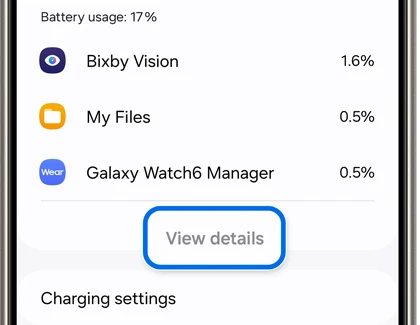
If a single third-party app is at the top, update it from the Play Store or uninstall it for a day to test. If it’s a system app, move on to the next step.
3. Clear the cache of key system apps
This was the most upvoted fix in the community thread, and it’s safe because clearing cache doesn’t delete your data.
- Go to Settings > Apps.
- Tap the filter and sort icon next to Your apps, turn on Show system apps and tap OK.
- Find and tap Google Play services.
- Tap Storage, then tap Clear cache. Don’t tap Clear data.
- Repeat this for Android System WebView, System UI and One UI Home.
- Restart your phone.
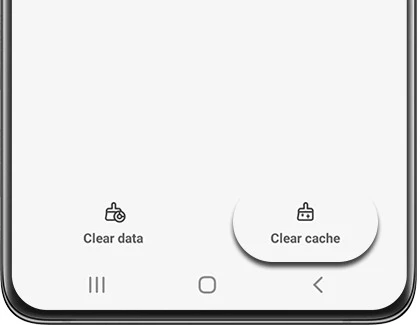
If your phone is set to another language, One UI Home may show up under a local name. On a Dutch phone, for example, it’s listed as Startscherm Samsung.
4. Restrict the Google app in the background
Several users found the Google app near the top of their battery list after the update. Restricting it stops it from running in the background when you’re not using it.
- Go to Settings > Apps > Google.
- Tap Battery.
- Select Restricted.
Search and the Google widget will still work when you open them. You’ll only lose some background refresh, which most people won’t notice.
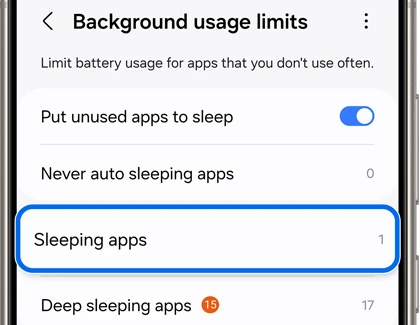
You can do the same for other apps you rarely open. Go to Settings > Battery > Background usage limits, turn on Put unused apps to sleep, and add those apps to Sleeping apps.
5. Run Device care and tweak the display
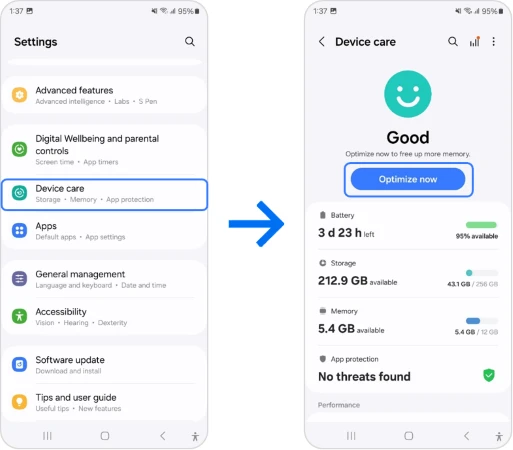
Device care closes stuck background apps and fixes a few common settings in one tap.
- Go to Settings > Device care.
- Tap Optimize now.
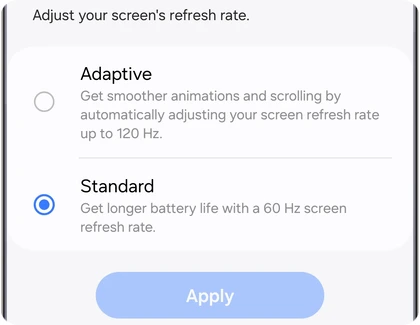
The screen is still the biggest battery user on any Galaxy phone. Dropping the refresh rate to 60 Hz gives you a bit more time on every charge.
- Go to Settings > Display > Motion smoothness.
- Select Standard and tap Apply.
- Back on the Display screen, tap Screen timeout and pick 30 seconds or 1 minute.
6. Use a Samsung charger if charging feels slow
If your phone charges slower after the update, try the original Samsung charger and cable before anything else. Some users in the thread had better results after switching back from a third-party charger.
7. Install the next software update
Samsung usually fixes battery bugs in the first follow-up patch after a big update. Go to Settings > Software update > Download and install and check every few days. If the update gets stuck, our guide on the Samsung couldn’t install update error will help.
8. Factory reset as a last resort
If nothing above worked and it’s been more than two weeks, a factory reset clears out leftover data from the old version. It also erases everything on your phone, so back up your Galaxy first.
- Go to Settings > General management > Reset.
- Tap Factory data reset.
- Scroll down, tap Reset and confirm.
What didn’t work for most people
Not every fix you’ll find online holds up. Here’s what users in these threads tried that didn’t really help.
- Wiping the cache partition. Newer Galaxy phones no longer have this option in recovery mode, so older guides that tell you to do it won’t work.
- Resetting battery stats with the *#9900# code. In a One UI 8.5 thread, it helped for a day or two and then the drain came back.
- Keeping Power saving on all the time. It’s meant for when you’re low, not as a permanent fix, and it can slow down the post-update work.
- Third-party battery saver apps. They mostly kill apps that restart right away, which can make the drain worse.
In my opinion, steps 3 and 4 are the ones worth doing right away. They’re quick, safe and fixed the problem for the most people. If your phone gets stuck on an error screen after the update instead, see our One UI 9 update stuck fix.
FAQ
Is battery drain normal after the One UI 9 update?
Yes, for the first few days. Your phone re-optimizes apps and rebuilds its index after a big update, which uses extra power. It should settle within about a week.
Does clearing cache delete my data?
No. Clearing cache only removes temporary files. Your photos, messages and app logins stay as they are. Just don’t tap Clear data by mistake.
Can I wipe the cache partition on One UI 9?
No. Samsung removed the Wipe cache partition option from recovery mode on newer Galaxy phones, so clearing the cache of individual apps is the way to go now.
Will Samsung fix One UI 9 battery drain with an update?
Most likely. Samsung often fixes battery issues in the first patch after a major update, so keep checking Settings > Software update.
Was this guide helpful?
Your answer helps us keep it accurate.
Comments (0)
Comments are moderated, and published only if they are relevant to the topic and add value in a constructive way. If you disagree with something, please be polite and respectful.