
Quick answer: The “Couldn’t install update” error on a Samsung Galaxy is usually caused by low storage, a weak battery, a bad connection or an interrupted download. Free up space, charge the phone, switch to a good Wi-Fi network and retry. If it keeps failing, update with Smart Switch on a PC.
You tap Download and install, wait a while, and then the phone says it couldn’t install the update. Annoying, I know.
The good news is that this error is fixable most of the time, and you won’t need to reset the phone. I’ll go through the fixes in the order I’d try them, with the exact menu paths on One UI.
Why the update fails to install
Samsung’s own software update troubleshooting page points to a short list of causes. The battery may be too low, there may not be enough free space, the download may be incomplete or the connection may be weak.
Phones sold by a carrier can also get their updates on the carrier’s schedule. If yours is a carrier model, that matters for step 6 below.
Before you start, make sure you have a backup. My guide on backing up your Galaxy covers Smart Switch, Samsung Cloud and Google.
Fixes to try, in order
1. Charge the phone
Samsung says the install can fail because of the battery. It doesn’t give a number, but I keep the phone above 50% and plug it in during the install.
2. Switch to a good Wi-Fi connection
Updates are big, and carriers often want you on Wi-Fi anyway. Move closer to the router, or try a different network, then run the update again.
3. Free up storage
When there isn’t enough space, the phone tells you how much it needs. Here’s how to clear it:
- Open Settings > Battery and device care > Storage.
- Check what is taking the most space.
- Delete old downloads, big videos and apps you don’t use, or move them to a cloud drive or a PC.
- You can also uninstall unused apps from Settings > Apps.
Then try the update again.
4. Resume or restart the download
If the download was cut off, you can pick it up again. Samsung says an incomplete download can be resumed from the notification.
- Restart the phone first.
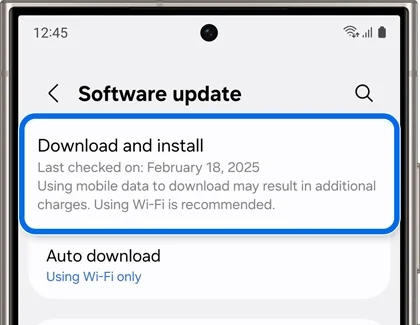
- Open Settings > Software update > Download and install.
- Tap Resume or Download if the button is there.
5. Wait and retry
If the update was just released, it rolls out in waves. Samsung suggests checking every few hours. A failed install on day one can simply be a busy server. Waiting a day or two is a perfectly fine move.
6. Check the carrier route
If your phone was bought from a carrier or is locked to one, updates come from that carrier. Check their support page for the update. A phone that was originally sold by a carrier can also be tied to that carrier’s update schedule.
7. Update with Smart Switch on a PC
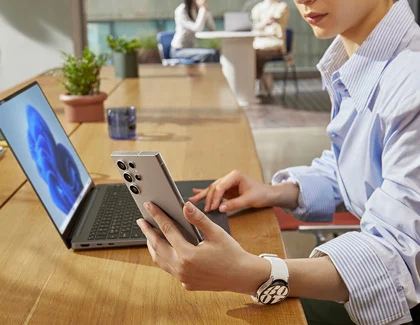
When the phone keeps failing, Samsung recommends updating through Smart Switch. You’ll need a PC and a USB cable.
- Install Smart Switch on your PC, or update it if it’s already there.
- Connect the phone with a USB cable.
- When the USB pop-up appears on the phone, choose the file transfer option (Transferring files / Android Auto).
- Follow the update prompt in Smart Switch.
If Smart Switch itself acts up, try a different USB port or cable, restart the PC, install pending PC updates, or uninstall and reinstall Smart Switch. A second PC can also help. Verizon phones have a separate system update USB mode that doesn’t work with Smart Switch, so check with your carrier.
8. When the phone won’t boot after a failed update
Samsung says a phone that no longer boots after a failed update needs service to be reflashed. That is the safest route and keeps your warranty intact.
Advanced users do it themselves with Odin and the right firmware. Read my Odin guide and Frija guide first, and know that flashing can erase data and carries its own risk.
Check your current version first
It helps to know what the phone is running before you chase a fix. Go to Settings > About phone > Software information and note the build number. My post on Samsung firmware versions explains how to read it.
If the update isn’t even showing up, that is a different problem. See why the One UI 9 update is not showing.
FAQ
Will I lose my data if the update fails?
Usually not. A normal failed install leaves the phone on the old version with your data intact. I still recommend a backup before any major update.
How much free space does the update need?
It varies by update. The phone tells you the amount it needs when space is short. I’d keep a few gigabytes free before a big One UI update.
Should I factory reset the phone?
That is a last resort and I wouldn’t jump to it. Try the steps above, and use Smart Switch before you consider wiping the phone.
Is it safe to use Smart Switch?
Yes, it is Samsung’s own tool. Download it from Samsung or the Microsoft Store and keep it updated.
Final Words
That’s it. Charge, connect to a better network, free up space, resume the download and fall back to Smart Switch if the phone still refuses.
Which Galaxy model are you using, and which update is failing? Drop the model number and your country in the comments and I’ll help you figure it out.
Was this guide helpful?
Your answer helps us keep it accurate.
Comments (0)
Comments are moderated, and published only if they are relevant to the topic and add value in a constructive way. If you disagree with something, please be polite and respectful.