
Your Galaxy phone just installed a big update, and now everything feels a bit off. Apps take longer to open, the home screen stutters, and the Quick Panel doesn’t slide down as smoothly as before.
I’ve seen this after almost every major One UI release, and it’s happening again as One UI 9 reaches more phones like the Galaxy S24, Z Fold 6 and Galaxy A56. The good news is that it’s usually temporary, and you can fix most of it yourself.
In this guide, I will show you why a Samsung phone gets slow after an update and the fixes that actually help, in the order I’d try them.
Why your Samsung phone feels slow after an update
When a phone sits on the charger and you’re not using it, Android quietly optimizes your apps so they open faster. A major update like One UI 9 resets that work. Your phone has to do it all over again for every app.
Until that finishes, apps run less efficiently and the phone can feel laggy. On top of that, the phone re-indexes your photos and files, and your apps start pulling their own updates in the background.
So a slow phone in the first few days is normal. If it’s still slow after a week, something else is going on, and the fixes below will help you find it.
How to fix a slow Samsung phone after an update
1. Give it two or three days
I know it sounds too simple, but this fixes it for most people. Leave the phone on the charger overnight with the screen off for a couple of nights. That gives it time to finish optimizing apps.
Try not to judge the update in the first 48 hours.
2. Run Galaxy App Booster
If you don’t want to wait, Samsung has a tool that does the same optimization right away. It’s called Galaxy App Booster, and it lives inside the Good Guardians app.
- Open the Galaxy Store and install Good Guardians.
- Open Good Guardians and tap Galaxy App Booster. Install it if it asks.
- Tap Optimize now.
It takes around 10 to 15 minutes, so keep the phone plugged in. Samsung Community members recommended this exact fix after the One UI 8 update, and it works the same way on One UI 9. Some Galaxy A models don’t show App Booster, so skip this step if you can’t find it.
3. Restart the phone
A restart clears out apps that got stuck in the background after the update. Press and hold the Side key and Volume down key, then tap Restart.
Samsung itself lists a restart as one of the first steps in its guide for slow Galaxy phones. You can also let the phone restart on its own once in a while. Go to Settings > Device care, tap the three-dot menu, then Automation, and turn on Auto restart at set times.
4. Update all your apps
Some apps need an update to work properly on the new One UI version. Old versions can crash, freeze or keep running in the background.
- Open the Galaxy Store, tap Menu, then Updates, and tap Update all.
- Open the Play Store, tap your profile picture, go to Manage apps and device, and tap Update all.
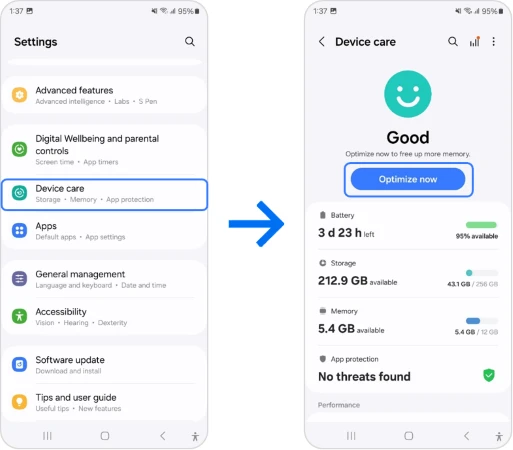
5. Use Optimize now in Device care
Device care closes background apps, clears memory and checks for apps using too much battery. Go to Settings > Device care and tap Optimize now.
6. Clear the cache of laggy apps
If one app feels slow, clear its cache. If the home screen or app drawer stutters, clear the cache of One UI Home, which is Samsung’s launcher.
- Go to Settings > Apps.
- Tap the filter icon and turn on Show system apps.
- Tap One UI Home, or the app that’s lagging.
- Tap Storage, then Clear cache.
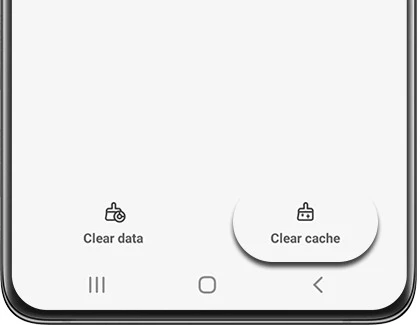
Don’t tap Clear data. That resets the app and, for One UI Home, it wipes your home screen layout.
7. Free up some storage
A phone that’s almost full gets slow, and a big update eats a few gigabytes on its own. Go to Settings > Device care > Storage to see what’s using space.
I like to keep at least 10 to 15 percent of storage free. Big videos, old WhatsApp media and duplicate photos are usually the easiest things to clear.
8. Check Motion smoothness
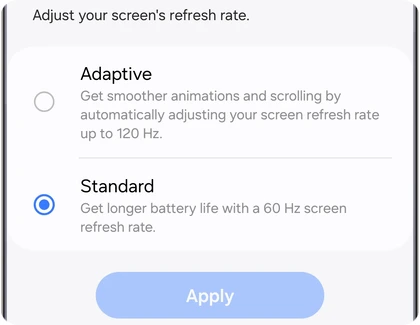
If you set the screen to 60 Hz to save battery, scrolling will feel slower than it really is. Go to Settings > Display > Motion smoothness and pick Adaptive.
9. Speed up animations
This won’t make the phone faster, but it makes it feel a lot snappier. You’ll need Developer options for it.
- Go to Settings > About phone > Software information.
- Tap Build number seven times and enter your PIN.
- Go back to Settings > Developer options.
- Set Window animation scale, Transition animation scale and Animator duration scale to 0.5x.
If you’d rather not touch Developer options, go to Settings > Accessibility > Visibility enhancements and turn on Reduce animations instead.
10. Put unused apps to sleep
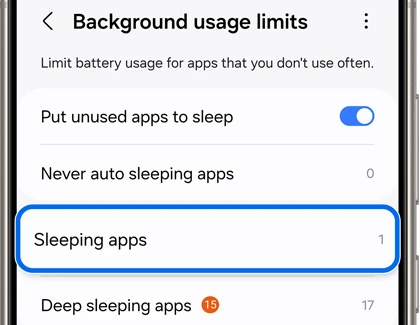
Apps you rarely open can still run in the background and slow things down. Go to Settings > Battery > Background usage limits and turn on Put unused apps to sleep. You can also add specific apps to Sleeping apps.
This also helps with battery life. If your battery is draining fast too, read my One UI 9 battery drain fix guide.
Still slow? Try these
If none of the above helped after a week, it’s time to dig a little deeper.
First, check for a bad app with Safe mode. Open the power menu, then touch and hold Power off until you see Safe mode, and tap it. Safe mode turns off every app you installed. If the phone is smooth there, one of your apps is the problem. Restart the phone to leave Safe mode, then remove recently installed apps one at a time.
Next, run a quick checkup. Open the Samsung Members app, go to Support and tap Phone diagnostics. It tests the battery, sensors and more, so you’ll know if it’s a hardware issue.
Also keep an eye on the next update. Samsung usually fixes early performance bugs in the first patch after a big release. You can check what’s rolling out for your model on my One UI 9 update tracker.
A factory reset is the last option. It wipes everything, so back up your Galaxy phone first. Then go to Settings > General management > Reset > Factory data reset.
FAQ
Why is my Samsung phone so slow after the update?
A major update resets the app optimization Android does in the background. Your phone needs a few days of idle charging to finish it. Until then, apps open slower and the phone can lag.
How long does a Samsung phone stay slow after an update?
Usually two to three days. If it’s still slow after a week, try the fixes above, starting with Galaxy App Booster and clearing the cache.
Does Galaxy App Booster delete my data?
No. It only optimizes your installed apps. Your photos, messages and settings stay the same.
Will a factory reset fix lag after One UI 9?
It usually does, but it should be your last step. Most lag goes away on its own or with the simpler fixes in this guide.
Was this guide helpful?
Your answer helps us keep it accurate.
Comments (0)
Comments are moderated, and published only if they are relevant to the topic and add value in a constructive way. If you disagree with something, please be polite and respectful.