
You can reset mobile network settings without clearing saved Wi-Fi networks on Samsung software that offers separate reset options. Open Settings > General management > Reset and choose Reset mobile network settings. Leave Reset Wi-Fi and Bluetooth settings alone.
Let me show you what to check before tapping Reset. Samsung lists the two options separately in its reset guide, but older or different software can use a combined network reset.
Which Samsung network reset keeps your Wi-Fi settings?
Choose Reset mobile network settings when your Galaxy separates it from Reset Wi-Fi and Bluetooth settings. The first targets the cellular connection; the second resets Wi-Fi and Bluetooth and requires reconnecting to networks and accessories. Read your confirmation screen before proceeding, especially if your phone only shows Reset network settings.
| Option on your screen | What to check |
|---|---|
| Reset mobile network settings | The cellular-only choice when the two network resets are separate |
| Reset Wi-Fi and Bluetooth settings | Resets saved wireless connections; you’ll need to reconnect |
| Reset network settings | May be a combined reset; read the confirmation before continuing |
| Factory data reset | Erases personal data; this isn’t the network-reset option |
The separate choices appear in Samsung’s mobile data troubleshooting instructions. Samsung’s regional reset guide also describes a network reset that removes Wi-Fi and Bluetooth settings. That’s why the wording on your own phone matters.
How do you reset only the mobile network settings?
Open General management in Settings, select Reset, then choose Reset mobile network settings. Review the confirmation and tap Reset settings. Enter your screen-lock credentials if asked, then confirm. If the warning includes Wi-Fi networks or Bluetooth pairings, stop and check whether you’ve selected a combined reset.
- Open Settings on your Galaxy.
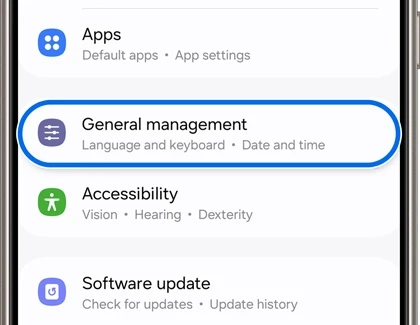
- Tap General management.
- Tap Reset.
- Select Reset mobile network settings.
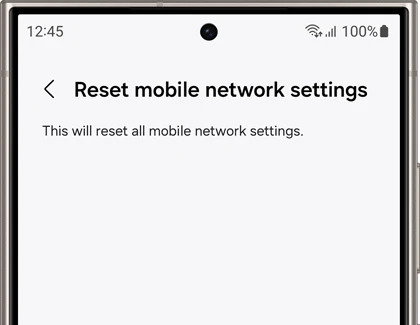
- Read the confirmation screen.
- Tap Reset settings, enter your lock-screen credentials if requested, and confirm with Reset.
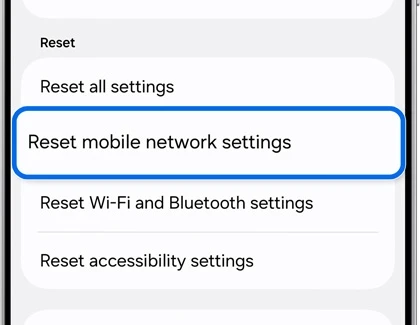
For example, on a Galaxy S25 showing both entries in the screenshot above, choose the mobile-network entry for a cellular problem. Don’t choose the Wi-Fi and Bluetooth entry simply because it sits nearby.
Will a mobile network reset delete photos or apps?
Samsung says a network-settings reset doesn’t erase your apps or personal data. That is different from Factory data reset. If the screen lists accounts and personal files to erase, back out and return to the Reset menu. You’re looking for the mobile-network option, not a phone wipe.
I would also read any SIM-related options on the confirmation screen rather than assume that every software version uses identical wording. Don’t select an option to erase downloaded SIMs while trying to reset network settings.
What should you check before and after the reset?
If mobile data is slow or unavailable, first check whether your carrier has an outage or your plan has reached a limit. Samsung includes signal and plan checks in its mobile-data troubleshooting guide. A settings reset won’t restore a paused line or fix a carrier outage.
After the reset, test the thing that was failing. If it was mobile data, turn Wi-Fi off briefly and open a page using the cellular connection. If calls or messages were failing, test those separately.
If the problem continues, Samsung’s poor signal guide recommends contacting your carrier for unresolved service issues. Give the carrier your model number, the error, and when it started.
What if your Galaxy only has Reset network settings?
Read the warning before using it. If it says Wi-Fi and Bluetooth connections will be removed, that option doesn’t meet the goal of keeping them. I wouldn’t continue expecting the newer cellular-only behavior. Back out, note your One UI version, and check the instructions for your model.
My firmware version guide can help you identify the installed build when asking for support.
If you’re unsure which option you have, leave your Galaxy model, One UI version, and the exact text on the Reset screen. Please keep phone numbers and SIM identifiers out of your comment.
Was this guide helpful?
Your answer helps us keep it accurate.
Comments (0)
Comments are moderated, and published only if they are relevant to the topic and add value in a constructive way. If you disagree with something, please be polite and respectful.