
If your Samsung Galaxy charges from a computer but won’t transfer files, check the USB mode and data cable first. Auto Blocker is another setting to inspect, but a charging-only connection doesn’t prove that Auto Blocker caused it.
I’ll show you how to check both without guessing. Samsung’s file-transfer instructions start with a compatible data cable and the Transferring files / Android Auto option.
How do you switch a Samsung Galaxy to USB file transfer?
Connect your unlocked Galaxy to the computer with a cable that supports data transfer. Open the notification panel, tap the USB notification, and select Transferring files / Android Auto. Accept an Allow access to phone data prompt if it appears. Then check the phone in Windows File Explorer.
- Connect the Galaxy directly to your own computer using a USB data cable.
- Unlock the phone.
- Open the notification panel and tap the USB for file transfer or USB settings notification.
- Select Transferring files / Android Auto under Use USB for.
- Allow access to phone data if the phone asks.
- Open File Explorer on the PC and look for your Galaxy.
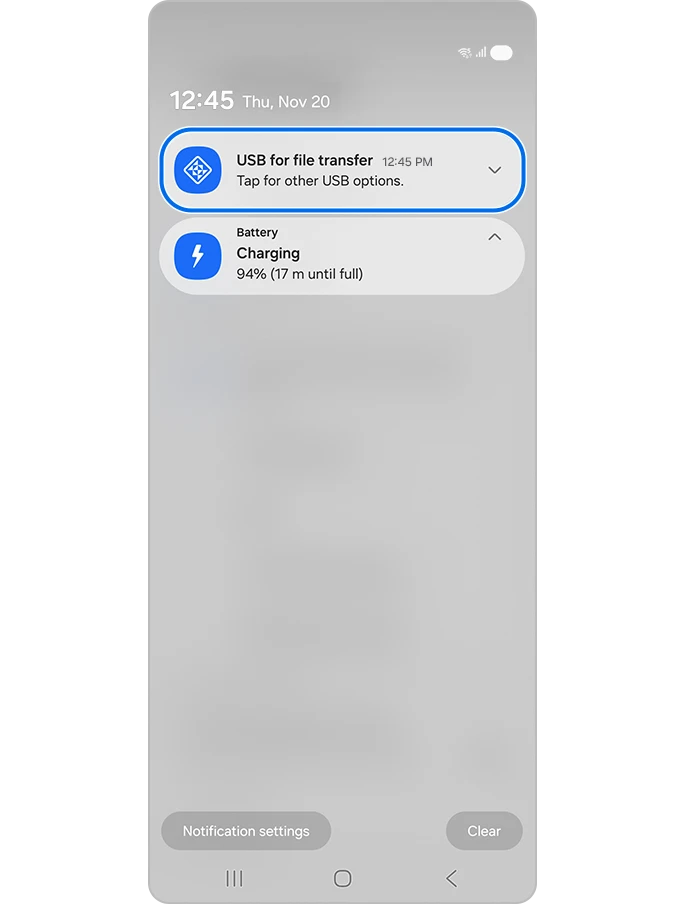
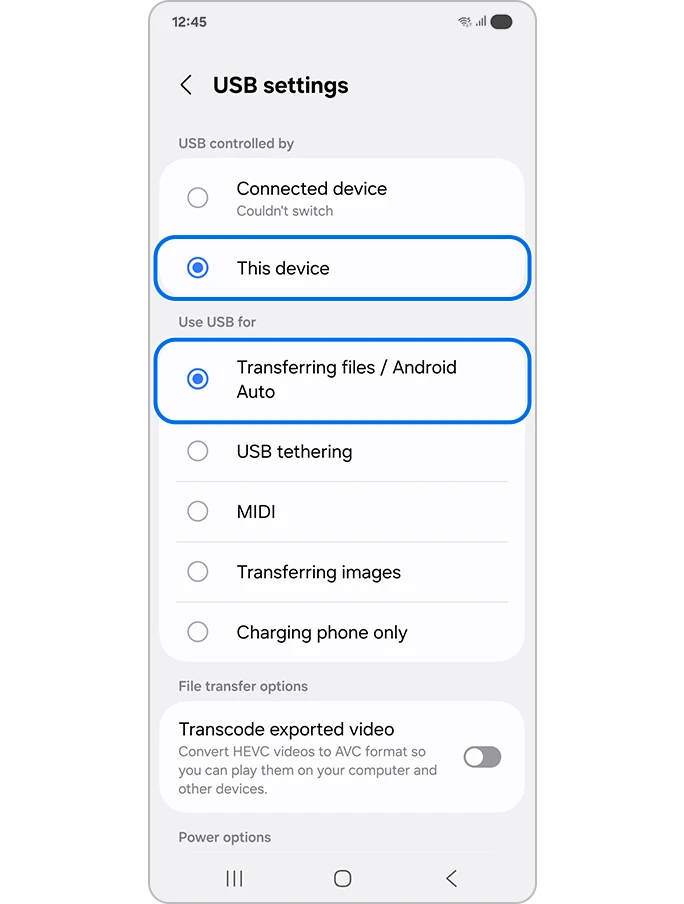
Samsung documents the permission prompt in its PC connection guide. If the phone appears but its folders don’t, check that prompt before changing anything else.
Does Auto Blocker stop every USB file transfer?
Samsung describes standard Auto Blocker as blocking commands delivered through USB, while Maximum restrictions can limit additional connections and accessories. That doesn’t establish one rule for every Galaxy and One UI version. Check the description on your phone and distinguish normal file copying from USB debugging or installing unofficial software.
Those differences are explained in Samsung’s Auto Blocker support guide and its Knox documentation. I wouldn’t turn off every protection just because the PC can’t see your photos.
- Open Settings.
- Tap Security and privacy.
- Tap Auto Blocker.
- Read the restrictions shown on your phone. Open Maximum restrictions if that option is available.
- Compare the wording with the action that’s failing: copying files, connecting an accessory, or sending developer commands.
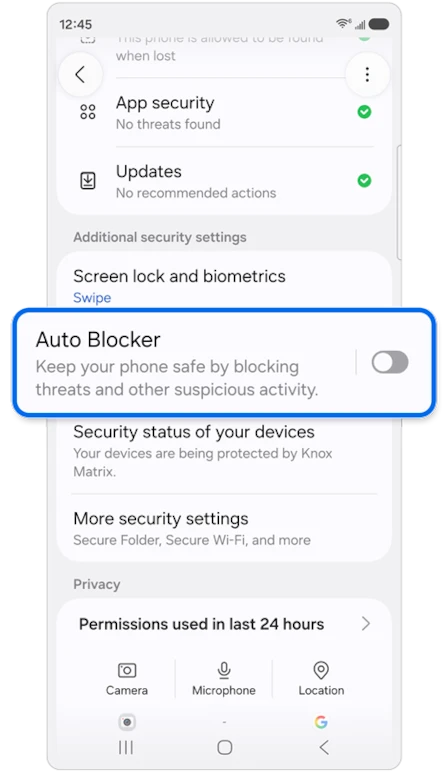
Samsung recommends keeping Auto Blocker enabled. If the screen explicitly identifies a restriction affecting a connection you need, review that specific restriction and its tradeoff. A work-managed phone may require help from your administrator.
What if the phone still only charges?
Try another known data cable and a different USB port, then repeat the file-transfer selection. Check one change at a time so you can tell what helped. If Windows still doesn’t recognize the phone, Samsung’s PC connection guide also recommends checking the device’s USB driver.
Normal file copying uses the USB file-transfer option described above. I wouldn’t start by changing Developer options or using a hidden dialer code.
Will this erase anything on my Galaxy?
Selecting the file-transfer USB mode isn’t a factory reset. You’re choosing how the connected computer can access the phone. Use your own trusted computer, and copy a small file first before moving a whole folder.
If you’re copying files before an update, my Galaxy backup guide covers the wider backup options.
Still seeing charging only? Leave your Galaxy model, One UI version, computer operating system, and the wording of the USB notification below. Tell me whether the same cable transfers files from another device too.
Was this guide helpful?
Your answer helps us keep it accurate.
Comments (0)
Comments are moderated, and published only if they are relevant to the topic and add value in a constructive way. If you disagree with something, please be polite and respectful.