
If Maintenance mode isn’t showing on your Samsung Galaxy, look under Settings > Device care and in Samsung Members > Support first. Samsung also uses the older Battery and device care menu name on some software versions.
I’ll help you separate a missing menu from a feature that won’t turn on. Samsung’s Maintenance mode guide says the feature needs One UI 5 or later, with availability depending on the device and software.
Where is Maintenance mode on a Samsung Galaxy?
Open Settings > Device care > Maintenance mode on supported Galaxy devices. If your phone uses the Battery and device care label, check there instead. You can also open Samsung Members, select Support, and look for Maintenance mode. A missing shortcut in one location doesn’t settle whether the feature is supported.
- Open Settings and search for Maintenance mode.
- If you prefer the menu route, open Device care, or Battery and device care on an older layout.
- Look for Maintenance mode.
- If you don’t find it, open Samsung Members.
- Tap Support and look for Maintenance mode in the repair or support section.
Both routes are documented by Samsung Canada. Menu wording can vary, so follow the labels on your own Galaxy rather than a screenshot from a different model.
Which One UI version does your phone have?
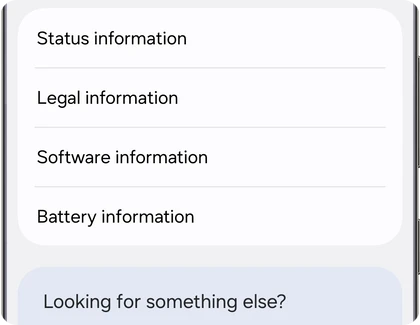
Check Settings > About phone > Software information and read the One UI version. On a Galaxy Tab, start with About tablet. One UI 5 is Samsung’s stated minimum for Maintenance mode, but the version number alone doesn’t promise that every model or carrier configuration includes the same features.
- Open Settings.
- Tap About phone or About tablet.
- Tap Software information.
- Write down your One UI version and Android version.
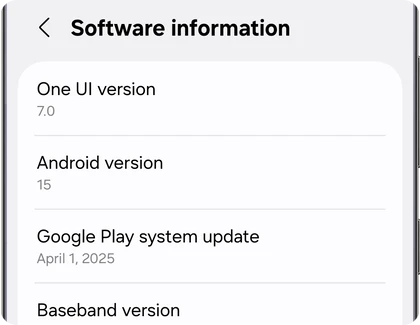
For example, if you’re checking a Galaxy S24 or Galaxy Tab S9, include the full model number when asking Samsung about availability. The model name alone doesn’t tell support which regional version you own. My CSC guide explains where the regional software details appear.
Why does Maintenance mode appear but refuse to turn on?
First check your screen lock, free storage, and user account. Samsung requires a lock screen and enough available storage to start Maintenance mode. On a Galaxy tablet with multiple users, you must activate it from the Administrator (Owner) account. These checks address activation problems rather than guaranteeing a missing menu will appear.
Samsung’s US guide lists 1.5GB free for devices with 64GB storage and 500MB for devices with more storage. Its Ireland support page explains the tablet Owner-account requirement under Settings > Accounts and backup > Users.
If the screen asks you to create a PIN, pattern, or password, complete that setup on your phone. Keep the unlock method available because you’ll need to verify your identity when leaving Maintenance mode.
Should you install an update before checking again?
I would check for an official update before concluding that a supported feature is unavailable. Open Settings > Software update > Download and install, follow any available update prompts, then look again. This is a check, not a promise that a particular update adds Maintenance mode to your model.
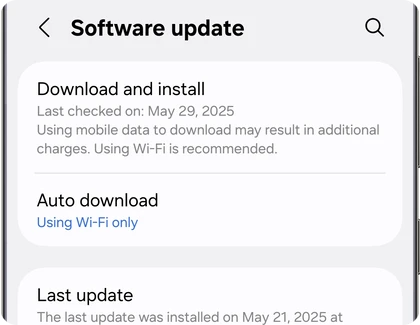
You can compare your installed software with my security patch level guide. If no update is available and both Maintenance mode routes are missing, contact Samsung with your model number and software version.
Does Maintenance mode replace a backup?
No. Maintenance mode hides your personal account from someone handling the device, but a repair may still require a reset or storage replacement. Samsung recommends a separate backup before service. Use my Galaxy backup guide before handing the phone over.
If you can’t find the option, leave your model number, One UI version, and whether you’re checking a phone or tablet. Also mention whether the option is missing or gives an error when you tap Turn on.
Was this guide helpful?
Your answer helps us keep it accurate.
Comments (0)
Comments are moderated, and published only if they are relevant to the topic and add value in a constructive way. If you disagree with something, please be polite and respectful.