
To restore a Samsung temporary cloud backup, sign in to the Samsung account used for the backup, connect to Wi-Fi, and open Settings > Device care > Maintenance mode > Temporary cloud backup > Restore data. Select the items you need and start the restore.
I’ll show you what to check if the backup doesn’t appear, too. The steps below follow Samsung’s temporary backup restoration instructions. This guide is about the temporary backup, which has an expiry date, rather than every type of Samsung Cloud backup.
What do you need before restoring the backup?
Use the same Samsung account that holds the backup and a working Wi-Fi connection. Check that the temporary backup hasn’t expired before starting. Samsung keeps temporary backups for up to 30 days, and availability can vary by device, software, and carrier. A regular Samsung Cloud backup is a separate backup type.
Samsung Singapore confirms the Wi-Fi and account requirements. Samsung’s Cloud service page distinguishes temporary backups from traditional Samsung Cloud backups.
- Finish the initial setup if the phone was reset.
- Sign in to the Samsung account you used when creating the backup.
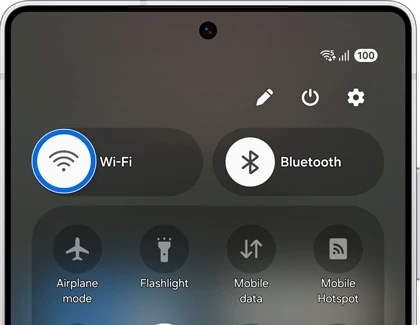
- Connect to a reliable Wi-Fi network.
- Check the temporary backup’s expiry date when it appears.
How do you restore a temporary cloud backup on Samsung?
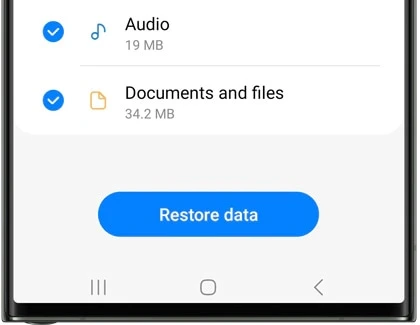
Open Settings > Device care > Maintenance mode > Temporary cloud backup, then tap Restore data. Review the selected categories, deselect anything you don’t want, and tap Restore data to begin. Samsung’s instructions put this after initial setup and signing in to the account that contains the backup.
- Open Settings.
- Tap Device care. Some versions call this Battery and device care.
- Tap Maintenance mode.
- Open Temporary cloud backup.
- Tap Restore data.
- Review the items selected for restoration and clear any categories you don’t need.
- Tap Restore data again and let the process finish.
Afterward, open the apps and files that matter to you and check them. I wouldn’t assume that seeing a completed restore means every app has recovered every item. Samsung notes that backup and restoration support can depend on individual app policies.
Why isn’t your temporary backup showing?
Check the account, backup type, expiry date, and software before trying the restore again. The Samsung account needs to match the one that created the backup. A backup saved on a computer or USB drive won’t appear as a temporary cloud backup, and an expired temporary backup cannot be treated as permanent storage.
Start with the account. If you use more than one Samsung account, make sure the Galaxy is signed in to the one used for that backup. Then confirm where you originally saved the data: temporary cloud storage, regular Samsung Cloud, or Smart Switch.
If the menu itself is missing, check Settings > About phone > Software information and write down your One UI version. Samsung’s regional support instructions note that options vary by carrier and software.
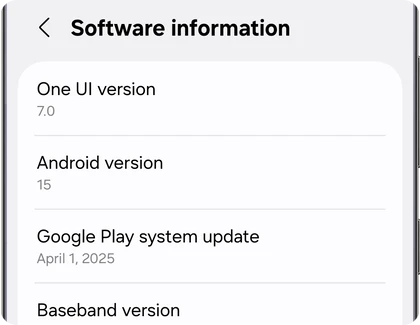
Give Samsung your model number, One UI version, and the backup’s creation date if you still need help. Don’t post your account password or recovery codes in a public comment.
How long does Samsung keep a temporary cloud backup?
Samsung stores the temporary backup for 30 days from creation, then deletes it. Its Singapore support page says a reminder arrives one week before deletion and the storage period cannot be extended. Check the actual expiry shown in Samsung Cloud rather than count from the day you started the restore.
There’s no overall backup-size limit, but Samsung excludes individual files larger than 100GB. Those limits are documented in the same support instructions. If an important file wasn’t included in the original backup, restoring the backup won’t recreate it.
Can you use this as your only long-term backup?
I wouldn’t. The expiry makes this useful while changing or repairing a phone, but it isn’t a permanent archive. Keep a separate copy of important files. My Galaxy backup guide covers Smart Switch and other backup options.
If your backup won’t restore, leave your Galaxy model, One UI version, and whether you’re missing the backup itself or just some categories. Mention its age, but keep your Samsung account details private.
Was this guide helpful?
Your answer helps us keep it accurate.

Comments (0)
Comments are moderated, and published only if they are relevant to the topic and add value in a constructive way. If you disagree with something, please be polite and respectful.