
Odin shows FAIL! (Auth) when your Samsung Galaxy refuses the file you’re flashing. Most of the time it’s one of three things: the firmware has an older bootloader binary than your phone, the firmware is for a different model, or you’re flashing a custom file on a locked bootloader.
The good news is that your phone tells you which one it is. Let me show you where to look, and how to fix each case. Your phone isn’t bricked, so don’t panic.
What does FAIL! (Auth) mean in Odin?
FAIL! (Auth) means the phone’s bootloader checked the file Odin sent and rejected it. Odin itself is fine, and so is your cable. The bootloader only accepts official Samsung files for your exact model, with a bootloader binary equal to or higher than the one already installed. Anything else stops at Auth.
In the Odin log, it usually looks like this, right after the flash starts:
<ID:0/005> FAIL! (Auth)
<OSM> All threads completed. (succeed 0 / failed 1)
Retrying with a different USB port or ticking extra boxes in Odin’s Options tab won’t change anything. Those fix connection errors, not Auth errors.
What does the red text on your phone say?
Look at your phone right after Odin fails. Download mode prints a short red line near the top left with the real reason. Match it to the table below, then jump to the fix for that row.
| Text on your phone | What it means | Fix |
|---|---|---|
| SW REV CHECK FAIL, with DEVICE and BINARY numbers | The firmware’s bootloader binary is lower than your phone’s | Use firmware with the same or a higher binary |
| No clear reason, but the file names show another model | The firmware is built for a different model number | Download firmware for your exact model |
| Custom binary blocked by OEM lock | You’re flashing a custom file on a locked bootloader | Flash official firmware only |
| Only official released binaries are allowed to be flashed | Knox Guard or an older RMM lock is blocking custom files | Flash official firmware only |
If you see SW REV CHECK FAIL, that’s the most common one by far. It happens when people try to go back to an older One UI version.
How do you fix SW REV CHECK FAIL in Odin?
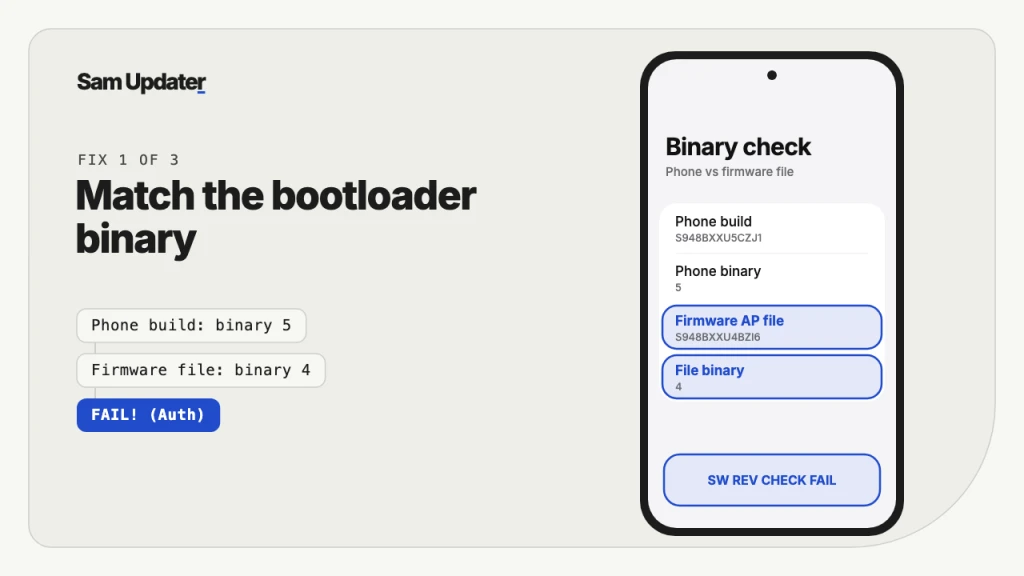
Download a firmware build whose bootloader binary is the same as or higher than your phone’s. The binary is the fifth character from the end of the build number. If your phone is on binary 5, every binary 4 firmware will fail, and there’s no way around that.
Here’s how to check your phone’s binary:
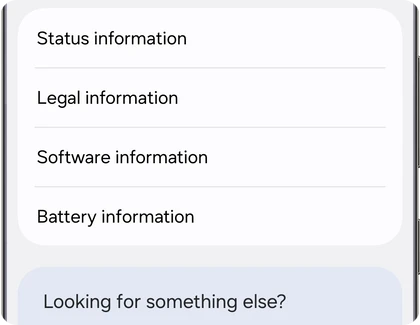
- Open Settings > About phone > Software information.
- Find Build number and note the full string, like S948BXXU4BZI6.
- Count five characters from the end. In S948BXXU4BZI6, that’s the 4.
- Now look at the AP file name of the firmware you downloaded and find the same character.
If the firmware’s number is lower, that file will never flash on your phone. Pick the latest build for your model instead. The binary only goes up, never down, even with official Samsung files.
We break down every character of a build number in our Samsung firmware version guide. If you were trying to downgrade, I explain when it’s possible and when it isn’t in my One UI 9 to One UI 8.5 downgrade guide.
How do you get the right firmware for your exact model?
Read the model number from Download mode or from Settings > About phone, then download firmware for that exact model and your CSC. An SM-S938B needs SM-S938B firmware. SM-S938U firmware won’t pass the check on it, even though both are a Galaxy S25 Ultra.
- Write down your full model number, for example SM-S938B, SM-A566B or SM-F966U1.
- Find your CSC code. Our CSC code guide shows where to look.
- Download the newest firmware for that model and CSC with Frija. I explain the setup in my Frija guide.
- Extract the ZIP and check that every file name contains your model.
Frija pulls the files straight from Samsung’s servers, so you know they’re real and unmodified. I’d stay away from random firmware mirrors. A file someone repacked will fail Auth too, and it’s the one case where you can’t tell what’s inside.
Why does Odin say Auth when flashing TWRP or a patched AP?
Because your bootloader is locked. A locked Galaxy only accepts files signed by Samsung, so TWRP, a Magisk-patched AP or a custom kernel stop at FAIL! (Auth), and the phone shows Custom binary blocked by OEM lock.
On One UI 7 and older, you’d turn on OEM unlocking and unlock the bootloader first. But starting with One UI 8, Samsung removed the OEM unlocking toggle on Galaxy phones worldwide. We explain what that means and how to check your phone in our guide to OEM unlocking missing on Samsung.
So if your phone runs One UI 8, 8.5 or 9, custom files won’t flash at all. Official firmware still works fine.
Does the Odin version matter for the Auth error?
Not for Auth itself, but an old Odin causes its own errors with new firmware. Newer Samsung firmware uses LZ4 compressed files, which very old Odin builds can’t read. Use the latest version from my Odin download page and run it as administrator.
While you’re at it, load the files in the right slots: BL file in BL, AP in AP, CP in CP, and either CSC or HOME_CSC in CSC. Our Galaxy S26 Odin flashing guide walks through every slot if you want a full run-through.
What if nothing works?
Restart the phone and install the update the normal way. Hold Volume Down and Power for about 7 seconds to leave Download mode. A failed Auth check stops before anything gets written, so the phone usually boots back into your current software.
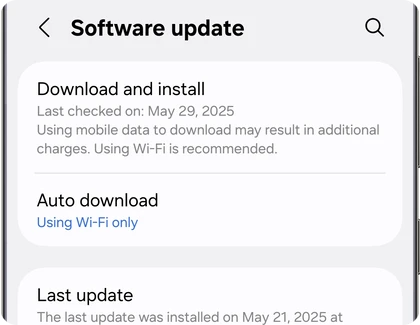
Then open Settings > Software update > Download and install. If Samsung has a newer build for your phone, it installs without Odin, and the binary question takes care of itself.
If the phone won’t boot and keeps landing on an error screen after a failed flash, flash the latest official firmware for your exact model with the regular CSC file. That wipes the phone, but it brings it back. If even that fails at Auth, the phone needs a Samsung service center.
Frequently asked questions
Does FAIL! (Auth) brick my Samsung phone?
No. The bootloader rejects the file before writing it, so your current software stays as it was. Hold Volume Down and Power to restart and the phone should boot normally.
Can I flash older firmware to fix SW REV CHECK FAIL?
Only if the older firmware has the same bootloader binary as your phone. If its binary is lower, it will fail every time. There’s no Odin setting or tool that gets around this check.
Does FAIL! (Auth) mean my firmware file is fake?
Not usually. Most of the time it’s a real Samsung file with a lower binary or for another model. A repacked file from an unofficial site can also fail, which is why I only use Frija or Samsung’s servers.
Which Odin version should I use?
Use the latest Odin build. It handles the LZ4 compressed files in current One UI 9 firmware. The version doesn’t change the Auth result, though, because the phone does that check, not Odin.
Was this guide helpful?
Your answer helps us keep it accurate.
Comments (0)
Comments are moderated, and published only if they are relevant to the topic and add value in a constructive way. If you disagree with something, please be polite and respectful.