
To open Secret mode in Samsung Browser, also known as Samsung Internet, open the tab manager and tap the face-mask icon. A mask in the address bar confirms that you are browsing in Secret mode. Its password and screenshot controls are under Tools > Settings > Personal browsing data > Secret mode settings.
I'll use the current controls documented in Samsung's US Secret mode guide. That includes an Allow screenshots switch, so older advice saying screenshots are always unavailable does not describe every current version.
Open a Secret mode tab
Begin in Samsung Browser itself. A private tab in a different browser has its own controls, so check the app before following the steps.
- Open Samsung Browser on your Galaxy.
- Tap the tab control in the bottom toolbar. Samsung describes the All tab icon as a rectangle with a number inside.
- Tap the Secret mode face-mask icon.
- Open the page you want and look for the mask in the address bar.
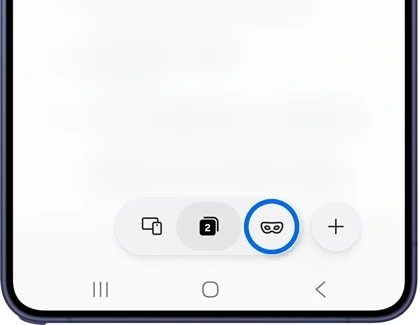
Use the mode indicator as your check, rather than assuming every tab is private because you opened one private page earlier. When switching between ordinary and Secret mode tabs, look at which tab view is active before you continue.
If a link opens in a different browser, review your app choice separately. Our Galaxy default-browser guide explains that setting. Choosing a default app and choosing a private tab inside that app are different actions.
Find the password and privacy controls
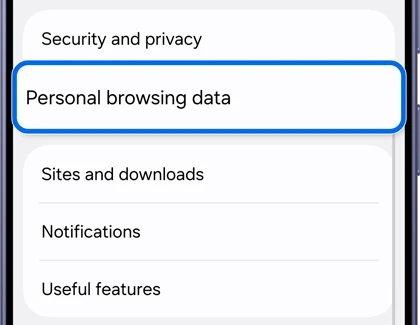
Samsung places Secret mode settings inside Personal browsing data. You do not need to reset the browser to reach them.
- In Samsung Browser, tap Tools, shown as three vertical dots in the bottom menu.
- Tap Settings.
- Select Personal browsing data.
- Open Secret mode settings.
- Review Use password and the other switches before changing the option you need.
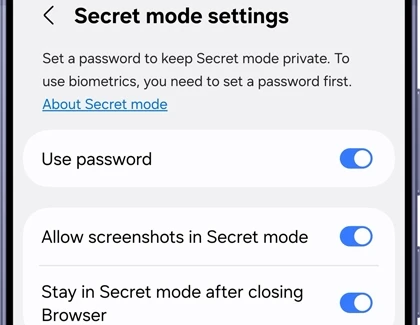
Use password creates a password to protect your Secret mode data. Samsung's reference also says that a password must be set before using biometrics. Follow the setup offered on your device instead of assuming the browser can use a fingerprint without first creating its password.
Keep the password available to you before relying on this protected space for information you want to retain. Reset Secret mode is a separate action, and Samsung describes it as erasing data and restoring default settings.
Choose what happens to screenshots and the next session
Allow screenshots in Secret mode controls whether you can capture the screen while using the mode on supported versions. The switch is visible in Samsung's current US reference. If you are sharing a capture, review the visible page and tab information first.
Stay in Secret mode after closing the browser controls whether tabs automatically open in Secret mode. Check that preference if the browser keeps returning to a private view when you expected ordinary browsing.
These controls answer different questions: one allows a screen capture, while the other affects how you return to browsing. Change the relevant switch and check the resulting behavior before changing the rest of the menu.
If your layout differs from the reference, our Galaxy app-update guide shows where to check for an offered browser update. Compare the controls available in your installed version; a screenshot from another release is not a reason to reset your data.
Finish the session and close the tabs you no longer need
To return to ordinary tabs, Samsung documents opening the tab view and selecting All tab. To close an individual private tab, open the Secret mode tab list and tap that card's X.
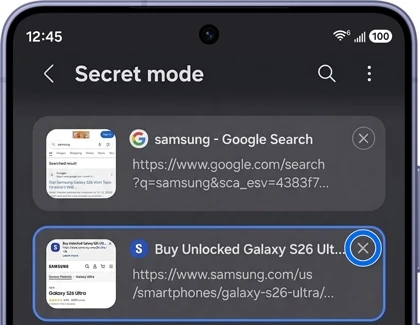
Switching to an ordinary tab and closing private tabs are separate actions. Samsung's Canadian explanation of Secret mode says cookies and browsing history from the session are erased from the phone when all Secret mode tabs are closed.
Samsung's US guide also documents closing the app from Recents by swiping Samsung Browser away. Review Stay in Secret mode after closing the browser if you want to control the mode used when returning, rather than assuming the next session must open in the ordinary view.
The privacy scope matters here. Samsung says activity and data may still be visible to websites, your internet service provider, apps and the phone manufacturer. Use Secret mode for its documented handling of browser records; it is not a promise that every other party loses visibility of the activity.
If the Secret mode icon is grayed out
Samsung says Secret mode is restricted for Samsung child accounts, with age restrictions varying by country. Account eligibility is therefore a useful check when the icon is disabled.
If the account is eligible and the option remains unavailable, Samsung's documented help route is Browser > Tools > Settings > Contact us. Describe the disabled control, sign in when required and review any attachments before sending a report. Keep private browsing content out of the screenshots you share.
FAQ
Where are bookmarks saved in Secret mode?
Samsung's Canadian guide says you can save pages and bookmarks in Secret mode, and those saved items are only visible within that mode. Switch back into the appropriate mode before treating a missing item in ordinary browsing as a deletion.
Which details help if the tab controls look different?
Tell me your Galaxy model, Samsung Browser version and which icon or setting you are looking for. Mention whether you are in ordinary tabs or Secret mode, without including the private pages themselves.
Was this guide helpful?
Your answer helps us keep it accurate.
Comments (0)
Comments are moderated, and published only if they are relevant to the topic and add value in a constructive way. If you disagree with something, please be polite and respectful.