
To open two apps on your Samsung Galaxy, enter Recents, tap the icon above an app and choose Open in split screen view. Select another supported app for the second window. Drag the divider to adjust the space each app gets, or use an App pair to reopen a favorite combination later.
I'll use Samsung's current Galaxy Z Flip8 Multi window instructions alongside its Galaxy phone multitasking guide. The examples show supported apps and phone layouts, so compare the menu on your own device before choosing a window mode.
Open the first app from Recents
Start with an app you already have open. The control you need is attached to its icon in Recents, rather than inside the app's own settings.
- Open Recents to see the apps you have been using.
- Find the first app you want in the pair.
- Tap the app icon above its preview.
- Select Open in split screen view.
- Choose another supported app when the phone asks for the second window.
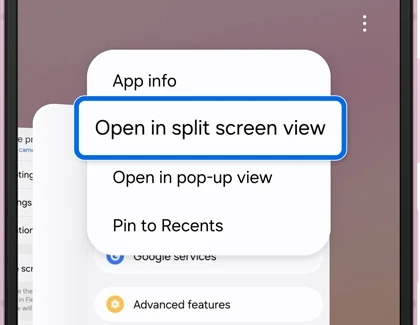
Open in pop-up view is a different choice in the same menu. Samsung describes it as a floating window over the current screen. Choose split screen when you want two arranged areas, rather than a smaller window sitting above another app.
The menu is therefore a useful first check if your app opens in a shape you did not expect. Look at the command you selected before changing other multitasking settings.
Resize the windows with the divider
With both apps open, drag the divider between them to change their share of the display. Samsung's Flip8 reference shows Settings above the Phone app, with the divider highlighted between the two windows.
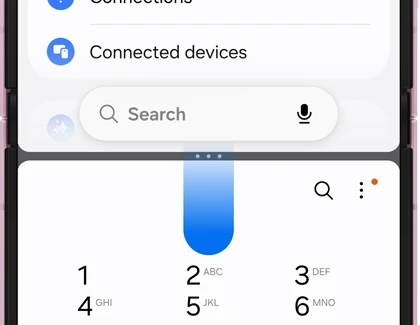
Move that separator instead of dragging around inside the page you are reading. The separator changes the window layout; a gesture inside an app may be handled by that app.
Samsung also documents extra controls when you tap the divider. On the Flip8 flow, those can include switching the app positions or saving the combination as an App pair. Read the controls that appear on your screen, since the available menu can depend on the interface.
Save the combination as an App pair
An App pair gives you quicker access to a combination you use often. Samsung documents a saving route through Recents on its Galaxy phone page, as well as the divider option in its Flip8 guide.
- Get the two supported apps into the split-screen arrangement you want.
- Open Recents and find that app combination.
- Tap the app icon at the top of the preview.
- Choose Add app pair.
- Select the offered location where you want the pair saved.
If your divider menu offers the save-pair control, you can use that route instead. The useful check is that you are saving the two-app combination you intended, rather than adding a shortcut for just one app.
Try the saved pair after creating it so you can confirm that it opens the combination you want. Continue saving your work inside each app as usual; the reason to create the pair is convenient access to the layout.
Use the Edge panel as another entry point
Samsung's Galaxy phone guide also starts split-screen apps from the Multi window tray at the side of the screen. If you already use that panel for app shortcuts, it can be a convenient alternative to finding each app in Recents.
- Open the side tray from its handle.
- Tap the grid control to see your apps.
- Drag an app to the top or bottom portion of the screen.
- Repeat with a second supported app in the other portion.
The Recents method remains useful when you prefer not to work from that tray. Pick the entry route you can identify on your phone, then use the same divider controls once the two windows are open.
Review gestures if split screen opens unexpectedly
The current Flip8 settings include Swipe for split screen and Swipe for pop-up view. Find them under Settings > Advanced features > Multi window. They are separate shortcuts for the two window modes.
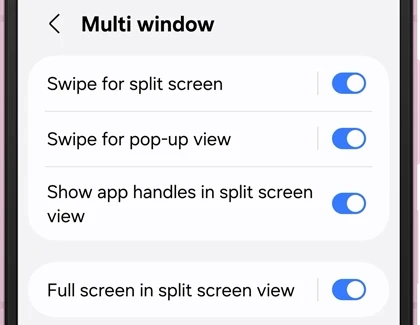
If a gesture keeps opening a mode you do not want, Samsung's Multi window exit instructions say you can switch these gesture controls off. The manual Recents and Edge panel methods remain available afterward.
To return from split screen to one full-screen app, hold the separator and drag it to the top or bottom edge. That is the exit action Samsung documents for a divided screen. A floating pop-up uses its own window controls instead.
Keep display layout separate from audio and DeX
Window arrangement is only one part of using apps together. If you want a selected app's media routed to the phone or a Bluetooth device, our Separate app sound guide covers that audio setting.
For a desktop workspace on a compatible external display, use our Samsung DeX setup guide. That is a different workspace from dividing the phone's own screen into two app windows.
FAQ
What if an app does not offer the split-screen command?
Samsung documents this workflow for supported apps. Check whether another app offers Open in split screen view, then compare the specific app and device involved. Avoid assuming every installed app must provide the same menu.
Which details help if the divider or pair option differs?
Tell me your Galaxy model, One UI version and the two apps you want to use. Mention whether you started from Recents or the side tray, and which control appears when you tap the divider.
Was this guide helpful?
Your answer helps us keep it accurate.
Comments (0)
Comments are moderated, and published only if they are relevant to the topic and add value in a constructive way. If you disagree with something, please be polite and respectful.