
To change the default browser on your Samsung Galaxy, go to Settings > Apps > Choose default apps > Browser app and select the browser you want. If tapping a link opens a shopping or social app instead, check Open supported links in that app’s settings.
I would make one change and tap the same link again. You can tell which setting mattered by checking whether the link opens a browser, opens a separate app, or stays in the app where you tapped it.
Select your browser in Galaxy Settings
Samsung Canada's app-management instructions place the default-browser control under Apps. The list depends on the apps installed on your Galaxy, so your choices may differ from the screenshots.
- Open Settings on your Galaxy and tap Apps.
- Tap Choose default apps near the top of the Apps screen.
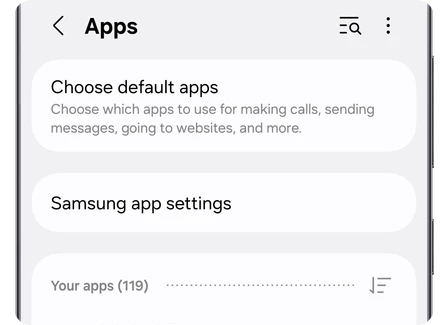
- Select Browser app from the available categories.
- Tap the browser you want to use, such as Chrome or Samsung Browser.
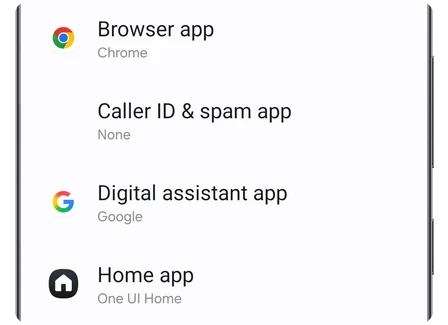
Read the app name beside the selected circle. In Samsung's US browser guide, the example shows Samsung Browser selected and Chrome as the other available option.
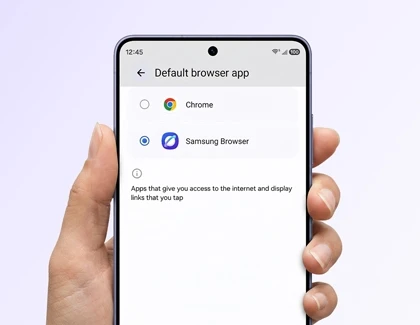
If you skipped Samsung Browser's initial default-app prompt, you can still use this Settings route later. You do not have to wait for the prompt to appear again.
Check which kind of link you opened
After selecting the browser, return to the same place where you first noticed the problem and try the link again. Note whether it opens a full browser, switches to a separate installed app, or displays a page within the app you were already using. Those results point to different controls.
| What you see | What to check |
|---|---|
| A different full browser opens | Reopen Browser app and verify the selected app name. |
| A website opens its own shopping, video, or social app | The site's app-link association may be handling that address. |
| The page stays inside the original app | The app may be displaying web content internally. |
For a second comparison, open your chosen browser directly and enter the website's address in its address bar. This lets you distinguish a page-loading problem from a choice about which app receives a link. Record the result before resetting anything.
Why does a link still open a separate app?
Android can associate a website with its installed app. Google's deep-link documentation explains that an approved app can receive links for a particular domain. Changing Browser app therefore does not force every website address away from its corresponding app.
For Android 12 and later, Google's specific routing note says a generic web link goes to an app only when that app is approved for the domain; otherwise, it goes to the default browser. That is why two addresses tapped from the same message can open differently.
Change the setting for the app that opens the link
Say a shopping link takes you straight to its app even though Chrome is your default. Open Settings > Apps, tap the app that received the link, then choose Set as default. Turn off Open supported links to stop that app from opening its supported web addresses automatically. To let the app receive those addresses again, return to the same screen and turn it back on. The setting is documented in this Samsung Community example.
Try the same link from the same message after changing the switch. If it stays inside the messaging app, use the in-app browser check below. This keeps you from clearing defaults for unrelated apps while you work out where the link goes.
A page inside an app has its own controls
An app can show a website without opening a separate browser. Android's WebView documentation describes web pages displayed as part of an app's own screen. The developer can also keep links inside that view.
If the app offers an option to open the page externally, use it to compare the result. The wording and availability belong to that app, so there is no single Galaxy menu that I can give you for every in-app browser. Copying the address into your chosen browser is another useful comparison when the app allows copying.
FAQ
Can I make Chrome the default from Chrome itself?
Yes. Google's Android instructions say to open Chrome, tap More > Make Chrome default, and select Chrome. Google also lists More > Settings > Default browser as another route. The Galaxy Settings method above is useful when you want to compare the available browsers in one place.
Does this change the search engine or remove the Home screen search bar?
Those are separate settings. Samsung's US browser page places the address-bar search engine in the browser's own settings. If your aim is to hide the Home screen bar, our One UI Home screen search guide covers that control.
Should I change browsers to get a browser update?
Choose the browser you want to use, then manage its updates separately. Our Galaxy automatic-update guide explains the separate Play Store and Galaxy Store controls. If the selected browser still seems wrong, tell me your Galaxy model, One UI version, the link's domain, and which app actually opens it.
Was this guide helpful?
Your answer helps us keep it accurate.
Comments (0)
Comments are moderated, and published only if they are relevant to the topic and add value in a constructive way. If you disagree with something, please be polite and respectful.