
For Samsung Galaxy Watch app updates on Wear OS, open Play Store on the watch, scroll to Manage apps and choose Update all. You can also select one app and tap Update. This is the watch-based flow in Samsung's Canadian update instructions.
Start with a watch you have already set up. I'll show you where to check its installed apps, how to choose an individual update and what to compare when a download waits in the queue.
Find Galaxy Watch app updates in Play Store
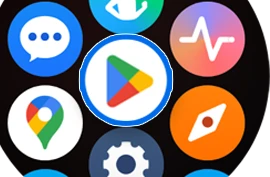
On the watch face, swipe up to open the Apps tray and tap Play Store. Samsung's current Australian watch-app guide uses this gesture, so you do not need to assume that pressing Home opens the app list on your model.
Make sure the watch has a working connection. Samsung Australia recommends checking Wi-Fi or the watch's Bluetooth connection to the paired Galaxy phone when downloads remain pending. Google also documents Wi-Fi or LTE connectivity for finding and downloading watch apps.
You are looking at the store running on the watch, rather than the ordinary phone-app list. That distinction matters if both devices have an app with the same name.
Find the installed-app update list
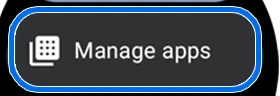
Scroll through the watch's Play Store and choose Manage apps on the interface Samsung shows in its Canadian guide. This opens the watch app-management view.
- Look for the available updates in the watch's app list.
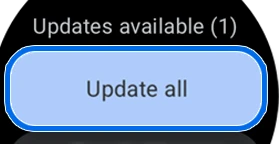
- Choose Update all if you want the offered updates together.
- For a single app, select that app and tap Update instead.
- Let the download and installation finish, then open the app you intended to update.
Updating one app is useful when you are investigating a specific behavior. Note the app name and what you want to check, install that offered update, then repeat the task. This keeps the comparison focused on the app you actually changed.
If you are simply maintaining the installed apps, Update all is the broader choice. Read the watch's current list rather than expecting it to match the single update in the reference image.
Keep phone apps and watch apps separate
Google's Wear OS app guide says some watch apps work with a matching app on the connected phone. It also explains that phone apps are not automatically copied onto the watch.
Check the app installed on the device where the problem occurs. If a watch app needs attention, inspect the watch's Play Store list. If you also need to update its phone companion, our Samsung phone app-update guide covers Galaxy Store and Play Store on the handset.
Samsung also documents installing a watch app from the phone's Play Store by selecting the Galaxy Watch as the target device. That device choice is worth checking if you are looking at a phone store listing and wondering why the app appears on the wrong device.
Google says the watch's Play Store uses the Google account used during setup. Keep that account in mind when comparing which apps you see, rather than treating the phone and watch screens as interchangeable lists.
Read the queue before restarting a pending download
If a download stays on Pending, check the connection first. Samsung Australia then recommends opening the watch's Play Store app list and checking whether an automatic system update is blocking queued downloads.
Look at what is already installing before starting another change. If the watch is carrying out a software update, follow that update's progress and instructions. Record the app's pending message separately so you can check it again afterward.
Samsung's Canadian guide also recommends restarting the watch when app or software updates encounter problems. Use that check after you have identified the state of the queue, rather than interrupting a visible system installation just because an app is waiting.
If the same app still fails, keep its exact error and the name of the store screen. Those details help distinguish a download waiting behind other work from an app that downloads and then fails to install.
Use Software update for the watch operating system
App updates and watch software updates have separate controls. Samsung's Canadian instructions distinguish them as follows:
| What you want to update | Where to check |
|---|---|
| Installed Wear OS watch apps | Play Store on the watch > Manage apps > Update or Update all. |
| The Galaxy Watch software | Settings on the watch > Software update > Download and install. |
| Watch software from the paired phone | Galaxy Wearable > Watch settings > Watch software update > Download and install. |
For release coverage, our Galaxy Watch software tracker is separate from this app-update procedure. An app disappearing from the Play Store update queue does not tell you which operating-system build the watch is running.
FAQ
What if the watch says My Apps instead of Manage apps?
Google's Wear OS help uses My Apps, and Samsung's Australian instructions use that label too. Samsung Canada shows Manage apps. Open the matching app-list entry on your installed interface, then look for the available-update section and its Update controls.
Which details help if an update still fails?
Tell me your Galaxy Watch model, the app name and the exact message shown on the watch. Include whether you started in the watch's Play Store or on the phone, and whether another update is already running.
Was this guide helpful?
Your answer helps us keep it accurate.
Comments (0)
Comments are moderated, and published only if they are relevant to the topic and add value in a constructive way. If you disagree with something, please be polite and respectful.