
To update apps on your Samsung Galaxy, check both stores: open Galaxy Store > Menu > Updates, then Play Store > your profile > Manage apps & device > See details. Each store has its own update list, so I would check both before deciding that an app has no update available.
Samsung's Canadian app-management instructions document these two routes. They also show why the store matters: one Galaxy Store reference has a message saying an app cannot auto-update because it was installed from Google Play Store.
Use the app's store, rather than guessing from its name
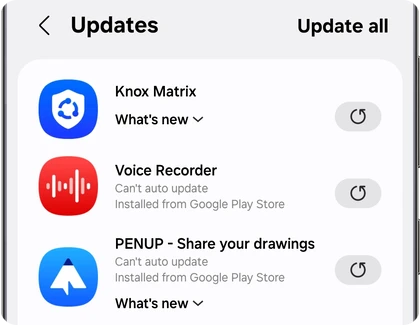
A Samsung app name alone is not a reliable way to choose the update screen. In Samsung's example below, Voice Recorder appears in Galaxy Store with an Installed from Google Play Store message. Read the actual message beside your app and check the corresponding store.
For an app downloaded from Play Store, Samsung directs you to Play Store for available updates. For a Galaxy Store download, use Galaxy Store. This is more useful than repeatedly refreshing one queue because another site mentioned a newer app release.
The required accounts differ too. Samsung says a Google account is needed for Play Store, and a Samsung account for Galaxy Store. Check which store you are opening before trying to resolve a sign-in request.
Check Galaxy Store updates
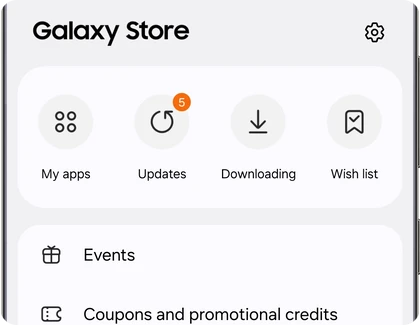
On the current layout in Samsung's Canadian instructions, Menu is in the bottom-right corner of Galaxy Store. Older screenshots can place its navigation differently, so look for the named control rather than copying an old screen position.
- Open Galaxy Store on your Galaxy.
- Tap Menu.
- Select Updates to open the pending-app list.
- Find the app you want to update.
- Tap the Update icon beside that app, or choose Update all if you want the available updates together.
Read any status message on the row before tapping again. Samsung's reference labels some entries Can't auto update and Installed from Google Play Store. If you see that message, continue with the Play Store steps below for that app.
Use the individual control when you are checking one app. For example, if you want to compare its behavior before and after an update, updating that app alone makes the change easier to track than installing every pending update at once.
Install updates from Play Store
Google's manual app-update instructions use the profile icon, Manage apps & device and See details. Samsung shows the same flow on a Galaxy phone.
- Open Play Store.
- Tap your profile icon at the top right.
- Choose Manage apps & device.
- Under Updates available, tap See details. Your layout may show Updates available as the entry to tap.
- Tap Update beside the app you want.
- Use Update all if you want to install the available app updates together.
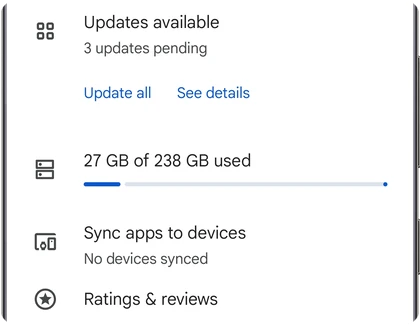
Google also says an app's Details page displays Update when an update is available. That gives you another route if you are looking for a particular app instead of working through the whole pending list.
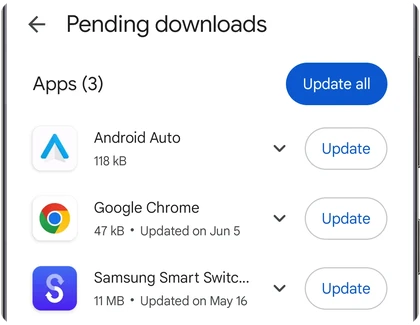
An update may ask for new permissions, according to Google. Read the request and decide whether to accept it rather than treating the prompt as an installation error. Google also notes that some app updates may require a device restart.
Why automatic updates may still be waiting
Having automatic updates enabled does not mean every offered app version installs immediately. Samsung says background updates can wait for conditions such as Wi-Fi, charging or a time when the device is not actively being used.
Check the pending list when you need a specific update now. You can choose its manual Update control instead of waiting for the store's next background-update opportunity.
Mobile-data preferences matter as well. Samsung recommends Wi-Fi where possible because app updates can be large. Google lists several automatic-update options, including a limited-mobile-data choice available to only some users, so avoid expecting identical choices on every account.
This guide is about finding and installing offered app updates. If you want to change which updates happen automatically, our Samsung automatic-update controls guide covers that separate decision.
Check which kind of update you are looking for
A list of app updates is not the same screen as a phone software update. Google's Android update guide treats system software and security status separately. Keep the exact app name and the store message in your notes if you are asking why a particular download is missing.
Google Play system update is a separate item too. If that is the label you see in Settings, use our Google Play system update guide. Reopening the ordinary Play Store app queue would be checking a different update path.
After updating the app you intended to change, open it and check the task you needed it for. Record any remaining error exactly. That is a better starting point for follow-up than saying all updates failed when one app or one store is involved.
FAQ
Does an empty Galaxy Store list mean every app is current?
It tells you what that store is offering in its update list. Check Play Store as well for apps managed there, especially if an app row directs you to Google Play. The two-store check is the useful next step.
Why are my automatic updates different from the screenshots?
Samsung notes that layouts vary with software, and Google limits some update choices to particular users. Follow the labels available in your account and compare the app's status message, rather than expecting the reference counts or options to match exactly.
What should I send if one app still will not update?
Tell me the app name, your Galaxy model, which store you used and the exact message beside the app. Include whether the other store offers an update, so I can help you follow the right update path.
Was this guide helpful?
Your answer helps us keep it accurate.
Comments (0)
Comments are moderated, and published only if they are relevant to the topic and add value in a constructive way. If you disagree with something, please be polite and respectful.