
To change Samsung's screen refresh rate, open Settings > Display > Motion smoothness. Choose an option offered on your Galaxy and tap Apply. Adaptive, High and Standard aren't available in the same combination on every model, so read the choices your device actually shows.
There's more to it than picking the biggest number. I'll explain what each option really does, why Power saving can lock you to Standard and why a game's FPS setting is a separate choice.
Open Motion smoothness
Samsung's current display guide uses Motion smoothness for refresh-rate adjustment. Its Galaxy S26 reference shows Adaptive and Standard, and Samsung notes that some models don't provide the option.
- Open Settings.
- Tap Display.
- Select Motion smoothness.
- Choose the available refresh-rate option you want.
- Tap Apply when the screen offers that button.
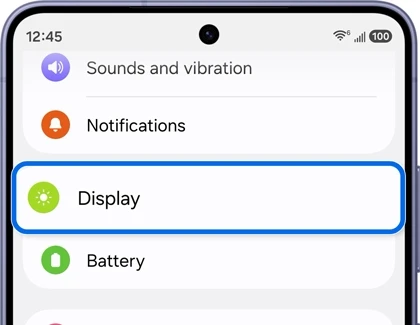
You can also search Settings for Motion smoothness, as documented in Samsung's refresh-rate instructions. This helps you find the feature without relying on a menu position from a different phone.
What's the difference between Adaptive, High and Standard?
Adaptive changes the refresh rate with what's on screen, up to 120 Hz. High locks the screen at a fast rate: 120 Hz on some devices and 90 Hz on others, such as the Galaxy A16 5G. Standard is the battery choice, and Samsung's newest Galaxy S26 reference describes it as adjusting automatically up to 60 Hz.
Your Galaxy may show only some of these, so read the description beside each option. It tells you as much as the name does.
| Option | What Samsung documents |
|---|---|
| Standard | The current S26 reference says the rate adjusts automatically up to 60 Hz |
| Adaptive | Adjusts dynamically up to 120 Hz on supported devices |
| High | Locks some devices at 120 Hz, and others such as the Galaxy A16 5G at 90 Hz |
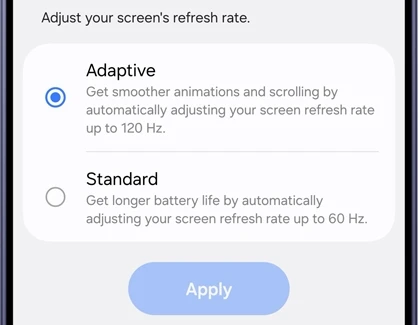
Adaptive is therefore different from forcing the screen to remain at its highest rate every moment. Samsung describes it as changing with the situation. Standard's lower ceiling is the battery-oriented choice in the current reference.
If your phone offers High instead of Adaptive, use the description beside that choice to identify the supported rate. A guide showing 120 Hz on one model doesn't create that option on a different Galaxy.
Choose according to what you want to change
For smoother scrolling and animations, compare an available higher-rate option with Standard. Open the same app and scroll through the same sort of content after changing the setting. Keeping the app and content similar makes the comparison easier to judge.
If battery use matters more for your next session, Standard is the option Samsung identifies for longer battery life. The source doesn't establish a fixed number of extra hours for your phone. Your use of apps and other settings still matters to the result.
Save the choice before leaving the page, then inspect the behavior you wanted to change. Don't judge an un-applied preview as though it were the saved setting.
Check Power saving if the choice is restricted
Samsung's refresh-rate FAQ says Power saving can set the screen to Standard. Its software-update support instructions also document a Set Motion smoothness to Standard option inside Power saving on supported software.
You'll find it at Settings > Battery > Power saving.
- Open Settings and select Battery.
- Review Power saving.
- If your menu offers Set Motion smoothness to Standard, check whether it is enabled.
- Decide whether to keep that battery-saving restriction or change it for your comparison.
- Return to Motion smoothness and inspect the available choices.
Use the controls present on your installed version. You don't need to turn off unrelated battery-saving options simply because another guide starts with disabling the whole mode.
Keep refresh rate separate from resolution
Samsung lists Screen resolution separately, at Settings > Display > Screen resolution. Resolution changes the image dimensions; Motion smoothness controls the screen's refresh behavior. Check which one you are changing before copying a setting from a screenshot.
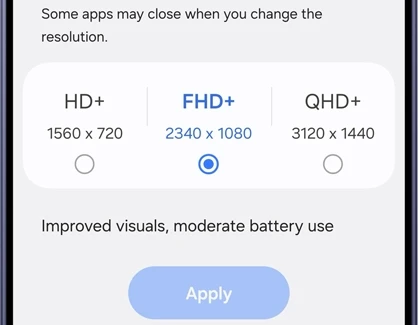
The two can interact, though. Samsung's refresh-rate FAQ says some devices don't support 120 Hz at WQHD+ resolution and switch to Standard automatically when you choose it. That depends on the model, so check what your Galaxy offers before lowering the resolution.
Likewise, increasing text size is another task. Our font size and screen zoom instructions cover those readability controls without confusing them with a display refresh limit.
FAQ
Does choosing 120 Hz make every game run at 120 FPS?
Samsung documents individual-game FPS choices separately from Motion smoothness. Our Game Booster settings guide explains those controls and the example values in Samsung's reference. A display setting alone isn't evidence that a particular game rendered that many frames.
What if Motion smoothness isn't offered?
Samsung explicitly says some models don't have this option. Tell me the exact Galaxy model and One UI version, plus the choices you see under Display. That information helps distinguish a supported menu difference from a restriction such as Power saving.
Was this guide helpful?
Your answer helps us keep it accurate.
Comments (0)
Comments are moderated, and published only if they are relevant to the topic and add value in a constructive way. If you disagree with something, please be polite and respectful.