
You can resize Samsung Keyboard without installing a customization module. Open Settings > General management > Samsung Keyboard settings > Size and transparency, adjust the handles and tap Done. For a one-handed, floating or standard layout, use Mode in the same keyboard settings.
Making the whole keyboard larger is different from changing individual keys. I'll help you choose the native control for the way you type, then explain when Keys Cafe becomes relevant.
Choose a keyboard mode before adjusting its size
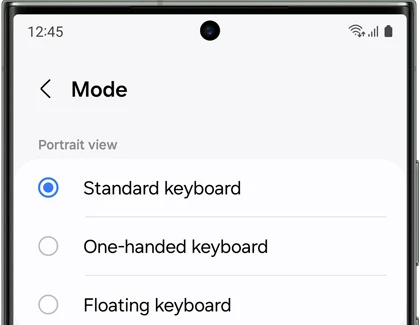
Samsung's US keyboard instructions describe separate modes for different screen arrangements. The available choices depend on your model, software and the screen you are using.
| Mode | What it does | When to consider it |
|---|---|---|
| Standard keyboard | Uses the normal keyboard across the screen | You type with both hands and want the usual arrangement |
| One-handed keyboard | Shifts the keyboard to one side | You want the keys closer to one thumb |
| Floating keyboard | Shows a smaller movable keyboard window | You want to position the keyboard separately from the screen's bottom edge |
| Split keyboard, where supported | Separates the keyboard into two sections | You use a wider screen or a supported horizontal layout |
Choose the arrangement first because the size you prefer can depend on that choice. Someone typing with one thumb may want the keyboard shifted sideways; someone holding a tablet with two hands may prefer a split arrangement rather than simply shrinking every key.
Switch between standard, one-handed and floating
- Open Settings and select General management.
- Tap Samsung Keyboard settings.
- Open Mode.
- Select a mode offered for the current view.
- Open a text field to check the resulting keyboard.
Samsung Canada's phone guide documents that One-handed keyboard initially shifts to the right. Tap the keyboard's left-pointing button to move it to the left when that better suits your grip.
Check the same text field after changing the mode. That gives you a direct comparison of the amount of screen covered and how easily you reach the keys. You can return to Standard keyboard if the smaller arrangement makes typing less comfortable.
Resize and reposition the keyboard
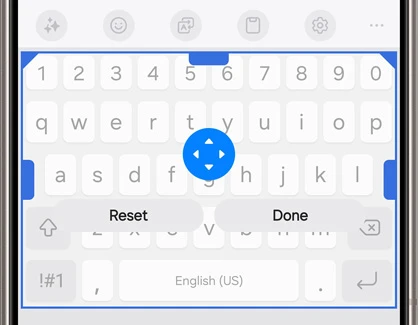
Size and transparency handles the keyboard's overall dimensions. Samsung's US procedure shows draggable edge handles, a central movement control and a Done button. These controls change the keyboard area instead of redesigning its individual letter arrangement.
- Go back to Samsung Keyboard settings.
- Open Size and transparency.
- Drag the handles to adjust the keyboard boundaries.
- Use the movement control in the center to reposition it as needed.
- Tap Done when the placement suits you.
Make a modest change and type a short, nonprivate sentence before adjusting it further. Notice whether you can reach the corner keys and whether the keyboard covers information you need to see. That is a more useful comparison than choosing the smallest possible size for every app.
The floating keyboard has another relevant option on tablets: Samsung's tablet keyboard guide says transparency can be adjusted when the floating keyboard is in use. It also documents a separate keyboard Font size setting for letters, numbers and symbols. Use the options actually offered on your tablet rather than assuming the phone's menu is identical.
Return to the original size without erasing predictions
The Reset button inside Size and transparency returns the keyboard to its original size, according to Samsung's resizing procedure. Use that local control if the geometry is the only thing you want to undo.
Reset to default settings is a different keyboard menu. Samsung lists separate actions there, including Reset keyboard settings, Erase personalized predictions and Erase personalized touch recognition data. Erasing personalized predictions removes learned words, so don't choose that action just to make the keyboard wider.
After restoring the size, review Mode separately if the keyboard still floats or sits to one side. Size and arrangement are different choices. Returning to Standard keyboard addresses the mode, while the local Reset addresses the dimensions.
When individual key changes need Keys Cafe
Samsung's Good Lock directory describes Keys Cafe as a tool for adding, deleting and rearranging keys, adjusting individual key sizes and applying keyboard styles. That is a different level of control from resizing the whole native keyboard.
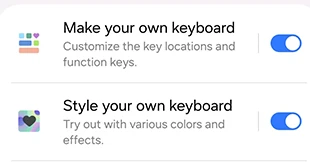
If your goal is simply to reach the keys more easily, try the native mode and size controls first. If you want to change where a particular key sits or how wide it is, inspect the layout options offered by Keys Cafe on your supported device.
For changing the colors of menus and supported app icons, our Color palette guide covers that separate interface setting. For using a larger screen with two apps, our split-screen and app-pair instructions explain the workspace arrangement.
FAQ
Do these instructions change another keyboard such as Gboard?
Samsung's procedure applies to Samsung Keyboard. Check which keyboard appears in your text field before changing its settings. A different keyboard has its own controls, so changing Samsung Keyboard's size won't configure that other app.
Which details help if the keyboard arrangement still feels wrong?
Tell me your Galaxy model, One UI version, selected mode and whether you are typing on a phone, tablet or a foldable's inner screen. Mention whether the problem is key size, placement or the space the keyboard covers. That helps identify the right control.
Was this guide helpful?
Your answer helps us keep it accurate.
Comments (0)
Comments are moderated, and published only if they are relevant to the topic and add value in a constructive way. If you disagree with something, please be polite and respectful.