
For unwanted touches while your Samsung Galaxy is in a pocket or bag, enable Settings > Display > Accidental touch protection. If the screen remains too sensitive, review the separate Touch sensitivity switch. For contact from your grip while using the phone, Edge Touch offers another kind of control on supported devices.
Each of these fixes a different kind of unwanted touch. I'll help you pick the one that matches what your phone actually does, so you don't end up switching on every option with touch in its name.
Match the setting to the unwanted input
Samsung Canada's accidental-touch guide describes protection for dark places such as pockets and bags. That is different from adjusting how a screen responds through a screen protector or choosing an edge zone in Good Lock.
| Control | Relevant situation | Where to look |
|---|---|---|
| Accidental touch protection | Unwanted input while the phone is tucked away in a dark place | Display settings |
| Touch sensitivity | Screen responsiveness, including use with screen protectors | Display settings |
| Edge Touch | Input around selected screen edges during use | The supported Good Lock module |
For example, a phone waking inside a bag and a thumb brushing a game control while you hold it are different observations. Note when the input occurs and whether the display was already in use. That tells you which comparison to make first.
Enable pocket touch protection
- Open Settings on the Galaxy phone.
- Tap Display.
- Find Accidental touch protection.
- Enable its switch.
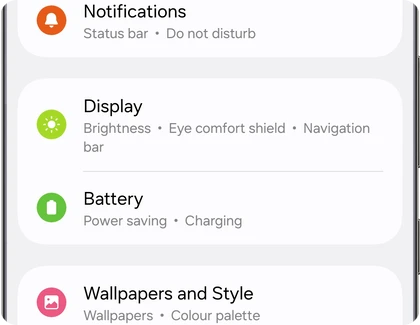
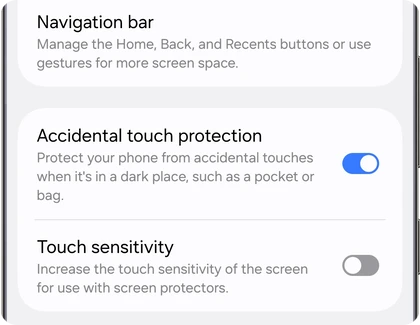
Samsung Canada says this switch is on by default on most Galaxy phones, and its steps cover turning it off too. Look at the actual state on yours, because screens and settings vary by country and carrier.
When you need to use the phone in a very dark place, Samsung says the protection overlay can be dismissed by swiping its Lock icon left or right. This dismisses that touch-protection screen; it isn't a reason to remove your normal credential-based screen lock.
Review Touch sensitivity as a separate choice
Samsung's reference describes Touch sensitivity as increasing screen sensitivity for use with screen protectors. It is shown below Accidental touch protection, but the two switches have different jobs.
Samsung's US pocket-wake instructions suggest disabling Touch sensitivity if the display is still too sensitive. The documented path is Settings > Display > Touch sensitivity.
If you compare its on and off states, pay attention to intentional taps as well as the unwanted input. A useful setting is one that still lets you type and tap normally. Avoid changing the protector-related sensitivity and an edge-zone profile together, because you would then have two different changes to evaluate.
Keep a note of the original switch state before the comparison. That makes it straightforward to return to the configuration you preferred if the change makes normal input less comfortable.
Why does the screen still light up in your pocket?
Samsung Canada calls it expected behavior. Even with Accidental touch protection on, the screen may light up briefly when it senses movement or contact, and that is what lets Lift to wake and Double tap work. Samsung's US instructions list both gestures under Settings > Advanced features > Motions and gestures.
So if the screen wakes when you lift or tap the phone, turn off that one gesture and see if the problem stops. Toggling pocket protection again won't change it.
Our double-tap display guide explains the wake and screen-off switches in more detail. Our screen timeout and security-delay guide covers the separate question of when a dark screen requires credentials again.
Use Edge Touch for an edge-zone problem
Samsung's current Good Lock directory describes Edge Touch as a module for managing edge zones. It specifically identifies a grip zone that ignores long presses and separate edge-zone management for horizontal use.
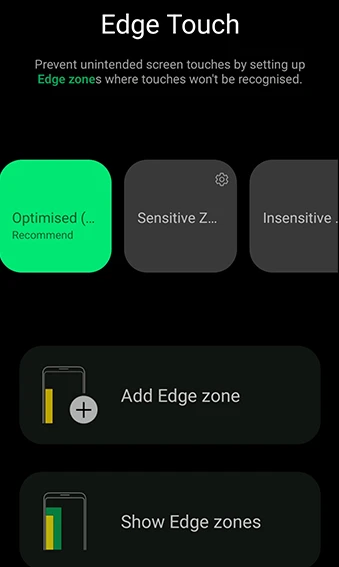
Open Edge Touch from Good Lock and tap Show Edge zones if the option is available. Look at the highlighted areas before changing the profile. If your palm presses and holds the side while you read, start by looking at the grip zone. A blocked zone is the area where the app ignores touch input. Samsung identifies the grip zone specifically with long presses. See Samsung Hong Kong’s explanation of the presets and zones.
Set a smaller zone and compare how it feels
- In Edge Touch, note the profile you are using.
- Tap Add Edge zone and adjust the grip and blocked areas in portrait.
- Review the horizontal areas as a separate choice. Your hands rest in a different place when you turn the phone sideways.
- Name the zone and check the active profile before testing it.
Samsung Singapore’s illustrated Edge Touch instructions show both orientations and the naming step. I would try a small change and repeat the same action that caused trouble. If you adjusted the edge near your keyboard, try the outer keys. If you changed the zone for horizontal use for a game, try its controls near that edge.
If an intentional tap becomes harder to make, switch back to your previous profile. Samsung Hong Kong labels the original preset Optimized (Default). You can select that preset to compare against the default without changing the separate Touch sensitivity switch.
FAQ
Is Edge Touch the same as the Edge panel?
Edge Touch manages touch zones. The panel used to open apps from the side is another feature. Identify which control you want to change before configuring a touch-rejection area around the place where you normally begin a side gesture.
What information helps with repeated accidental actions?
Tell me your Galaxy model, One UI version and whether the event happens inside a pocket, when lifting the phone or while holding its edges. Include the two Display switch states and any Edge Touch profile in use. Describe one repeatable situation so we can compare the relevant setting.
Was this guide helpful?
Your answer helps us keep it accurate.
Comments (0)
Comments are moderated, and published only if they are relevant to the topic and add value in a constructive way. If you disagree with something, please be polite and respectful.