
To adjust Samsung Game Booster, open Settings > Advanced features > Game Booster settings when that entry is available. You can also open it from Gaming Hub's menu or the settings icon on the in-game Game Booster panel. Choose a general optimization profile, or review supported individual-game controls.
You don't need the separate Game Booster+ plugin for any of this. I'll show you where the built-in settings live, what the profile labels mean and how to save a change for just one game. If the settings page refuses to open after One UI 8.5, there's a fix for that below too.
Find the current Game Booster entry
Samsung's US Game Booster access instructions document three routes: the device's Advanced features menu, the settings icon during gameplay and Gaming Hub's More options menu followed by Game Booster.
- Open Settings and select Advanced features.
- Look for Game Booster settings.
- If your layout uses Gaming Hub, open that app, open More options and select Game Booster.
- During a supported game, you can instead open the Game Booster panel and use its settings icon.
Choose the route your installed software offers. A missing entry in one location doesn't require installing a different plugin before checking the other documented route.
Samsung's Gaming Hub guide distinguishes the two built-in apps: Gaming Hub organizes the games, while Game Booster supplies gaming controls. Samsung also notes that Game Booster may not be available for every game.
Can't open Game Booster settings after One UI 8.5?
Samsung's US support page says that after updating a Galaxy phone or tablet to One UI 8.5, you may not be able to open the Game Booster settings menu because of a screenshot format compatibility problem. Its fix is to reset the Game Booster app and then update it from the Galaxy Store.
Resetting clears Game Booster's data, which returns it to factory settings and removes your custom game settings. Note your per-game choices before you start.
- Open Settings and tap Apps.
- Tap the Filter and sort icon, turn on Show system apps and tap OK.
- Find Game Booster in the list and tap it.
- Tap Storage, then Clear data, and confirm with Delete.
- Open the Galaxy Store, tap Menu in the bottom right corner and tap Updates to check for a Game Booster update.
Then try one of the three routes above again.
Choose a general optimization profile
In Game Booster settings, look for Game optimization. Samsung's US guide names Performance, Standard and Battery saver as the general profile choices. Select the option offered on your device that matches your goal.
For example, someone trying to conserve battery during a trip has a different priority from someone comparing a demanding game's graphics. Samsung says battery efficiency varies by game. There isn't a supported promise here that choosing Performance will deliver a particular frame rate or remove every slowdown.
Record the profile you started with and compare the same game after making one change. Keep the game's own graphics choices consistent during that comparison. Otherwise, you would be trying to judge two changed configurations at once.
Configure an individual game
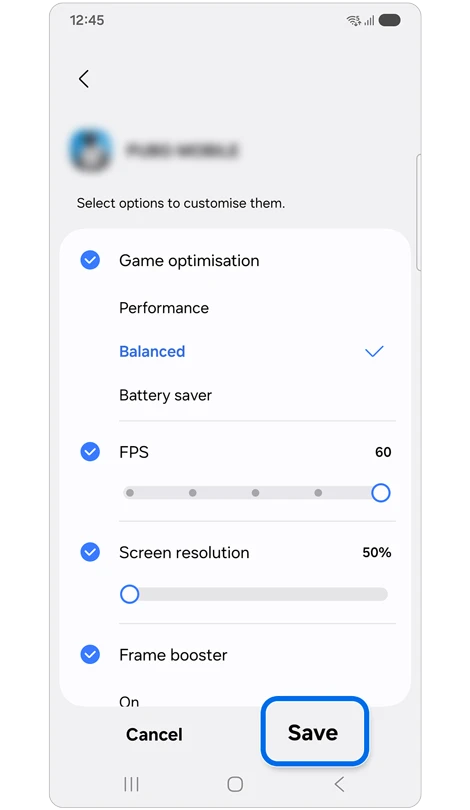
Samsung's Philippines gaming-settings guide documents Customizations for individual games. On supported software, this offers separate optimization, FPS, resolution and frame booster choices for the game you select.
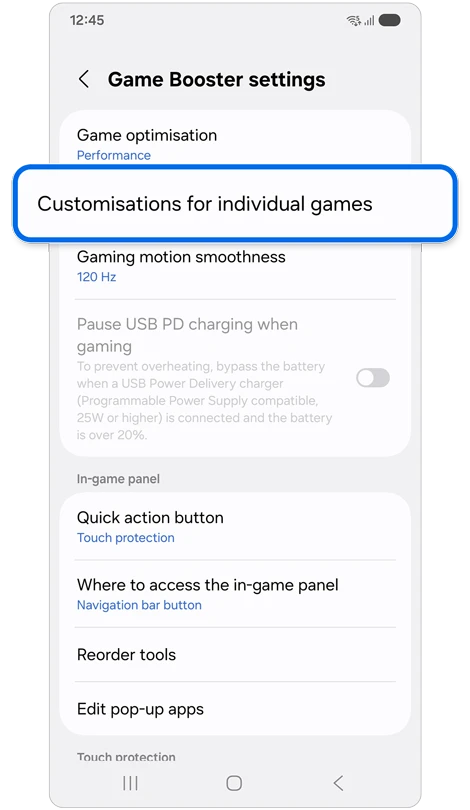
- Open Game Booster settings.
- Select Customizations for individual games if your device offers it.
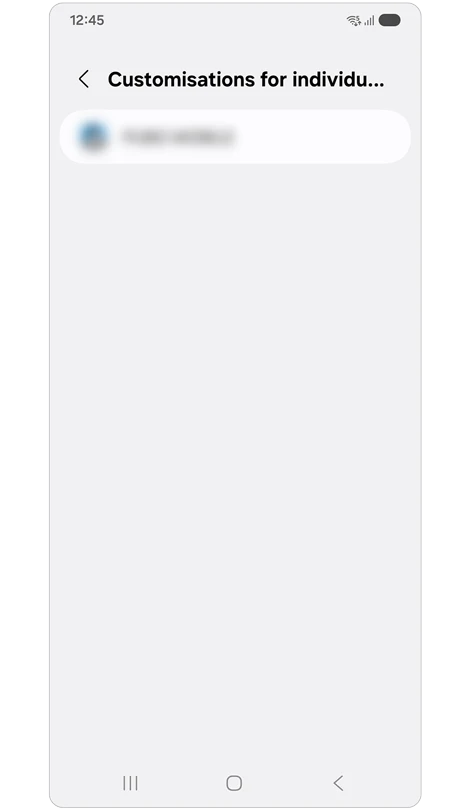
- Choose the game from the list.
- Review the available options and make the change you want to compare.
- Tap Save.
Keep the selected game in mind when returning to the settings later. A change saved for one title should be evaluated in that title, rather than assumed to apply to every game you open.
Read the per-game controls without copying the example
The individual-game page in Samsung's illustration uses the profile label Balanced, while the US general-profile instructions use Standard. Read the labels on the page you actually opened. The references are showing different settings views rather than one universal list of identical text.
| Control | What to review |
|---|---|
| Game optimization | The profile selected for this game |
| FPS | The frame-rate setting offered for the selected title |
| Screen resolution | The resolution choice you want to compare |
| Frame booster | Whether this additional option is offered and enabled |
The displayed 60 FPS and 50% resolution in Samsung's picture belong to its example. They aren't a specification for your Galaxy or evidence that a game reached 60 frames per second. Begin with your existing values, change one relevant control and judge the result in the game.
Use the in-game panel for controls you need while playing
The in-game panel has its own shortcuts. Samsung's current US guide lists Screenshot, Record, Touch protection, System monitor and controls for blocking navigation buttons or the Edge panel. Open the Game Booster panel during a supported game and use the shortcut for the action you want.
If an edge control stops responding, inspect whether a game-panel block is enabled before changing a phone-wide touch setting. Our touch protection comparison explains the separate Display and Edge Touch controls.
Notification handling has its own setup too. Samsung's Philippines instructions place the gaming Do not disturb setup in Settings > Modes and Routines > Game. Review that Game mode's conditions and actions rather than looking only for an older Priority mode label.
FAQ
Is Game Booster+ required for these controls?
These steps concern Samsung's built-in Game Booster controls. Samsung lists Game Booster+ separately in Good Lock. Check a plugin's current features on your device before following instructions for an older version; similarly named gaming tools don't make every control interchangeable.
How do I review app updates before comparing settings?
Our Galaxy Store and Play Store update guide explains checking both app queues. For a specific question, tell me your Galaxy model, One UI version, game name and the Game Booster page you opened. Include the chosen profile without assuming another phone offers the same options.
Was this guide helpful?
Your answer helps us keep it accurate.
Comments (0)
Comments are moderated, and published only if they are relevant to the topic and add value in a constructive way. If you disagree with something, please be polite and respectful.