
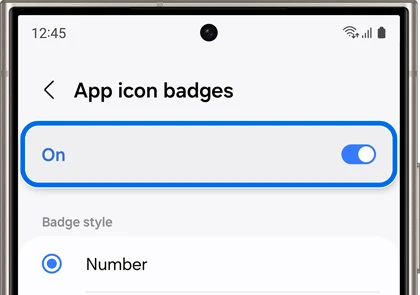
To change Samsung app icon badges, touch and hold an empty part of the Home screen, open Settings and select App icon badges. Enable the feature, then choose Number or Dot. The badge reflects notification information from an app; it isn't a separate check of everything unread inside that app.
There's more. You can also have a quick preview pop up when you hold an app icon. I'll walk you through both and show you which other notification controls are worth keeping separate.
Find the badge setting on your Galaxy
Samsung's One UI Home instructions document the Home screen route. The setting controls the small badge on an app's launcher icon.
- Touch and hold an empty area of the Home screen.
- Tap Settings.
- Open App icon badges.
- Enable the switch at the top.
- Select Number or Dot.
Samsung's app-notification guide also documents Settings > Notifications > Advanced settings > App icon badges. Use the route your software offers, or search Settings for the exact setting name rather than assuming every model has an identical menu location.
Choose a number or a dot
| Style | What you get | When it may suit you |
|---|---|---|
| Number | A numeric badge using the app's notification information | You want a visible count to help identify apps needing attention |
| Dot | A small indicator without a displayed number | You want a notification reminder with less visual detail |
The choice is about how the badge appears. You can prefer a dot while keeping the app's normal alerts enabled. There is no need to block all notifications simply because you don't want a number on the icon.
Try the selected style with an app that receives a new, nonprivate notification. Look at both the icon and the notification panel. Comparing those two views helps you understand what the badge represents on that app.
Why doesn't the badge number match your unread messages?
A badge follows the app's active notifications, not its inbox. Android's badge documentation says a badge appears when an app has an active notification, and an app can supply its own count, such as one notification that stands for several new messages. Clearing that alert can remove the badge while the messages stay unread.
Badges have been part of Android since Android 8.0, where Google's documentation calls them notification dots. When you need the real unread total, open the app itself.
For alerts you dismissed, our notification history guide explains the separate record available after that feature is enabled. History and an active icon badge serve different purposes; one isn't a permanent replacement for the other.
Preview notifications by holding the app icon
On the App icon badges page, Samsung documents a Notifications on app icons switch. Enable it if you want to touch and hold an icon to preview its notifications in a pop-up.
- Open App icon badges.
- Find Notifications on app icons.
- Enable the switch if you want the preview.
- Return to Home or the Apps screen and hold an icon that has a current notification.
Samsung's One UI Home guide also describes removing a notification from this preview with its trash-shaped Remove control. Read what you are removing: this is a notification action, rather than a command to uninstall the app.
Check the app's notification permission separately
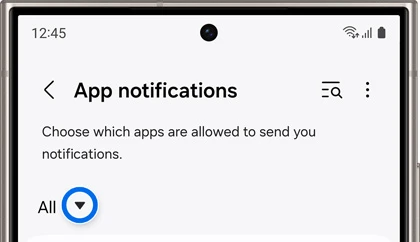
The global badge style and an app's permission to notify are different controls. Samsung's notification guide places the app list at Settings > Notifications > App notifications. Review the intended app there if you're comparing a badge with the alerts it is allowed to send.
Some apps also provide notification categories. Samsung documents enabling Manage notification categories for each app under Notifications > Advanced settings before reviewing those categories. Not every app offers the same categories.
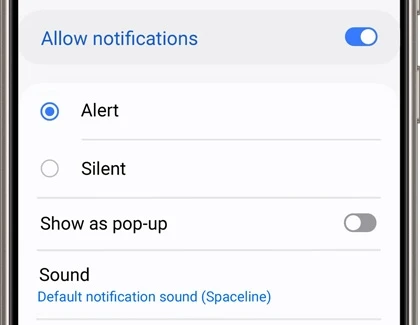
Keep those controls matched to your goal. Changing an alert's sound or blocking a category is a different decision from choosing a dot. Android's documentation also allows apps to disable badging for a notification channel, so a global On switch doesn't force every kind of alert to display a badge.
FAQ
Will turning badges on restore a hidden app icon?
Hiding an app icon is a separate launcher setting. Our hidden-app guide explains restoring that icon. First distinguish an absent icon from an icon that is visible but has no notification badge.
Which details help if the badge count seems wrong?
Tell me your Galaxy model, One UI version, launcher and the app involved. Include the chosen badge style and whether you cleared the app's notifications. Compare the count before and after a new alert without posting private message contents, so we can identify the relevant behavior.
Was this guide helpful?
Your answer helps us keep it accurate.
Comments (0)
Comments are moderated, and published only if they are relevant to the topic and add value in a constructive way. If you disagree with something, please be polite and respectful.