
To turn off Safe mode on a Samsung Galaxy, open the power menu and tap Restart. You can also open the notification panel, tap Safe mode is on, and then tap Turn off. Check that the Safe mode label at the bottom left is gone when your Galaxy starts again. Samsung US Safe mode instructions
If you came here to test an app problem, open the power menu, touch and hold Power off, and tap Safe mode. I will show you the startup-button method too. Both methods give you a way to try the same task with downloaded apps temporarily disabled.
Record the symptom and your Home screen first
Pick something specific to check, such as a menu freezing when you open it or an unexpected restart during a repeatable task. Write down what you do immediately before it happens. That gives you the same action to try after entering Safe mode.
Before restarting, take screenshots of any Home screen widgets and appearance settings you want to restore. Google's Safe mode guidance says some widgets are removed, and Samsung warns that some customizations, including wallpaper and themes, may return to defaults when you leave.
Also save information you need from an app before deciding to remove it. Our Galaxy backup guide explains the available backup routes. Entering the diagnostic mode and choosing to uninstall an app afterward are separate actions.
Start Safe mode from the power menu
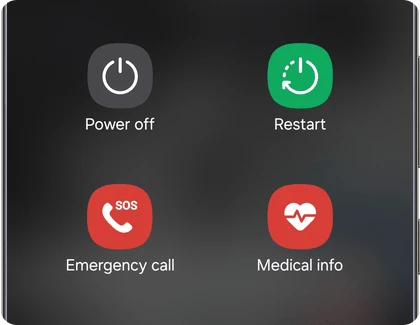
Use this method when your phone is already running and you can operate its screen. Samsung documents opening the power menu with Side and Volume down, or with the Power icon in Quick settings.
- Press and hold Side and Volume down together until the power menu opens. Alternatively, open Quick settings and tap its Power icon.
- Touch and hold Power off. A normal tap follows the ordinary shutdown route, so keep holding this on-screen control.
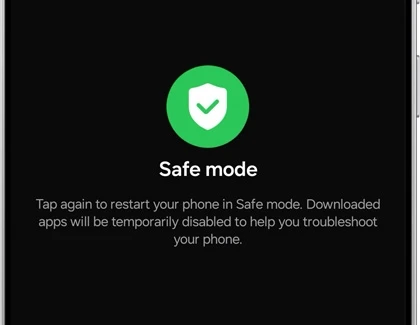
- When Safe mode appears, tap it to restart into that mode.
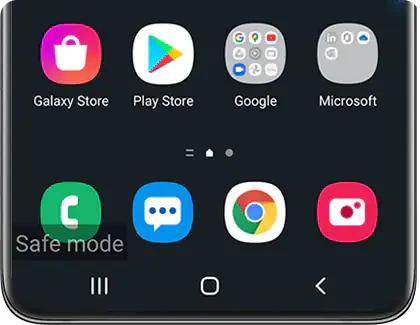
- Wait for the phone to finish starting, then check the lower-left corner for the Safe mode label.
If holding the Side button by itself opens an assistant, use the two-button combination or Quick settings instead. Our Side button settings guide explains the separate long-press assignment; you do not have to remap it to complete this restart.
Use the startup buttons when the phone is off
Samsung also provides a method that begins with the phone or tablet completely powered off. The timing of Volume down matters here: its instructions say to hold that button when the Samsung logo appears.
- Turn off the Galaxy completely.
- Turn the device on.
- When you see the Samsung logo, press and hold Volume down.
- Keep it held as the device starts, then check for Safe mode at the bottom left.
If the label is absent, Samsung says to repeat the startup steps. Check that you used Volume down at the logo stage before treating a normal startup as a Safe mode result.
Make a comparison before removing apps
Try the action you recorded before restarting, using the parts of the phone that remain available. Samsung describes Safe mode as running without third-party apps. A downloaded app being unavailable in this mode is part of the diagnostic setup, rather than another crash to investigate.
If your usual problem no longer happens, Google says a downloaded app is likely involved. Samsung recommends beginning with apps installed or updated around the time the issue started. Use that timing to make a short candidate list.
The result narrows the next check, but it does not name a particular app. I would record the action and outcome before changing the app list, so you can distinguish the Safe mode comparison from the later result after a removal.
If the symptom persists, keep that result too. Describe what still fails with downloaded apps disabled, rather than continuing to remove unrelated apps. Samsung's Canadian guide explains the mode as a way to compare core system behavior with downloaded-app behavior.
Leave Safe mode and check one app at a time
Use Restart or the Safe mode notification to return to normal startup. Once the label disappears, the downloaded apps can run again. If the same problem comes back, check one app from the list you made.
- Choose one recently installed or updated app from your candidate list.
- Save anything you need from it before removal.
- Open Settings > Apps, select the app, and tap Uninstall if you decide to remove it. Then restart normally.
- Repeat the original task and record whether the symptom returns.
- Move to another candidate only if you still need to investigate.
Samsung India shows where to uninstall an app. Google recommends this one-by-one approach and checking after each restart. Removing several apps together may change the behavior, but it leaves you with a weaker explanation of which removal mattered. Once you identify the relevant app, you can reinstall other apps you removed during the check.
If Safe mode returns after every restart
Take off the case and restart with your fingers clear of Volume down. Samsung uses that button during startup to enter Safe mode, so check whether it stays pressed or feels stuck. A case or debris around a button can interfere with it. Compare how Volume down and Volume up feel before putting the case back on. Samsung’s button troubleshooting guide
If you can get back into normal mode, open Samsung Members > Support > Phone diagnostics and look for Buttons. Samsung documents that test for checking the hardware keys. If the label keeps coming back with the case off, tell Samsung which restart method you tried and whether Volume down responds normally.
If the phone keeps restarting before you can reach the lock screen, use Samsung’s startup and boot loop guide. That symptom needs a different check from a phone that starts and shows the Safe mode label.
FAQ
Is Safe mode the same as a factory reset?
No. Samsung's restart prompt describes downloaded apps being temporarily disabled for troubleshooting. A factory reset is a different operation. In this guide, the separate action to consider carefully is removing an app after you have collected the comparison.
What details help when Safe mode never starts?
Let me know your Galaxy model, the last screen you can reach, and which entry method you tried. Say whether the Safe mode label ever appeared, along with the original symptom you wanted to check.
Was this guide helpful?
Your answer helps us keep it accurate.


Comments (0)
Comments are moderated, and published only if they are relevant to the topic and add value in a constructive way. If you disagree with something, please be polite and respectful.