
On a supported Samsung Galaxy, start call recording in the Samsung Phone app and find the audio later under Phone > Settings > Record calls > Recorded calls. The recording control differs by software and region: Samsung's US instructions show a Record icon, while its Saudi instructions use More options > Record call.
I'll take you through both documented routes, then show you how to find and share the audio. Check the recording and consent requirements that apply to your call before starting. Samsung notes that availability depends on your region, model and One UI version in its Saudi support guide.
Start and stop a recording during the call
Use the Samsung Phone app for these instructions. Samsung's US call-recording guide documents the built-in feature on phones updated to One UI 7.0 or higher. That regional description is useful when comparing controls, but you should still check what your own Phone app offers.
- Open Phone and make a call, or answer an incoming call.
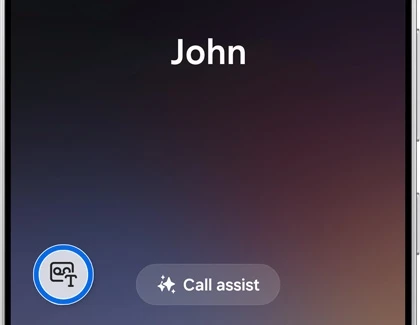
- During the call, look for Record. In Samsung's US reference, it is the recording icon to the left of Call assist. You may need to tap More first.
- If your interface follows the Saudi support instructions, open the three-dot More options menu and select Record call instead.
- Tap the recording control to begin, after everyone has agreed to the recording as required.
- On the US flow, tap Record again when you want to stop recording while continuing the conversation.
- End the call with the red phone button when you are finished. Samsung says an ongoing recording also stops when the call ends.
On the US implementation, participants hear an audio notice when recording starts and stops. Samsung specifically warns that people added later to a group call are not notified by that announcement. Tell those new participants yourself before including their conversation in the recording.
Find the saved audio after the call
The recent-call log and the saved audio are different views. Samsung's US instructions identify a recorded call in Recents with a small microphone icon. Open the call entry and tap that icon to reach playback.
For the recording-file list, use the following route. Both regional support pages document it:
- Open the Samsung Phone app.
- Tap the three-dot More options menu, then Settings.
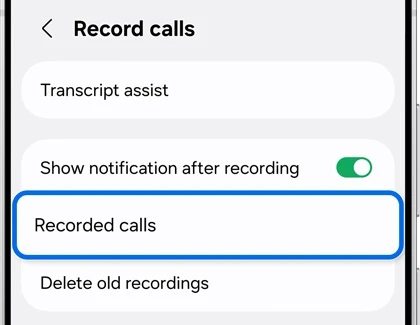
- Choose Record calls.
- Tap Recorded calls.
- Select the recording you want to hear and use its playback control.
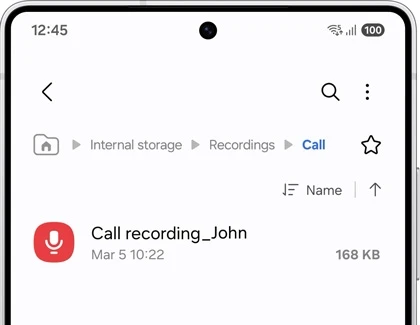
Samsung's file-browser example shows Internal storage > Recordings > Call. Use the Recorded calls shortcut first if you are unsure where your software stores the files. It takes you from the relevant Phone setting into the recording list, without searching unrelated Downloads folders.
Share the audio file you intended to send
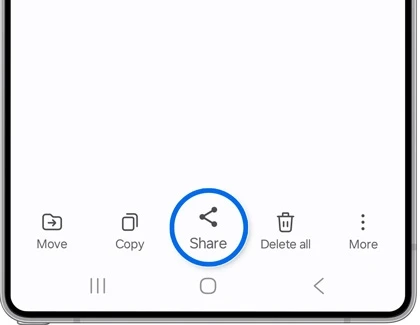
Listen to the recording before selecting it. Then check the selection count, especially if you have several recordings with similar names. Samsung documents sharing through the Phone app's Recorded calls list as follows:
- Touch and hold the recording file to select it.
- Select additional files only if you also intend to send them.
- Tap Share at the bottom.
- Choose the receiving app or sharing method.
- Check the recipient and complete that app's Send or Share action.
Samsung also provides access through Voice Recorder. In that app, the sharing choices may include Voice file, Text file, or Voice and text files, depending on the supported features. Choose Voice file when you want to send the audio itself.
If you are sending it to a nearby Android device, our Quick Share instructions explain recipient visibility and transfer approval. A recorded conversation deserves the same careful recipient check as any other private file.
Set automatic recording only where it is offered
Samsung's Saudi guide documents an Auto record calls option. The US page used above describes manual recording, so do not expect the same automatic-recording switch on every device.
Where available, open Phone > More options > Settings > Record calls > Auto record calls. Turn on the control, read the displayed terms and confirm only if you agree. Then choose the scope you want.
The documented choices are All calls, Unsaved numbers and Specific numbers. Read that selection carefully: recording every call is a broader choice than recording calls from selected numbers. Recheck the setting if your intention is to keep only a particular kind of conversation.
Manage recordings you no longer need
Samsung's US guide places Delete old recordings on the Record calls settings screen. Open that control and select the recordings you want to remove. Review the file names before confirming the deletion.
If you want a separate protected space for files you keep, our Secure Folder setup guide explains how its file storage works. Make a deliberate choice about what you retain and where you share it, rather than letting automatic recording build a collection you never review.
FAQ
Why is Record calls missing from my Phone settings?
Samsung says availability varies with the region, model and software. Check those details and confirm that you are using Samsung Phone. A menu shown on another region's device is not a promise that your device has the same recording feature.
Does every recorded call include a text transcript?
No. Samsung's US guide lists the Galaxy A56 5G, A36 5G, A26 5G and A17 5G as models without call transcription. Audio recording and text features have different support limits, so check the saved audio separately if you cannot find a transcript.
Which information should I include if my controls differ?
Tell me your Galaxy model, country, One UI version and the exact Phone menu you see. Also say whether you are trying to start recording, find the audio or share it, so I can help with that particular step.
Was this guide helpful?
Your answer helps us keep it accurate.


Comments (0)
Comments are moderated, and published only if they are relevant to the topic and add value in a constructive way. If you disagree with something, please be polite and respectful.