
If the Google Play system update is stuck on your Samsung Galaxy, start by restarting your phone and checking the update screen again. I’ll show you where to find it, which checks are worth trying, and when an older date needs further investigation.
First, make sure you’re checking the right update. The Google Play system update, the Play Store app, and Samsung’s software update have separate screens. Google’s update guide distinguishes the Android security update from the Google Play system update.
Where do you check the Google Play system update on Samsung?
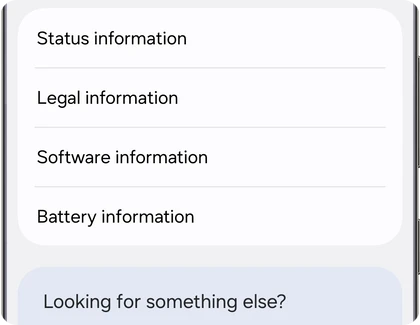
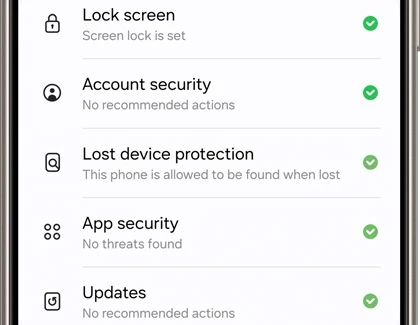
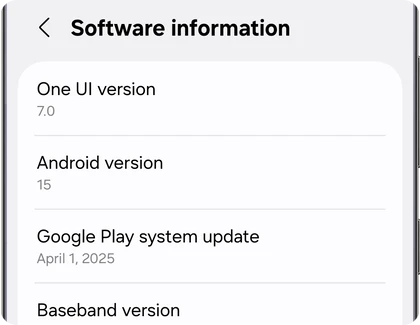
On a Samsung Galaxy, open Settings > About phone > Software information > Google Play system update. Follow any download or restart prompt. Samsung documents this path in its app troubleshooting guide. You can also look under Security and privacy > Updates, depending on your software.
- Open Settings.
- Tap About phone, or About tablet on a Galaxy Tab.
- Tap Software information.
- Tap Google Play system update.
- Install an available update and restart if the screen asks you to.
For example, if you’re looking for this on a Galaxy S24, use the Google Play system update entry rather than Download and install under Software update. Samsung’s security settings guide also shows the alternative route through Security and privacy > Updates.
What should you try if it won’t update?
Restart your Galaxy, reconnect to Wi-Fi, and check the Google Play system update screen again. If a download reports insufficient space, free up storage before retrying. These are sensible first checks from Google’s update troubleshooting instructions. They don’t guarantee that a newer update is available for your phone.
- Restart the phone normally.
- Connect to a working Wi-Fi network.
- Open the Google Play system update screen again.
- If it offers a download, follow the prompts and complete the requested restart.
- If you see a storage warning, deal with that warning before trying again.
I would write down the exact message at this point. An update that says you’re up to date is a different problem from a download that fails or repeatedly asks you to restart.
Is this the same as your Samsung security patch?
No. Your Samsung security patch and Google Play system update are separate update entries. Samsung puts the Android security patch level and other software details under Software information, while Google lists Android security and Google Play system status separately in its Android version guide. Compare the labels before comparing dates.
| What you’re checking | Where to start |
|---|---|
| Samsung software update | Settings > Software update |
| Google Play system update | Settings > About phone > Software information |
| Play Store app version | Google Play Store > profile picture > Settings > About |
The last entry is the store app itself. Google explains how to update the Play Store from its About screen. Updating it doesn’t, by itself, confirm that the Google Play system date has changed.
If you’re checking Samsung’s patch date as well, our Galaxy security patch guide covers that separately.
Should you factory reset the phone to fix it?
I wouldn’t reset the whole phone just because the Google Play system date looks old. First check whether the screen actually offers an update, record any error, and finish the basic connection and restart checks above.
If you’re still stuck, contact Samsung or Google with those details before choosing a step that erases your data. Make a separate backup before any reset.
What information should you include when asking for help?
Include your Galaxy model, One UI version, Google Play system update date, and the exact error or restart behavior. Add whether you’re using beta software. These details make it easier to distinguish an unavailable update from an installation problem without guessing from the month shown on the screen.
To check your One UI version, open Settings > About phone > Software information. Samsung documents the same version check in its One UI support instructions.
That’s it. If yours still won’t update, leave your model number, One UI version, and the message you’re seeing. I’ll help you work out which part needs checking.
Was this guide helpful?
Your answer helps us keep it accurate.
Comments (0)
Comments are moderated, and published only if they are relevant to the topic and add value in a constructive way. If you disagree with something, please be polite and respectful.