
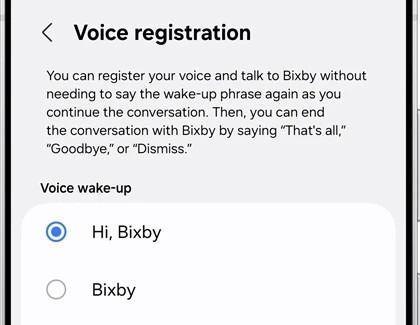
To stop Bixby from responding to its wake phrase, open Settings > Advanced features > Bixby > Voice registration and choose Off under Voice wake-up. If you still want voice activation, you can adjust its sensitivity instead. Samsung documents both controls in its US guidance for unexpected screen wake-ups.
This changes voice activation. A Side button assigned to Bixby is a separate trigger, so I'll help you identify which control fits what is happening on your Galaxy before you change anything else.
Switch off the wake phrase
You can reach Bixby's settings through the phone's Settings app. That is useful when your Side button opens something else, since you do not have to change the button assignment just to reach Voice registration.
- Open Settings and select Advanced features.
- Tap Bixby.
- Open Voice registration.
- Find the Voice wake-up choices and select Off.
- Return to this screen if you want to check the selected option later.
Samsung's Voice wake-up support page shows two activation phrases: Hi, Bixby and Bixby. Look below those choices for Off on the current interface shown in its references.
There is no reason to go through account-removal menus when your goal is simply to stop this phone responding to the wake phrase. Use the control for the behavior you want to change, then check that behavior before going further.
Keep voice activation but make it less sensitive
If you use Bixby hands-free and only want fewer accidental activations, leave the desired wake phrase selected and open Wake-up sensitivity. Samsung offers Low, Medium and High. Choose a level, then tap OK.
I would change this setting on its own first, then check how the phone responds in the place where unwanted activations happen. That gives you a useful comparison instead of changing the wake phrase, sensitivity and media behavior together and losing track of which choice helped.
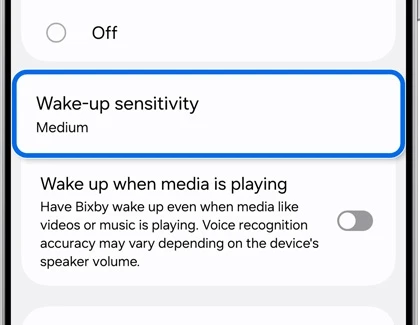
The same settings include Wake up when media is playing. Samsung says this lets Bixby wake while a ringtone, alarm or media is playing. If that is the situation you want to avoid, review this switch rather than treating it as the same setting as sensitivity.
Samsung also lists Respond to my voice and Improve voice recognition accuracy among the related options. Those are useful to recognize when comparing menus, but the direct choice for ending wake-phrase activation remains Off.
Check the separate voice-command shortcut
Bixby also has Talk to Bixby without wake-up. Samsung describes it as allowing commands in certain conditions, such as when an alarm or timer rings or a call comes in. It is a separate switch in Bixby settings.
If you are reviewing hands-free behavior, check whether you use that option too. Turning down wake-up sensitivity addresses recognition of the wake phrase; it does not explain a command accepted through this separately named feature.
Use the event to identify the control: did Bixby appear after you said its name, or were you responding during an alarm? That detail is more useful than describing every voice response as an accidental wake-up.
When Bixby opens from a button press
If Bixby appears when you hold the Side button, review that button's assignment. Samsung's Side button guide treats Long press actions separately and lists Bixby, Digital assistant and Power off menu on supported devices.
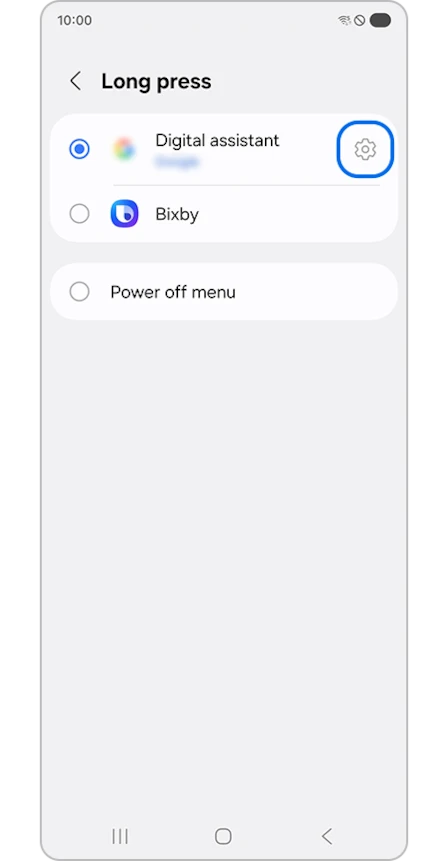
Our Side button customization guide covers those assignments. Use it if the unwanted launch follows a physical press; leave your voice settings alone if you still want to speak to Bixby hands-free.
On older phones with a dedicated Bixby key, Samsung documents different button behavior. Check the hardware and its matching settings instead of applying a newer Long press menu to a phone that has a separate key.
Choose which device should answer you
Samsung describes a multi-device wake-up feature for Bixby 2.0 and higher. When supported devices share the same Wi-Fi network, the device that hears you most clearly responds. This coordination is automatic, according to its Voice wake-up support page.
Devices on different networks can behave differently. Samsung gives the example of an LTE watch and a Wi-Fi tablet both waking. If you want only one device to respond, review Voice wake-up on the other device rather than changing unrelated settings on both.
Also separate a Bixby response from the display simply lighting up. Samsung lists Lift to wake, notifications and double-tap gestures as other screen-wake triggers. Our double-tap screen guide covers that display gesture if it matches what you see.
FAQ
How do I turn voice activation back on later?
Return to Bixby > Voice registration and select the wake phrase you want to use instead of Off. Samsung's current reference offers Hi, Bixby and Bixby. Review the sensitivity and media switch separately if your previous setup responded too often.
Which details help identify an unexpected Bixby response?
Tell me your Galaxy model, One UI version and what happened immediately before Bixby opened. Mention any nearby watch, tablet or other Samsung device that also answered, so I can help you match the event to the right control.
Was this guide helpful?
Your answer helps us keep it accurate.
Comments (0)
Comments are moderated, and published only if they are relevant to the topic and add value in a constructive way. If you disagree with something, please be polite and respectful.