
Your Samsung CSC code is the three-letter code that tells your Galaxy which country and carrier it belongs to. You can find it in Settings > About phone > Software information, under Service provider software version. It’s the code that comes right after the model number and the multi-CSC group, like INS for India or XEU for the UK.
Why should you care? Because Samsung rolls out updates CSC by CSC. Right now the One UI 9 update is live for the Galaxy S23 in 25 regions, and if your CSC isn’t one of them, you won’t see it yet. Let me show you how to find yours and what it means.
Here’s what you’ll learn:
- Where the CSC code lives in Settings, with real screenshots
- How to read the long Service provider software version line
- A dialer code that shows your CSC firmware version
- The most common CSC codes by country and carrier
- Why your CSC decides when you get One UI 9
What is a Samsung CSC code?
CSC stands for Consumer Software Customization. It’s a three-letter code that sets your Galaxy phone’s region, carrier, language options, network settings and preloaded apps. Samsung also uses it to decide which firmware your phone gets over the air and when. INS is India, XEU is the UK and Ireland, and TMB is T-Mobile in the US.
The CSC is not the same as the region code in your build number. My Samsung firmware version guide explains the build number itself. This guide is only about the CSC.
How to check your CSC code in Settings
This works on any Galaxy phone or tablet running One UI, from One UI 5 up to One UI 9. Samsung uses the same menu path on its own support page for finding software details.
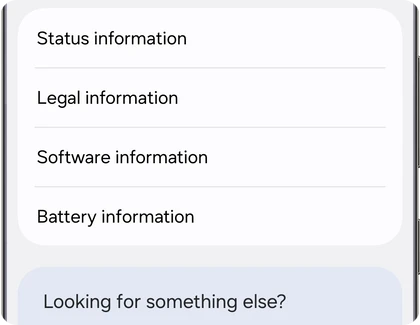
- Open the Settings app.
- Scroll to the bottom and tap About phone (About tablet on a Galaxy Tab).
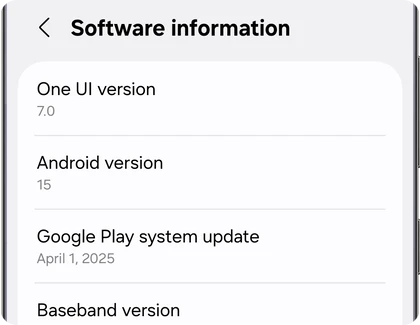
- Tap Software information.
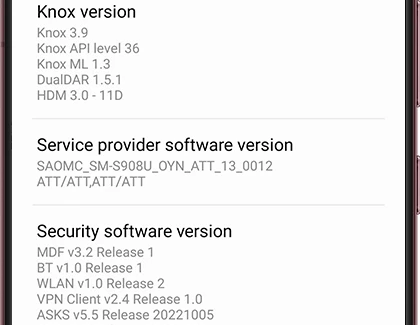
- Scroll down to Service provider software version.
The Software information screen opens with your One UI version, Android version and baseband version at the top. Keep scrolling past those.
Service provider software version sits below Knox version. That’s your CSC line.
How to read the Service provider software version line
The line looks messy, but it’s easy once you split it at the underscores. Take the one in the screenshot above:
SAOMC_SM-S908U_OYN_ATT_13_0012
- SAOMC is a fixed prefix. Ignore it.
- SM-S908U is the model number, here a US Galaxy S22 Ultra.
- OYN is the multi-CSC group. One firmware package covers every CSC in that group.
- ATT is the active CSC. This is the code you’re looking for.
- 13 is the Android version the CSC package was built for, and 0012 is its revision.
The second line, ATT/ATT,ATT/ATT, repeats the code. On most phones every code there matches. If you see two different codes, for example XEU/BTU, the CSC has been changed since the phone left the factory.
On an international Galaxy you’ll see something like SAOMC_SM-S918B_OXM_INS followed by the version numbers. OXM is the multi-CSC group used by most international models, and INS tells you it’s an Indian unit.
Check your CSC with the *#1234# dialer code
There’s a quicker trick if you just want the firmware versions.
- Open the Phone app.
- Dial *#1234#. You don’t need to press call.
- A screen pops up with three lines: AP, CP and CSC.
The CSC line here shows the CSC firmware build, like S918BOXM followed by the version letters. That tells you the multi-CSC group (OXM) but not the three-letter country code. So use it to confirm your CSC firmware matches your AP build, and use Settings to see the actual country code.
Some carrier-locked US models block dialer codes. If nothing happens, stick with the Settings method.
Common Samsung CSC codes
Here are the codes I see most often in our tracker. Samsung has many more, but these cover the biggest markets.
| CSC | Country or carrier |
|---|---|
| INS | India |
| XEU | UK and Ireland (unbranded) |
| BTU | UK (older unbranded code) |
| EUX | Europe (multi-country) |
| DBT | Germany |
| XSG | United Arab Emirates |
| TUR | Türkiye |
| XSA | Australia |
| XID | Indonesia |
| XXV | Vietnam |
| KOO | South Korea |
| XAA | US unlocked |
| ATT | AT&T (US) |
| TMB | T-Mobile (US) |
| VZW | Verizon (US) |
| XAC | Canada unlocked |
Why your CSC decides when you get One UI 9
Samsung doesn’t push a new update to every Galaxy S23 in the world at once. It releases the firmware for each CSC separately, and your phone only sees an update once the firmware for its own CSC is live.
Here’s a real example from this week. On October 19, 2026, our tracker picked up the global One UI 9 build S918BXXUAGZIF for the Galaxy S23 Ultra. It went live for 25 regions at once, including EUX, Australia, the UAE and Indonesia. INS wasn’t on that list. So two people with the same SM-S918B, one in Dubai and one in Delhi, see different things when they tap Settings > Software update. I wrote about the full list in my post on One UI 9 going global for the Galaxy S23 and Z Fold 5.
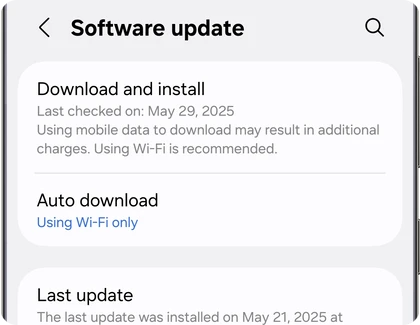
Once you know your CSC, you can do two useful things:
- Check the One UI 9 update tracker to see if your region has the build yet.
- Download the exact firmware for your CSC with Frija if you want to flash it yourself.
If your CSC already has the build and the update still won’t show, my guide on the One UI 9 update not showing has the fixes I’d try.
Can you change your CSC to get updates sooner?
Sometimes, but I don’t recommend it just to get an update a few days early. On multi-CSC phones (OXM, OYN and similar), switching the active CSC usually means a factory reset. That wipes your phone.
If you flash firmware with Odin, you also need to pick the right CSC file. My guide on CSC vs HOME_CSC in Odin explains which one keeps your data.
FAQ
Where do I find the CSC code on a Samsung Galaxy?
Go to Settings > About phone > Software information > Service provider software version. The three-letter code after the multi-CSC group (like OXM or OYN) is your active CSC, for example INS, XEU or ATT.
Is the CSC code the same as the country code?
Mostly, but not always. Many CSCs map to one country, like INS for India. Others cover a carrier (TMB, ATT) or a group of countries (EUX for Europe).
Does the CSC affect my security updates too?
Yes. Monthly security updates roll out by CSC just like One UI updates. You can check which patch you have with my guide on checking the security patch level on a Samsung Galaxy.
Why does my CSC show OXM instead of a country?
OXM is the multi-CSC group, not your country. Look at the code right after it in Service provider software version. That’s your active CSC.
Was this guide helpful?
Your answer helps us keep it accurate.
Comments (0)
Comments are moderated, and published only if they are relevant to the topic and add value in a constructive way. If you disagree with something, please be polite and respectful.