
To connect a Samsung Galaxy to Windows 11, open Phone Link on the PC and Link to Windows on the phone, then pair them using the same personal Microsoft account. On current Samsung software, the phone's entry is under Settings > Connected devices > Link to Windows, as shown in Samsung's US setup instructions.
The two app names refer to opposite ends of the connection. I'll guide you through pairing, the permissions that come afterward, and the Windows 11 photo-access change that older instructions miss.
Prepare the account and Wi-Fi connection
Microsoft's requirements page recommends the latest Windows 11 and lists Android 10 or later for the phone. Put both devices on the same Wi-Fi network for setup, and have your Microsoft account ready.
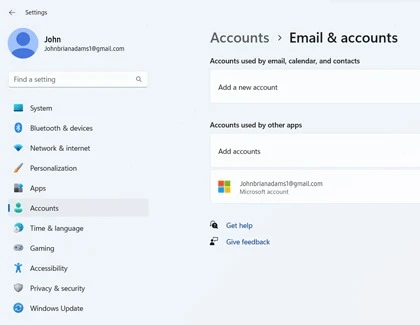
Use the account selected in Phone Link on the PC and the same account in Link to Windows on the Galaxy. Compare the email addresses instead of relying on a familiar display name. Microsoft says work or school accounts and multiple Android profiles are not currently supported for this experience.
If Link to Windows is not built into your particular phone, Samsung directs you to its Play Store version. Use the official app route in Samsung's instructions rather than an unrelated download that happens to use a similar name.
Pair from the Windows 11 PC
Keep both devices nearby while you complete the prompts. The QR code or manual pairing code should come from the Phone Link session on your own PC.
- Search the Windows taskbar for Phone Link and open the app.
- Select Android if prompted, then sign in with your Microsoft account.
- On the Galaxy, open Link to Windows and follow its sign-in prompts using the same account.
- On the PC, choose Pair with QR code. If you see an I have the Link to Windows app ready checkbox, select it as directed.
- In the phone app, choose Link your phone and PC, then Continue when the QR code is ready.
- Allow camera access for scanning and scan the code displayed on the PC.
- Complete the account and permission prompts on the phone, then select Done when setup finishes.
Microsoft also documents Pair manually on the PC if you prefer a code-based route without scanning. Follow the code prompt for that session. Button wording can differ between the account-based and QR-based flows, so stay with the prompts the two apps are showing.
Enable the features you plan to use
Pairing and permission approval are separate parts of setup. In Microsoft's notification instructions, the PC's Notifications section uses Get started and Open settings for me. On the phone, select Link to Windows in the displayed list and approve the requested access.
Later, use Phone Link > Settings > Features > Notifications to customize notification access. Read a permission prompt before approving it so you understand which phone content will be available on the computer.
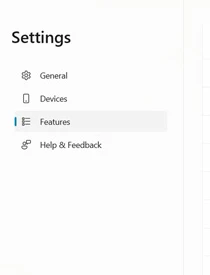
The Samsung Link to Windows feature guide also separates messages, calls, notifications and other settings. Choose the feature you need instead of assuming every function is ready as soon as the account is paired.
| Feature | Extra check |
|---|---|
| Calls | The phone and PC need their Bluetooth connection. |
| Android apps on the PC | Check supported devices, preinstalled Link to Windows and the PC graphics requirement. |
| Multiple mobile apps together | Check the additional phone, app-version and PC requirements. |
Microsoft's Calls help treats Bluetooth pairing separately from the wider Phone Link connection. If messages are available but Calls is not, check that channel before repeating the entire account setup.
For Apps, Microsoft's feature requirements specify supported devices with Link to Windows preinstalled and DirectX 11 support on the PC. Its multiple-app guidance recommends at least 8GB of PC RAM; that recommendation is not the basic pairing requirement.
Try sharing a browser link
A simple webpage gives you a practical first task after pairing. Samsung documents this route for Samsung Internet; other browsers can place their sharing controls elsewhere.
- Open a webpage in Samsung Internet on the Galaxy.
- Open Menu and choose Share.
- Select Link to Windows in the sharing options.
- Select your PC from the device prompt.
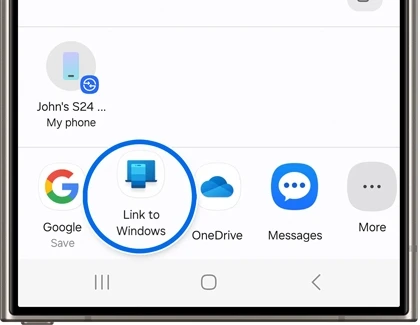
Samsung describes the page opening in the PC's browser. Use a page you are comfortable displaying on that computer while checking the connection.
Find photos in the current Windows 11 location
Older instructions may tell you to open a Photos tab in Phone Link. Microsoft's current photo-access page says Windows 11 photo access is moving to File Explorer. Follow its Show mobile device in File Explorer setup rather than treating the missing Photos tab as a failed pairing.
Microsoft also says those linked files are online-only. Deleting one through File Explorer permanently removes it from the linked phone. Copy or save the files to the PC first when you want to keep a separate copy.
For a planned device backup, our Galaxy backup guide covers the backup choices. Being able to browse a linked phone's files is a different check from confirming that you saved a separate copy.
FAQ
Do I need a Samsung Galaxy Book?
Microsoft's basic requirements specify a compatible Windows PC, rather than requiring a Galaxy Book. Check the additional requirements for the particular feature you want, especially Apps or Calls, instead of choosing solely by the computer brand.
What if I only want to copy files with a USB cable?
Use the file-transfer route for that task. Our Samsung USB transfer guide covers the phone's USB controls. If you need help with Phone Link instead, share your Galaxy model, Windows version and the specific feature or prompt where setup stops.
Was this guide helpful?
Your answer helps us keep it accurate.
Comments (0)
Comments are moderated, and published only if they are relevant to the topic and add value in a constructive way. If you disagree with something, please be polite and respectful.