
To combine Samsung Quick settings and notifications, open the Quick panel from the top right, tap the pencil, and open Panel settings. Select Notification and quick settings view if it appears, then choose Together. Samsung's One UI 7 instructions finish with Back and Done to apply the layout.
The useful detail is what happens afterward: Together puts notifications beside the collapsed Quick settings. You still expand the panel when you want the full set of controls. I'll show you where the choice sits and how to check that you saved it.
Which swipe opens the Samsung notification bar?
If your Galaxy opens Wi-Fi and brightness controls when you meant to see an alert, close that panel and swipe down from the top left. That opens the notification panel when Separate is selected. With Together, you can swipe down from either corner. Samsung calls the row of small icons along the top the status bar. Swipe down from there to open the panel where you can read the alerts.
| Layout on your Galaxy | Where to swipe for notifications | What you see first |
|---|---|---|
| Separate on One UI 7 or later | Top left or center | Notification panel. Swiping down from the top right opens Quick settings. |
| Together on One UI 7 or later | Anywhere across the top edge | Notifications with a collapsed row of Quick settings. |
| One UI 6.1.1 or earlier | Top edge with one finger | Notifications with the first row of Quick settings. Use two fingers to open the full Quick panel directly. |
In Separate view, you can also switch panels by swiping sideways near the top of the panel that’s already open. Try that if you only want to check one alert before going back to your controls. The layout change below is for when you want both on the first swipe.
Choose Together from the panel editor
Begin in the Quick panel itself, rather than opening the main Settings app. The pencil is the panel editor; the nearby gear takes you somewhere else.
- Swipe down from the top-right corner of the screen to open Quick settings.
- Tap the pencil icon near the top.
- Select Panel settings.
- Open Notification and quick settings view if your menu includes that extra page.
- Select Together.
- Tap Back, then Done to leave the editor and apply the choice.
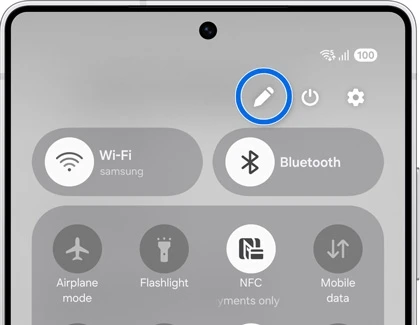
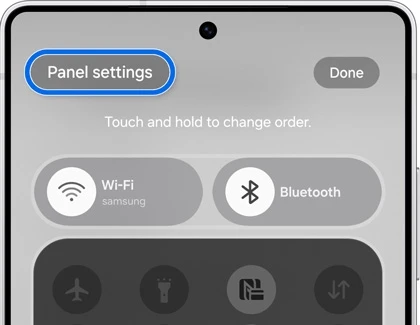
Samsung's general Quick panel guide describes Together directly under Panel settings, while its One UI 7 page names the intermediate Notification and quick settings view page. These are two documented descriptions of the route, so look for the matching label on your phone.
Check the first and second swipes
Close the panel and swipe down again from the top. In Samsung's One UI 7 instructions, the combined view can be opened from any side of the top edge. Try the left and right corners to compare them with the separate layout you were using.
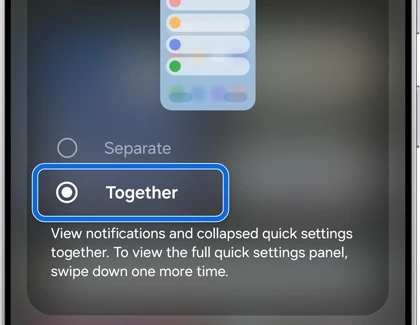
Use one ordinary alert and one control you recognize for your check. You should be able to see the notification in the combined view and reach the larger control area after expanding it. That is a more useful comparison than judging the layout only by its colors or spacing.
Put frequently used controls within reach
The view selector and the control-order editor have different jobs. After choosing Together, you can decide whether the controls you use often are easy to find, rather than changing several things during the initial layout check.
Samsung's One UI 7 page describes two ways to organize the Quick panel. To move an individual button, open the pencil editor, tap Edit for the buttons, then touch and hold an icon and drag it. Tap Done when finished.
For a larger control card, such as Media output or the Quick settings area, touch and hold the card in the panel editor and drag it to a new position. Save with Done. Change one part of the order, open the panel normally, and check that you can find it comfortably before rearranging the rest.
If you want to change the brightness and volume sliders or the Wi-Fi and Bluetooth control, see our guide to Quick panel changes in One UI 9. Those adjustments are separate from Together.
If the menu or your alerts still look different
If you cannot find Together, open Settings > About phone > Software information and look for One UI version. On One UI 6.1.1 or earlier, use the swipe in the table above. On newer software, make sure you opened the pencil editor from Quick settings and then tapped Panel settings.
Also separate layout from app alerts. Samsung's app notification instructions use App notifications for allowed apps and their categories. If an app's alerts are missing or you want to silence one alert type, our notification category instructions cover that task.
FAQ
Does Together restore the whole older One UI design?
Together is the combined-view selection in Panel settings. Use it for the notification and Quick settings arrangement described above. Other appearance and control choices have their own settings, so compare the specific change you want rather than expecting every part of the interface to revert.
Can I switch back to Separate?
Return to the same view selector, choose Separate, then leave the editor using Back and Done. If neither choice appears where you expect it, tell us your Galaxy model and One UI version so we can help you compare the appropriate panel instructions.
Was this guide helpful?
Your answer helps us keep it accurate.
Comments (0)
Comments are moderated, and published only if they are relevant to the topic and add value in a constructive way. If you disagree with something, please be polite and respectful.