
To turn off read receipts in Google Messages on a Samsung Galaxy, tap your profile picture, open Messages settings > RCS chats, and switch off Send read receipts. Google's RCS instructions also call this menu Chat features on some versions. Use the receipt switch rather than turning off RCS chats if this is the only preference you want to change.
I'll help you find the right app first, then explain what the receipt setting tells the other person and why a Delivered message may never change to Read.
Check which Messages app you are using
Two apps can appear with the name Messages on a Galaxy. Their menus are different, so a missing profile picture can mean you opened a different app, rather than that the receipt switch has disappeared.
To check the current default, open Settings > Apps > Choose default apps > SMS app. That route is documented on Samsung's US messaging support page. Look at the selected app before changing anything.
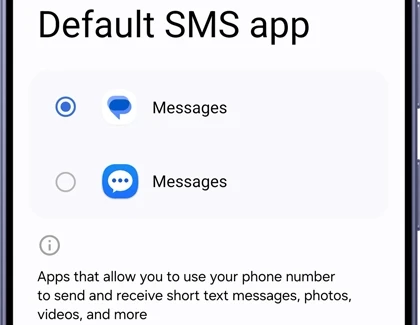
Samsung's US page recommends Google Messages for devices running Android 12 or higher. The instructions here are specifically for that app. If you choose to switch, Samsung's Google Messages setup guide explains the default-app prompt and the available controls.
Google explains what happens when you switch texting apps: you do not lose existing SMS/MMS messages, but proprietary features from the previous app may not work afterward. Check any special messaging features you depend on before changing the default app.
Switch off Send read receipts
Open Google Messages itself for this change. The receipt preference is inside its RCS menu, rather than the phone's general notification settings.
- Launch Google Messages.
- Tap your profile picture or initial near the top of the app.
- Select Messages settings.
- Open RCS chats. If your version uses Chat features, open that instead.
- Find Send read receipts and turn the switch off.
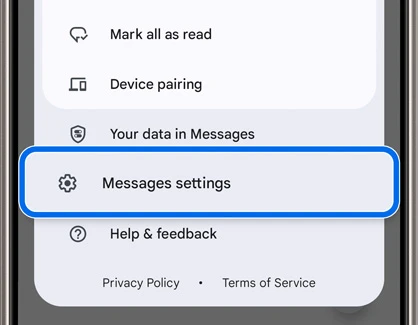
Samsung's messaging instructions document the same Google Messages route. They also show a separate typing-indicator switch, so check the label before tapping the neighboring control.
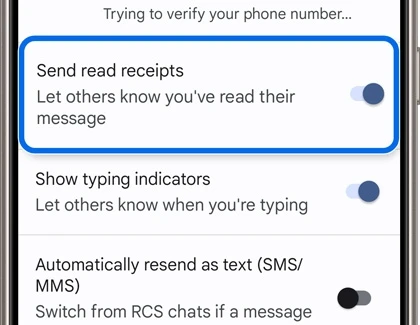
After changing the switch, return to the same page to check its state. There is no need to delete a conversation, clear the app's storage or change every chat's notification settings to reach this preference.
Check RCS status before comparing messages
Google identifies Connected as the status that lets you use RCS with other people who have it turned on. Connecting means your number is being verified. If that is what your phone shows, account for it before expecting the chat's RCS indicators to behave like an established connection.
The Samsung reference above is useful here: a visible receipt switch can coexist with a pending number-verification message. The switch's presence alone is not the same check as the connection status.
In Google's instructions, Trouble connecting. Awaiting retry means there is a verification issue. If that state lasts more than 30 minutes, Google directs you to Details > Submit feedback. A message saying RCS chats are disabled by your carrier calls for contacting the carrier.
Delivered and Read mean different things
Google's RCS FAQ explains the status icons below. It says these icons do not appear on SMS or MMS messages, which is why two conversations can display different kinds of status information.
| Google Messages icon | Meaning |
|---|---|
| Timer | The message is being sent. |
| Single check | The message has been sent. |
| Double check | The message has been delivered. |
| Color-filled double check | The message has been read. |
Compare the conversation's messaging type before treating the missing Read indication as an app fault. Google says read receipts and typing indicators do not work when the recipient does not have RCS chats, although ordinary SMS/MMS messaging can still work.
If you meant to change incoming alerts
The receipt preference concerns read information, while notification controls concern alerts on your phone. For app-specific sounds and alert types, our Samsung notification category guide explains the relevant controls.
If the problem is an alert you dismissed before reading it, our notification history guide covers the saved-alert check. Neither task needs you to start by changing your receipt preference.
FAQ
Will my switch make someone else show me Read?
No. Google says the other person must enable read receipts for you to see when they read your message. Your Send read receipts preference controls the read information you share, so check that distinction before drawing a conclusion from another person's status.
Can I hide the typing indicator as well?
Yes. Google documents Show typing indicators in the same RCS chats menu. Set it separately from Send read receipts. If your app uses different labels, tell us the Galaxy model, app name and labels you see, and we can help you find the matching controls.
Was this guide helpful?
Your answer helps us keep it accurate.
Comments (0)
Comments are moderated, and published only if they are relevant to the topic and add value in a constructive way. If you disagree with something, please be polite and respectful.