
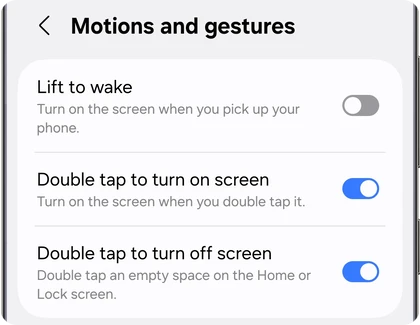
To enable Samsung Double tap to wake, open Settings > Advanced features > Motions and gestures and turn on Double tap to turn on screen. That is the route in Samsung's US gestures guide. Once enabled, double-tap the dark display to wake it without pressing the Side button.
There is a second switch for turning the screen off. I'll show you how to choose each gesture, then check the lock-screen behavior if the phone goes further than you intended.
Enable the wake gesture and try it
Look for the full label Double tap to turn on screen. It sits alongside other motion controls, so choosing the right switch is easier than enabling everything in that menu.
- Open Settings on the Galaxy.
- Tap Advanced features.
- Select Motions and gestures.
- Turn on Double tap to turn on screen.
- Let the display turn off, then double-tap the screen to check the result.
Pay attention to which screen appears after the tap. Seeing the Lock screen tells you the wake gesture worked. If the phone opens directly to your Home screen, look at the recognition settings below before changing the gesture itself.
Turn the screen off with the other switch
Double tap to turn off screen has a different condition: Samsung describes double-tapping an empty space on the Home or Lock screen. Turn on that switch only if you want this second gesture too.
Return to the Home screen and find a space away from app icons, widgets and controls. Try the double tap there. An icon or widget has its own action, which makes it a poor place to check a gesture meant for empty space.
You can use the wake gesture without choosing the off gesture. If you keep both, use the result you want to choose where to tap: the dark screen for waking, and an empty Home or Lock screen area for turning it off.
Keep the Lock screen visible after face recognition
Waking the display and recognizing your face are separate operations. If face recognition is already configured, check its display behavior before assuming that a double tap is bypassing the screen lock.
Samsung's US face recognition page documents Stay on Lock screen until swipe. When enabled, this keeps the Lock screen visible until you swipe, even after face recognition has recognized you.
- Open Settings > Security and privacy > Biometrics > Face recognition.
- Enter the requested security credentials.
- Turn on Stay on Lock screen until swipe if you want that display behavior.
- Let the screen go dark and try the wake gesture again.
This is a choice about remaining on the Lock screen after recognition. Leave your PIN, password or pattern setup in place. You do not need to register a face just to use the double-tap wake gesture.
On a Galaxy Z Flip
Samsung Canada also identifies Fingerprint always on as a separate control for accidental fingerprint scans on a Galaxy Z Flip. Depending on the device, it can offer Cover screen, Main screen, or Cover and main screens. Note the screen-specific choice if fingerprint scans are the problem you are investigating, rather than treating every unexpected screen transition as a double-tap issue.
If the display wakes inside your pocket
Decide whether you want the gesture enabled at all before adding more changes. Samsung's screen-waking troubleshooting page includes turning off Double tap to turn on screen when investigating unwanted screen activity.
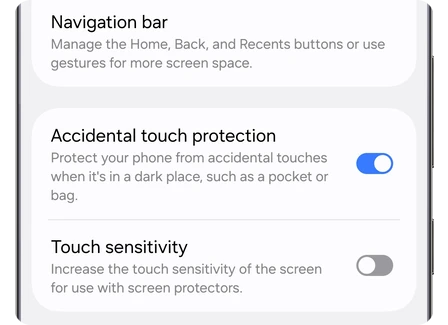
For accidental touches in dark places, Samsung Canada's accidental touch guide documents a separate Display setting. It also explains that brief screen activity can still happen with protection enabled, so judge the setting by unintended touches rather than expecting the display never to light up.
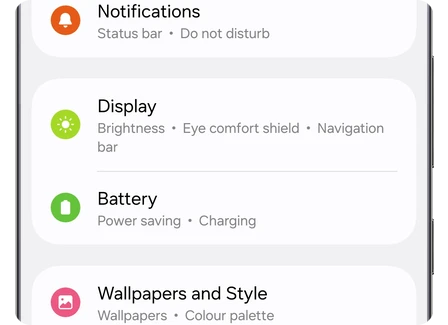
- Open Settings and select Display.
- Find Accidental touch protection.
- Turn it on if you want protection against unintended touches in a pocket or bag.
Choose the notification control for the actual task
A wake gesture helps you reach the screen; it does not choose which lock-screen items you want to see. If a briefing is the part you want to remove, our Now Brief guide separates that change from keeping music controls.
For an alert you already cleared, go to our notification history instructions instead of repeatedly waking the display. That guide starts with checking whether the alert was recorded before it was dismissed.
FAQ
How is Lift to wake different?
Samsung describes Lift to wake as turning on the screen when you pick up the phone. Double tap to turn on screen uses taps instead. Choose the action you find useful; the switches are individually available in Motions and gestures.
What if my Galaxy does not show the switch?
Samsung says motion and gesture availability varies by model or software version. Share your exact Galaxy model and One UI version, along with the options displayed under Motions and gestures, and we can help you compare the relevant instructions.
Was this guide helpful?
Your answer helps us keep it accurate.

Comments (0)
Comments are moderated, and published only if they are relevant to the topic and add value in a constructive way. If you disagree with something, please be polite and respectful.