
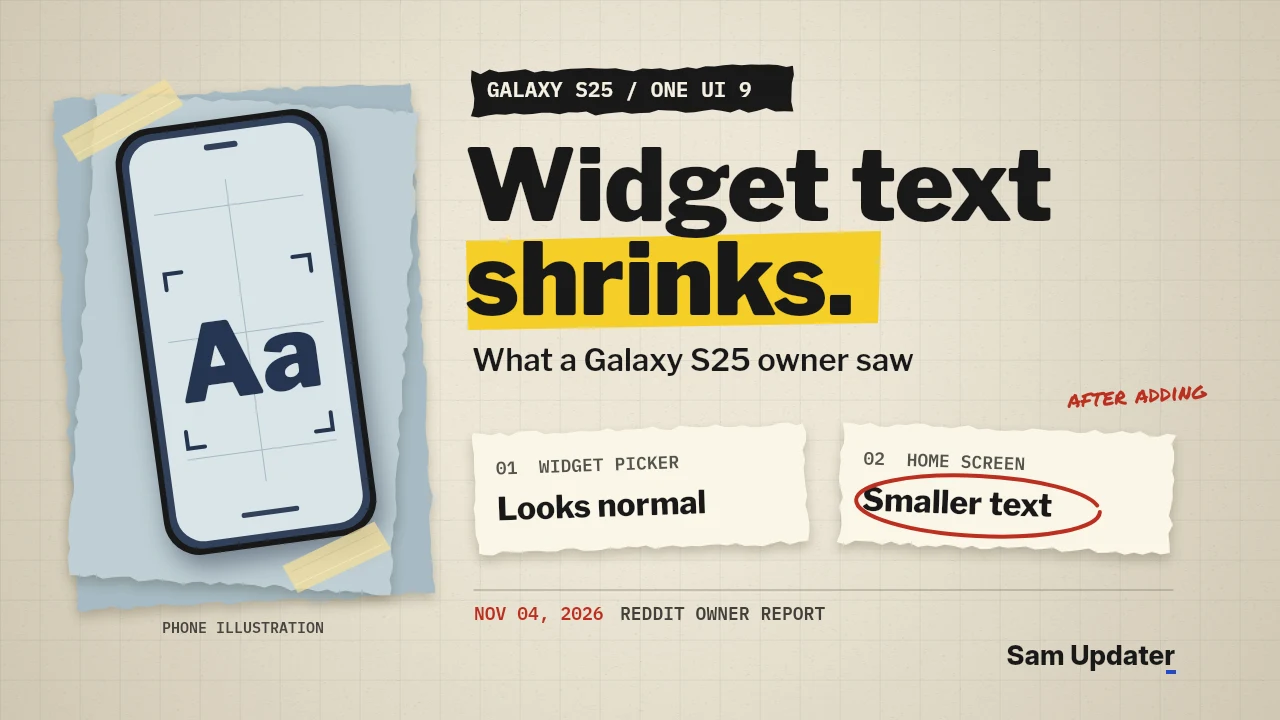
A Galaxy S25 owner reported on November 4 that Weather and Battery widget text looked normal in the picker but became hard to read on the Home screen after the One UI 9 update. The YouTube Music widget went the other way and got bigger. If you see this on your Galaxy, compare the preview with the placed widget before changing the system font.
What changed on the Galaxy S25 Home screen
Adding a fresh copy of a widget didn’t help the S25 owner. The text still shrank as soon as they placed it. They also tried changing the widget content size in Good Lock’s Home Up module. Weather and Battery barely changed, while YouTube Music became larger still. The owner could get closer to the old size by turning up the system font, but that made text elsewhere on the phone too big for them.
That difference between widgets is the detail I’d look at first. If Weather gets harder to read but YouTube Music gets bigger on the same Home screen, writing down both results tells Samsung more than saying the phone’s text got smaller. The S25 post leaves out the firmware build and Home Up version. Both would help compare phones that behave differently.
The earlier reports go back to the One UI 9 beta
In May, a Samsung Community beta participant described Weather widget text as smaller and harder to read than on One UI 8.5. A separate r/S24Ultra beta thread drew different accounts from people on stable One UI 9. One commenter still saw the small text. Another said their widgets looked the same as on One UI 8.5.
A Galaxy S24 Ultra owner on Samsung Members also described smaller type and more empty space in the Clock and Weather widgets. They said the problem survived another software update. A moderator asked for logs, images and video so Samsung could investigate.
Compare the preview with the placed widget
- Touch and hold an empty spot on the Home screen, tap Widgets and select one widget that’s hard to read. Capture the preview before tapping Add.
- Take a second screenshot after placing it, with your font size and Home Up settings still where they were. Touch and hold the placed widget. If an outline with resize handles appears, drag one outward and see whether the text grows or you just get more empty space.
- Open Settings > About phone > Software information and note the Build number. You can compare it with the releases in our Galaxy S25 One UI 9 coverage or use our firmware version guide to find the right field.
Samsung’s widget instructions show what the resize handles look like. If the text still looks wrong, send the two screenshots and your build through Samsung Members’ error reporting tool. Does yours look small in the preview too? Tell me which Galaxy model and widget you’re using.
Was this guide helpful?
Your answer helps us keep it accurate.
Comments (0)
Comments are moderated, and published only if they are relevant to the topic and add value in a constructive way. If you disagree with something, please be polite and respectful.