
Samsung Driving Report records car trips on supported One UI 9 devices. SammyGuru’s October 14, 2026 hands-on places it at Settings > Connected devices > Driving report on a US Galaxy S26 Ultra. Automatic recording uses the selected vehicle’s Bluetooth connection and the Auto start trip when Bluetooth connected switch.
I’ll separate the controls shown in that stable-software report from details found in earlier leaked builds. That matters when you’re deciding what to enable and what trip information to keep.
Where is Driving Report on a Galaxy phone?
It’s in the Connected devices menu. SammyGuru’s October 14 hands-on, tested on a US Galaxy S26 Ultra, gives these steps.
- Open Settings > Connected devices.
- Tap Driving report. It sits just above Android Auto.
- Grant the permissions it asks for.
Per that report, it’s on stable One UI 9 for the Galaxy S26 series. The author also says the Galaxy Z Fold 8 and Z Flip 8 have it. They couldn’t confirm the Galaxy S25 series, the Z Fold 8 Ultra or the S24, so if you don’t see it, that’s not a sign something is broken. To see if your phone has One UI 9 yet, check our One UI 9 update tracker.
How do you make it record trips automatically?
Tell it which car is yours, then turn on the Bluetooth start option. Your car has to be paired with the phone over Bluetooth first.
- In Driving report, tap the three-dot menu, then Settings.
- Tap Vehicles and switch on the toggle for your car. The plus button adds one.
- Switch on Auto start trip when Bluetooth connected.
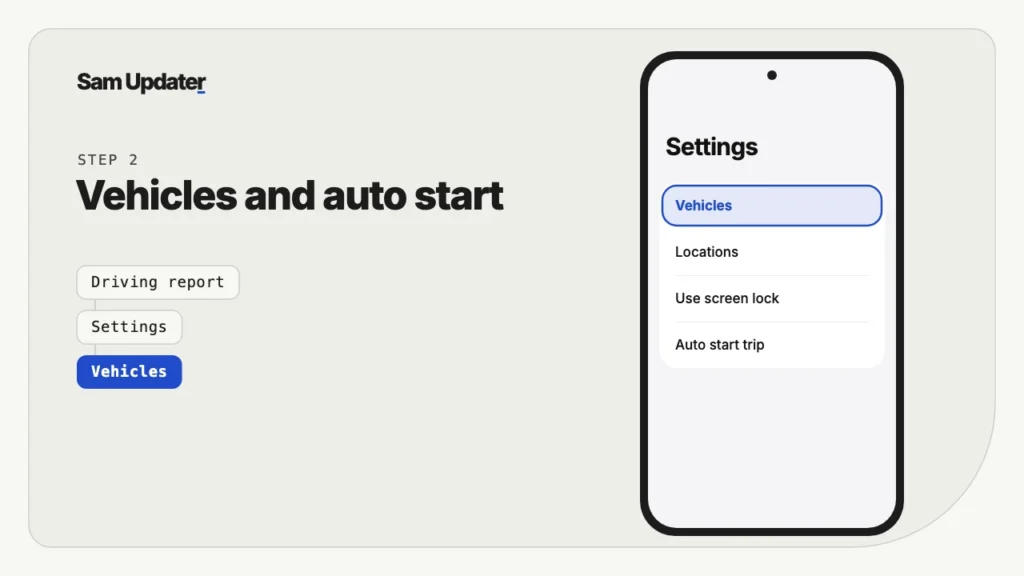
The same Settings screen also has Locations, where you tag places like home and work, and Use screen lock, which puts Driving report behind your phone’s lock. There are also Permissions, About Driving report and Contact us entries.
What permissions does Driving Report ask for?
Five, according to SammyGuru:
- Notifications
- Nearby devices
- Location, all the time
- Appear on top
- Usage data access
Read those permissions before accepting them. SammyGuru reproduces the permission explanations: location records driving routes, and usage access measures phone use during a drive. I’d also enable Use screen lock before recording regular journeys, since a route history can reveal places you visit.
What does a Driving Report trip show?
Per SammyGuru, each trip report includes the route map, date, weather, start and end times and addresses. It adds trip time and distance, counts of rapid acceleration, sudden deceleration and sharp turns, distance driven below 12.5 mph, phone use in minutes, and a speed chart with top and average speed. You can delete trips, and a weekly report is built from all of them.
SammyGuru’s author says the weekly report card was due on Sunday morning but hadn’t received the first report when writing. The reported trip measurements came from the author’s own drive, so they don’t establish accuracy for every route or vehicle.
Android Authority’s May 5, 2026 teardown describes Driving Insights code in leaked builds, including on-device processing and proposed Now Brief feedback. Those findings explain the feature’s development; they don’t confirm the behavior or privacy policy of the installed version on your phone.
Is Driving Report the same as Driving Insights?
It looks like the same feature under a new name. Android Authority’s teardown used Driving Insights, and SammyFans’ list of One UI 9 Beta 2 changes says Samsung renamed it to Driving Report and refreshed the icon. The weekly report that was broken in Beta 1 was also fixed in Beta 2, per the same article.
How do you turn Driving Report off or delete your trips?
To stop automatic recording, turn off the vehicle and Bluetooth auto start controls described in the hands-on report. Deleting old trips is a separate action. SammyGuru confirms that individual trips can be deleted, but doesn’t document a button-by-button deletion sequence, so read the controls and confirmation inside the app before removing a record.
- Open Settings > Connected devices > Driving report.
- Tap the three-dot menu, then Settings, then Vehicles, and switch off your car.
- Switch off Auto start trip when Bluetooth connected.
- Return to the trip list and review any records you want to remove separately.
I would check the result before assuming tracking has stopped. After changing the switches, review the next connection to your parked car and see whether a recording starts. Don’t change these controls while driving. Keep any trip you need before testing deletion, because stopping future recording doesn’t mean old trips have been removed.
If you only want to see what changed in the update, our One UI 9 features list goes through it, and our One UI 9 device list shows which Galaxy phones are on it.
Frequently asked questions
Does Samsung Driving Report work without Bluetooth?
The documented automatic start uses a paired car’s Bluetooth connection. The linked hands-on doesn’t establish a manual start method. If your goal is to stop new automatic trips, check both Vehicles and Auto start trip when Bluetooth connected rather than looking for an undocumented start or stop shortcut.
Is Driving Report on the Galaxy S25?
Not confirmed. SammyGuru says some forum owners report having it, but the author couldn’t verify that on an S25.
Where do I see my weekly Driving report?
Check the weekly report card inside Driving report. SammyGuru’s stable-version report says its card showed Sunday morning. Now Brief integration appeared in earlier reporting, but that doesn’t guarantee a weekly Now Brief card on every supported phone.
Does Driving Report share my data with Samsung?
Data sharing isn’t established by the sources linked here. On-device processing was described in an early teardown, which isn’t a privacy statement for the shipped app. Review the installed app’s information and permissions before enabling it, especially if you don’t want to retain a history of your trips.
Was this guide helpful?
Your answer helps us keep it accurate.
Comments (0)
Comments are moderated, and published only if they are relevant to the topic and add value in a constructive way. If you disagree with something, please be polite and respectful.