
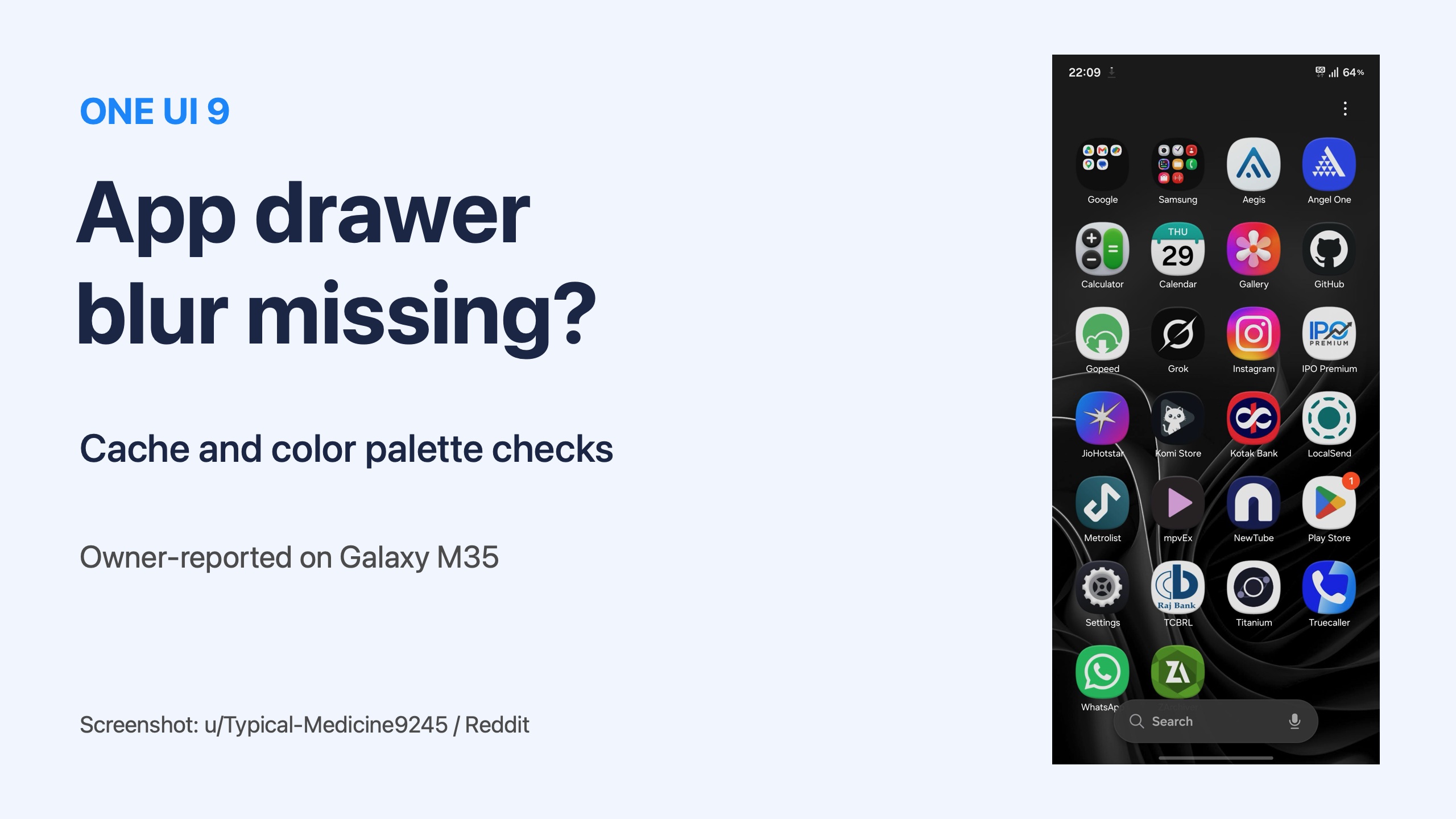
If your One UI 9 app drawer looks partly transparent or its folder blur has disappeared, start with the launcher cache and color palette before considering a reset. A Galaxy M35 owner on Reddit describes this exact appearance and says clearing One UI Home’s cache and changing the wallpaper restored it.
That is an owner-reported workaround, not a confirmed Samsung fix for every model. I’ll help you try the smaller changes in an order that lets you see which one makes a difference on your phone.
Does your app drawer match the reported blur problem?
The report describes an Apps screen that looks blurred in one area and transparent in another, with the folder background blur also missing after One UI 9. Compare that appearance with your own screen first. Missing icons, an unfamiliar app order, or a search bar in a different place are separate problems.
The original poster identifies their phone as an M35. A reply from another owner names the Galaxy A57 and says force-stopping One UI Home restored the appearance on that device. Other replies suggest a restart or reapplying the wallpaper or color palette. These are individual accounts, so don’t treat them as a list of every affected Galaxy.
We covered the M35’s release separately in our Galaxy M35 One UI 9 update article. Installing that release and seeing a visual problem afterward are two facts to record; their timing alone doesn’t identify the cause.
How do you clear One UI Home’s cache?
Use Settings > Apps > One UI Home > Storage > Clear cache. Samsung’s US cache guide distinguishes this from Clear data, which resets an app’s saved settings and data. For this check, I would leave Clear data alone and try the smaller action first.
- Open Settings and select Apps.
- Find One UI Home and open its app information.
- Choose Storage, then tap Clear cache.
- Return to the Home screen and reopen the Apps screen.
- Open a folder too, and compare both backgrounds with how they looked before.
Stop here for a moment and check the result. If the blur looks right again, you have a useful result to record without changing several more settings. If it still looks wrong, move on to the appearance controls below.
Samsung cautions that the available steps vary by software and app. If you can’t find the same control, record what your screen shows rather than selecting a different reset option just to follow a list.
Can reapplying the color palette help?
Reapplying the palette is a suggestion in the discussion, while the original owner reports success after a cache clear and wallpaper change together. That doesn’t establish which change did the work. Try one appearance change at a time so your own result is easier to understand.
Samsung’s theme instructions explain how to choose and apply a palette. Take note of your current choice first, particularly if you want to return to the same colors afterward.
- In Settings, open Wallpaper and style.
- Select Color palette.
- Choose a palette under Wallpaper colors, or use Basic colors.
- Check the preview, then select Apply.
- Look at the Apps screen and folder background again.
The palette setting changes the interface’s colors. Samsung documents that function; the support page doesn’t promise that applying it repairs this particular One UI 9 blur issue. Keep those two things separate when deciding whether the check helped.
If you’re also dealing with the added Home screen search bar, our Google search bar guide handles that setting. Changing a search preference isn’t a substitute for checking the missing background effect.
What should you send Samsung if the appearance stays wrong?
Send a screenshot and a clear description through Samsung Members. Samsung’s Members guide provides an Error reports option under Support and lets you attach an image and optionally include system log data.
I would describe the two affected areas separately: the Apps screen background and the folder background. Include the model, One UI version, and the changes you tried, along with whether the problem returned. A report saying the palette helped temporarily is more useful than simply saying the launcher is broken.
- Launch Samsung Members and select Support.
- Under Send feedback, choose Error reports and the relevant category.
- Explain the appearance problem and attach the screenshot.
- Choose whether to include system log data, then send the report.
FAQ
Has Samsung confirmed this One UI 9 blur bug?
The linked evidence is an owner discussion, not a Samsung acknowledgment. It supports describing a reported visual issue and the workarounds owners tried, without claiming a confirmed cause or a promised repair date.
Should you clear One UI Home’s data as well?
I wouldn’t include it in this first check. Samsung distinguishes clearing temporary cache from resetting the app’s saved data and settings. Try the cache action on its own and report the result before considering broader changes.
What details help compare your result?
Tell me your Galaxy model, One UI version, and whether the missing blur affects folders, the Apps screen, or both. Also mention whether changing the cache or palette helped and whether the effect stayed fixed.
Was this guide helpful?
Your answer helps us keep it accurate.
Comments (0)
Comments are moderated, and published only if they are relevant to the topic and add value in a constructive way. If you disagree with something, please be polite and respectful.