
If a Google search bar showed up on your Galaxy home screen after One UI 9, you can switch it off in the Home screen settings. Pinch the home screen, tap Settings, tap Show search on Home screen and turn the search toggle off. One UI 9 handles Samsung’s Finder and the Google bar in that one place.
The steps below follow Samsung’s support page and what owners are posting on Samsung Community. Menu wording can shift a little between models and builds.
How do you remove the Google search bar on One UI 9?
Open the Home screen settings and go to Show search on Home screen. Samsung’s page on Understanding Finder on Galaxy phones gives this path for One UI 9 or later. The Samsung Community how-to I link further down uses the same four steps.
- Pinch the Home screen with two fingers, or touch and hold an empty spot.
- Tap Settings.
- Tap Show search on Home screen.
- Switch the search toggle off. If you only want to lose the Google bar, leave Finder on.
- Go back to the Home screen and check that the bar is gone.
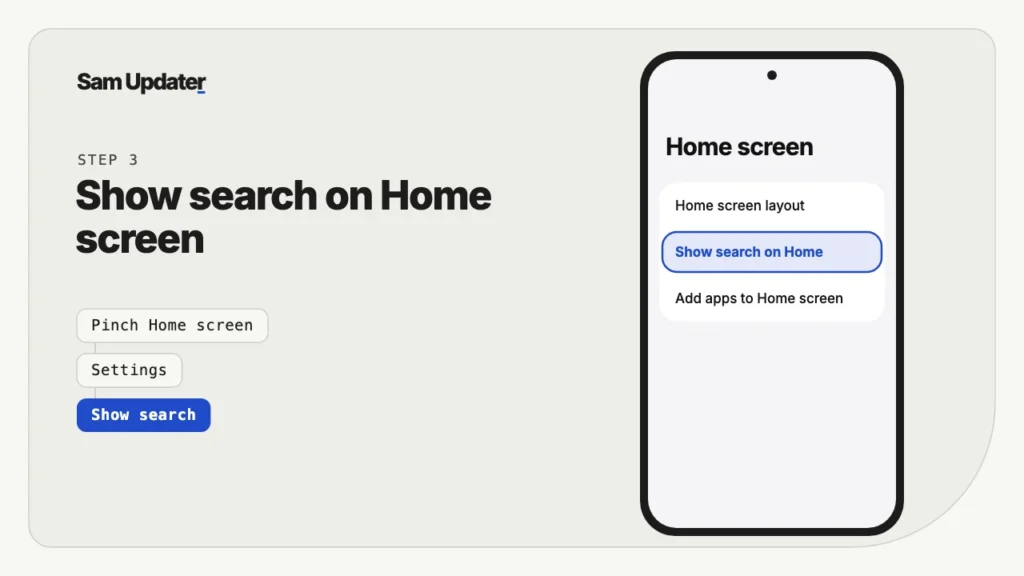
Touch and hold sometimes drops you on the widgets screen instead of the settings. If that happens, go the long way: Settings > Home screen > Show search on Home screen. SamMobile’s report on One UI 9 for the Galaxy S24 lists that same route. You can also type “home screen” into the search box at the top of Settings.
SamMobile says Finder’s bar and Google’s bar can be shown or hidden on their own, or run together, in its report on Finder in One UI 9. A Xataka Movil piece from July 29 lists the same four combinations: Finder only, Google only, both, or neither.
Samsung’s own page only mentions the Finder switch in this menu, not Google Search, so I can’t give you Samsung’s exact label for the Google row. You’ll see it in the same list.
What’s the difference between the Google bar and Finder?
Google Search looks things up on the web. Finder looks inside your phone. Keep whichever one you’d actually type into.
| Option | What it searches |
|---|---|
| Google Search | The web, with suggestions as you type, in a style close to the Pixel launcher (per Xataka Movil) |
| Finder | Apps, settings, contacts, files and Samsung Calendar entries (per SamMobile) |
Samsung adds a few details for Finder. Natural language search works for queries of five or more characters, and it covers Voice Recorder, Recorded Calls, Calendar, Notes, Reminders and My Files. The Home Finder doesn’t suggest apps, so for apps Samsung points you to the search bar inside the Apps screen.
Why did a search bar appear on my Home screen after the update?
Samsung hasn’t explained it, but owners are posting about it. In a Galaxy S26 thread from September 26, the poster says a Google search bar was added to their Home screen after the update and couldn’t be removed like a normal widget. They had to dig through the Home screen settings to find the toggle.
A reply in that thread gave the same fix: pinch or long-press the Home screen, scroll to Show search on Home screen and switch everything off. The poster said long-pressing only took them to the widgets screen. Another reply pointed out that the widgets screen and the Home screen settings are two different shortcuts. A later reply says the toggle got rid of the bar.
The better thread to bookmark is How To: Remove Google Search Bar One UI 9.0. It lists the same steps (long-press or pinch the Home screen, tap Settings, tap Show search on Home screen, switch search off) and has passed 50,000 views.
Which Galaxy phones have the Show search on Home screen setting?
Phones on One UI 9. Per SamMobile, the Galaxy Z Flip 8, Z Fold 8 and Z Fold 8 Ultra shipped with One UI 9 and the new combined setting. Finder itself started on the Galaxy S26 series with One UI 8.5.
The menu name changed between the two. Samsung’s page says that on One UI 8.5 and above, before One UI 9, the switch is called Show Finder on Home screen. From One UI 9 it’s Show search on Home screen.
SamMobile’s October 16 report on One UI 9 for the Galaxy S24 says the stable update began reaching S24, S24+, S24 Ultra and S24 FE owners in the second week of October. To see which of your phones already have One UI 9, use our One UI 9 update tracker. For what else the update changed, our One UI 9 features list goes through it.
What if Show search on Home screen isn’t in your settings?
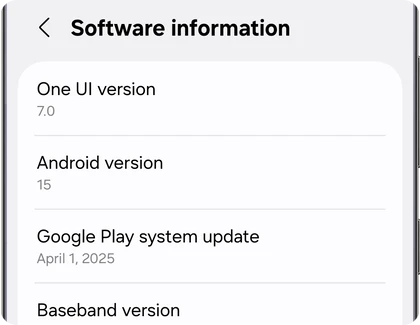
Check your One UI version first. If the phone isn’t on One UI 9 yet, the new menu isn’t there.
- Open Settings.
- Tap About phone.
- Tap Software information.
- Read the One UI version line.
On One UI 8.5, look for Show Finder on Home screen instead. On older versions, a Google bar on the home screen is usually a widget rather than a setting, so touch and hold it and tap Remove.
On One UI 9 and still no toggle? Open Settings > Software update > Download and install and see if a newer build is waiting. If the menu is there but the bar stays, restart the phone once and open the setting again.
If a different One UI 9 change is bugging you, our list of annoying One UI 9 changes and fixes covers the ones with a fix.
Frequently asked questions
Can I move the Google search bar on One UI 9?
Not the built-in one. The Samsung Community how-to says to switch the built-in search off first, then add your own Search Bar widget and put it wherever you want on the Home screen.
Does turning off Finder also remove the Google bar?
No. SamMobile says the two can be shown or hidden independently, so switch each one the way you want it.
Will this change anything else on my home screen?
Xataka Movil says changing the option doesn’t affect other home screen functions. Your icons, widgets and folders stay where they are.
Why do I only see Finder, not a Google option?
Samsung’s own page only describes the Finder switch. If you’re on One UI 9 and see just Finder, check Software update for a newer build, then look again.
Was this guide helpful?
Your answer helps us keep it accurate.

Comments (0)
Comments are moderated, and published only if they are relevant to the topic and add value in a constructive way. If you disagree with something, please be polite and respectful.