
Samsung AI Network Guard can block internet access for selected apps on One UI 9. Open Settings > Connections > Wi-Fi > Intelligent Wi-Fi, enable Connectivity Labs, then look for AI Network Guard. Android Authority’s hands-on guide documents the controls and explains why offline apps are the sensible place to start.
I’ll walk you through the setup, then the checks I’d make before restricting an app I depend on. The steps below come from the linked hands-on reports; the illustrations show the menu sequence.
Where is AI Network Guard on One UI 9?
AI Network Guard sits inside Connectivity Labs in the Wi-Fi settings. Android Authority’s October 9, 2026 guide describes the sequence below. Enabling the hidden menu and enabling an app restriction are separate actions, so finding Connectivity Labs alone doesn’t mean any app has been blocked.
- Open Settings > Connections > Wi-Fi.
- Tap the three-dot menu at the top right, then tap Intelligent Wi-Fi.
- Scroll to the bottom and tap Intelligent Wi-Fi seven times, until you see a message that Connectivity Labs is enabled.
- Open Connectivity Labs, scroll down and tap AI Network Guard.
Beebom’s July 24, 2026 hands-on identifies a Galaxy S26 Ultra running the One UI 9 beta. Android Authority’s article doesn’t name the phone model in its text. These reports aren’t a compatibility list for every Galaxy, so check whether the option is present on your own device.
How do you block an app’s internet access with it?
Set a Guardian PIN first, then pick the apps. The PIN is what keeps the block in place afterward.
- In AI Network Guard, tap Set up a Guardian PIN, enter a PIN and tap Save.
- Tap Manage restriction and enter your PIN.
- Tap Restrict apps and pick the apps you want to cut off.
- Tap Confirm at the top right.
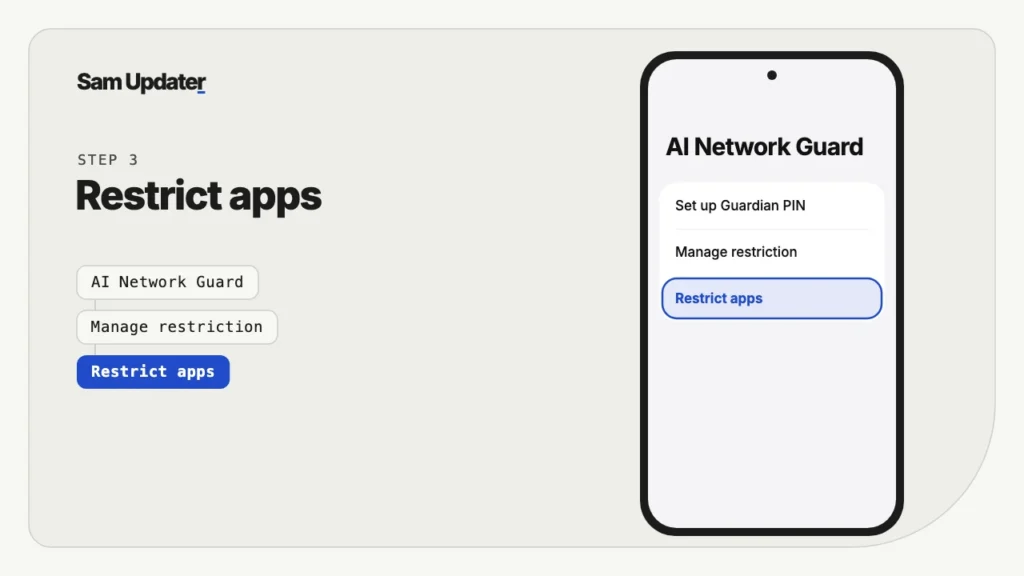
Android Authority describes an Access Blocked banner when a restricted app attempts a connection. Beebom also shows a restriction notice. Use that message as a clue that the rule is taking effect, then check the app’s actual behavior rather than assuming every feature still works.
Which apps should you block first?
Choose an app whose main job you can complete without a connection. Android Authority uses offline apps and games as examples and warns that a wallpaper app needing online images would lose that function. The useful distinction is what you need the app to do after the restriction, not whether it displays ads.
Beebom describes removing ads from a file explorer, video player and calculator on the author’s phone. Those are that author’s results, not a promise for every app with the same purpose.
Here’s the order I’d follow:
- Pick one offline app that shows ads, such as a calculator or a free game.
- Restrict only that app and open it.
- Check that it still does what you need. Ads gone but the app broken isn’t a win.
- Then add more apps, one or two at a time.
This part is my own advice, not Samsung’s. I’d leave messaging apps, banking, maps, email and cloud backup alone. They need the connection to do their job, and a blocked one can look like it’s working while it quietly stops syncing.
Why do ads still show after you block an app?
Android Authority recommends clearing cached content if old ads remain after the restriction. For the menu steps, Samsung’s US cache guide uses Settings > Apps > choose the app > Storage > Clear cache. Clearing saved content and preventing new downloads are different parts of this check.
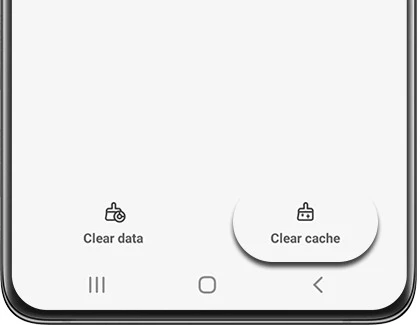
Keep Clear data out of this test. Samsung says that option resets the app and removes its saved settings and data. Clear cache is the smaller change; read the button label carefully before tapping it.
What do Downtime and the Advanced settings do?
On the Manage restriction page, tap the three-dot menu and choose Advanced settings. Per Android Authority, you’ll find these options:
- Downtime, which blocks and unblocks the chosen apps on a schedule.
- Restrict browsers and Restrict games, which apply to apps of those types, including ones you install later.
- Options to change, delete or reset the PIN, and to reset the logs.
Android Authority describes Samsung’s intended use as reducing distractions and says changing the restrictions requires the Guardian PIN. Keep the PIN somewhere you can retrieve it before you start experimenting with settings.
Is AI Network Guard really an ad blocker?
AI Network Guard is an app connection control, not a filter that picks out advertising requests. Android Authority explains that ad blocking is a side effect for apps that work offline. If the app needs a server for its main function, cutting off that connection can make the app unusable.
I’d keep privacy claims narrow. Beebom discusses preventing an app from sending data while its network access is restricted, but that article doesn’t present a network audit. Don’t treat this setting as proof that an app has never collected information or that previously sent data has been deleted.
What if you forget the Guardian PIN?
Advanced settings lists a reset PIN option, per Android Authority. None of the write-ups say how it checks that it’s really you, so don’t count on it. Save the PIN in a password manager before you restrict anything.
While you’re on One UI 9, our guide to annoying One UI 9 changes and our full features list cover what else changed. To see whether your Galaxy has the update yet, use our One UI 9 update tracker.
Frequently asked questions
Does AI Network Guard work on the Galaxy S25 or S24?
The sources used here don’t establish support on the Galaxy S25 or S24. Beebom names a Galaxy S26 Ultra on the beta. Check for AI Network Guard on your own build, and share the model and software version if you want help comparing the menus.
Does it block Wi-Fi only, or mobile data too?
The reports say it cuts the app off from the internet and none of them says Wi-Fi only. I’d test with one app on both connections before trusting it.
Will a blocked app still send notifications?
Don’t rely on a restricted app for timely online alerts. Beebom describes restricted messaging apps no longer receiving new messages. Leave essential communication apps unrestricted, and test any nonessential app before depending on its notifications.
How do you let a blocked app back online?
Return to Manage restriction with your Guardian PIN and review the app selection under Restrict apps. After removing the app from the restriction, open it and check its connection. If your screen differs from the report, stop before changing broader settings and check the instructions shown on your phone.
Was this guide helpful?
Your answer helps us keep it accurate.
Comments (0)
Comments are moderated, and published only if they are relevant to the topic and add value in a constructive way. If you disagree with something, please be polite and respectful.