
To enable Samsung back-tap gestures, open RegiStar in Good Lock and select Back-Tap action. Turn it on, then choose an available action for double or triple taps. If your Galaxy starts triggering that action unintentionally, return to this same control and compare the behavior with it disabled.
This gesture uses taps on the back of the device. It is separate from tapping the display to wake it, and from holding the Side button. I'll show you how to find the correct setting and check the result without changing several gesture controls together.
Check RegiStar availability on your Galaxy
Samsung India's Good Lock directory lists RegiStar's Back-Tap action for Galaxy S and Flip devices. Samsung also qualifies Good Lock modules and their features by phone model and software version.
The current RegiStar Galaxy Store listing identifies Good Lock Labs as the publisher. At this check, version 1.0.73 lists official support for One UI 9.0. That software support statement doesn't turn every RegiStar feature into a feature for every Galaxy model.
If the store or module doesn't offer Back-Tap action for your device, note the model and installed software. Avoid treating an app-install button as confirmation that every control shown on another model will appear on yours.
Good Lock and RegiStar have separate app entries. An update for Good Lock alone doesn't tell you that its RegiStar plugin was updated too. Review the module offered inside Good Lock; for checking the store queue, see our Galaxy Store app-update steps.
Find the module and its back-tap setting
- Open Galaxy Store and search for Good Lock.
- Install or update Good Lock, then open it.
- Find RegiStar among the available plugins and download or update it if offered.
- Open RegiStar and select Back-Tap action.
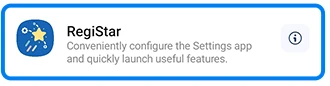
Samsung's current reference uses a Plugins list. Look for the module name rather than relying on an older guide's category tab position. Good Lock's organization can differ between versions.
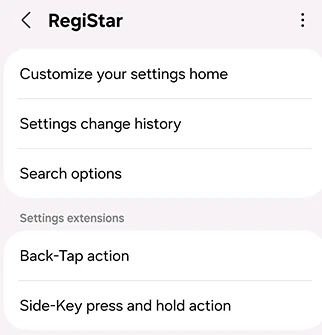
The surrounding RegiStar page also offers Settings customization and change history. Those aren't prerequisites for using a back-tap gesture. Select the Back-Tap action entry so you are configuring the gesture you intended.
Assign a gesture you can recognize
A Samsung Members back-tap walkthrough documents opening Back-Tap action, enabling it and choosing Double Tap or Triple Tap. It also shows a sensitivity control. This is a member's illustrated walkthrough; Samsung's current store and support references above establish the module and supported feature separately.
- Enable Back-Tap action if your device offers it.
- Choose Double Tap or Triple Tap.
- Select an action from the choices displayed on your phone.
- Return to a screen where you can recognize the result and try the gesture.
- Configure the other gesture afterward if you also want it.
For example, a screenshot action has a result you can inspect in Gallery. Use the choices actually available in your module; a screenshot of a different Galaxy isn't a complete feature list for your model.
Our Samsung screenshot methods guide covers the button and palm-swipe alternatives. You can choose the method that fits your grip without enabling multiple gestures just to capture the same image.
Compare unintended actions before changing sensitivity
First establish which gesture is assigned to the unwanted result. If the result is a screenshot, inspect both the double-tap and triple-tap assignments. Disable Back-Tap action and repeat the ordinary handling that seemed to trigger it.
If the unwanted action stops during that comparison, you have a useful reason to review the assignment or sensitivity before enabling it again. If the behavior continues with the module's back tap off, look beyond this gesture instead of repeatedly increasing its sensitivity.
There is a concrete historical example in a Galaxy S25 Ultra owner's Samsung Community thread. The owner found back tap enabled after transferring from a Galaxy S23 Ultra, disabled it, and later reported that the random screenshots had stopped. That was one owner's follow-up, rather than evidence of a current issue affecting every Galaxy.
Keep your comparison simple: one assigned action, the same handling and one change at a time. Write down the assignment before changing it so you can restore your preferred shortcut afterward. There isn't one sensitivity value that this evidence establishes as best for every phone and grip.
FAQ
Will back tap also wake the screen?
Display wake gestures are configured separately. If that is your goal, follow our double-tap display guide. Setting up a back-tap action doesn't replace the screen's own wake setting, and the module's available conditions can vary.
What should I share when the gesture is unreliable?
Tell me your Galaxy model, One UI version, RegiStar version, assigned gesture and what actually happens. Include whether the action also triggers with Back-Tap action disabled. Describe normal handling rather than striking the device harder to force a result.
Was this guide helpful?
Your answer helps us keep it accurate.
Comments (0)
Comments are moderated, and published only if they are relevant to the topic and add value in a constructive way. If you disagree with something, please be polite and respectful.