
Change Samsung screen timeout in Settings > Display > Screen timeout. Choose how long the display waits after inactivity. If you want it to stay on while you read, check Keep screen on while viewing; if you want to change when credentials are required afterward, use Secure lock settings.
Those controls handle different parts of the same experience. I'll help you separate a screen that turns off too soon from a phone that stays unlocked longer than you expected.
Set the display's inactivity timer
Samsung Canada's timeout guide documents choices between 15 seconds and 10 minutes. The timer applies after inactivity, rather than limiting an active session to the selected duration.
- Open Settings.
- Tap Display, then Screen timeout.
- Select one of the durations your phone offers.
- Leave the phone without interacting with it and check whether that duration suits your use.
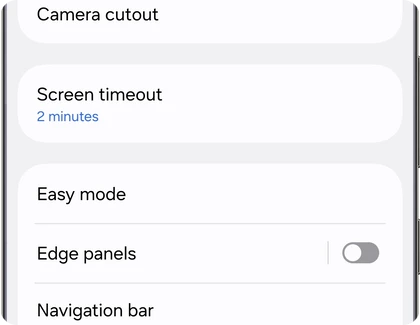
A short interval suits checking a message and putting the phone down. A longer one may be more comfortable when you read a page without touching the display. Samsung notes that longer screen-on time uses more battery, so choose a duration for the task rather than automatically selecting the longest.
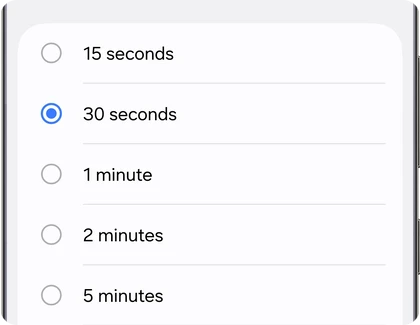
The documented menu doesn't offer a permanent Never option. If you're looking for continuous display during a particular activity, check the relevant viewing or playback behavior instead of searching for a hidden duration that Samsung doesn't list.
Keep the screen on while you look at it
Keep screen on while viewing uses the front camera to detect your face. Samsung Canada says it can work poorly in low light or when your face isn't clearly visible. That explains why enabling it isn't the same as choosing an unlimited timer.
- Open Settings and search for Keep screen on while viewing.
- Open the matching setting.
- Enable the switch if the feature is available on your device.
- Try reading with your face visible to the front camera.
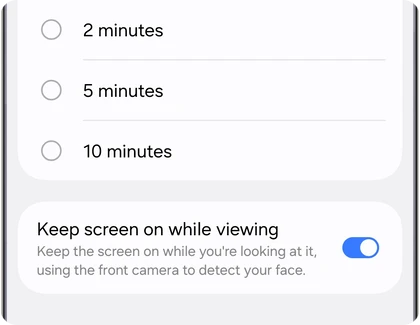
The Canadian example puts the switch inside Screen timeout. Samsung's US screen-off instructions use Settings search, which is useful when your menu organization differs. Samsung also notes that availability varies by device and software.
If you want to review the selected inactivity duration without face detection affecting the result, turn the viewing switch off for that comparison. You can re-enable it afterward. Change one control at a time so the result tells you which setting made the difference.
Choose when the phone locks after the screen goes off
A dark screen and a security lock are separate events. Samsung's current US screen-lock guide places the security controls under Settings > Lock screen and AOD > Secure lock settings. This menu appears after you've created a screen lock and requires your current credentials.
- Open Secure lock settings using that path.
- Enter your current screen-lock credentials.
- Open Auto lock when screen turns off.
- Choose the offered delay that suits your needs.
- Review Lock instantly with Side button separately if you want that behavior when you press the button.
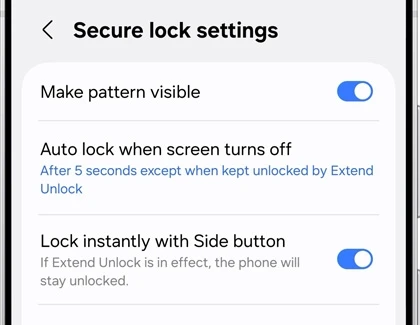
A longer auto-lock delay can leave the phone unlocked after the display turns off. Notice the exception in Samsung's reference: when a trusted-device or trusted-place setting keeps the phone unlocked, the usual delay and Side button behavior can differ. Review that condition before relying on the screen going dark as evidence that credentials are required.
This setting is separate from customizing a Side button press action. Our Side button action guide covers the double-press and long-press choices.
Match the symptom to the right control
If text becomes dim but remains visible, distinguish that from the display turning off completely. Increasing timeout addresses the inactivity interval, while the screen's brightness is a separate adjustment. Describe what you can still see before changing unrelated controls.
For a display that switches off when a case closes, Samsung's US instructions identify Settings > Advanced features > Accessories > Auto screen on and off. That entry only appears with certain cases or accessories. Review it when the case's movement matches the symptom.
Videos may behave differently from a static page. Samsung Canada suggests using the player's full-screen control when browser playback still allows timeout. Compare the same video in its full-screen player before applying a longer timeout to every activity.
FAQ
Does timeout control how I wake the display?
It controls the inactivity period before the display turns off. Waking the screen by gesture is a separate choice; our double-tap screen guide explains where to enable that behavior. Choose the wake gesture independently of the timer.
Which details help when the screen still turns off unexpectedly?
Tell me your Galaxy model, One UI version, chosen timeout and the app you were using. Include whether the viewing switch was on, whether the room was dim and whether a case was closing. That gives us a useful comparison without guessing that every screen-off event has one cause.
Was this guide helpful?
Your answer helps us keep it accurate.
Comments (0)
Comments are moderated, and published only if they are relevant to the topic and add value in a constructive way. If you disagree with something, please be polite and respectful.