
To revert edits in Samsung Gallery, open the photo, tap Edit and look for Revert. On supported models and software, select Revert to original and save the restored image. If you want to keep both versions, use Save as copy for the edited result before restoring the other version.
The choice depends on what you need: the original photo, a separate edited photo, or both. I'll show you where those decisions happen so you don't replace the version you meant to keep.
Decide which version you want to save
Samsung India's current restoration instructions show Revert inside the Gallery editor. Samsung qualifies the feature by model and software version. Open the actual photo you edited and check the available controls before assuming you can restore any image in your albums.
| Your goal | Control to look for | Check afterward |
|---|---|---|
| Bring the edited photo back to its original appearance | Revert, then Revert to original | The restored photo after saving |
| Keep an edited result separately | More options, then Save as copy | Both the original and the new edited photo |
| Keep the current edit and also restore the original | Preserve the edited copy first, then restore the appropriate photo | Two distinct results with the appearances you intended |
For a simple example, imagine you cropped a wide photo to use as a profile picture. You might want the square crop for your profile and the full-width scene for printing. A separate edited copy makes those two purposes easier to manage than repeatedly replacing the same image.
Open the saved photo in Gallery's editor
- Open Samsung Gallery.
- Select the edited photo whose original you want.
- Tap Edit, shown as a pencil.
- Look for Revert in the editor.
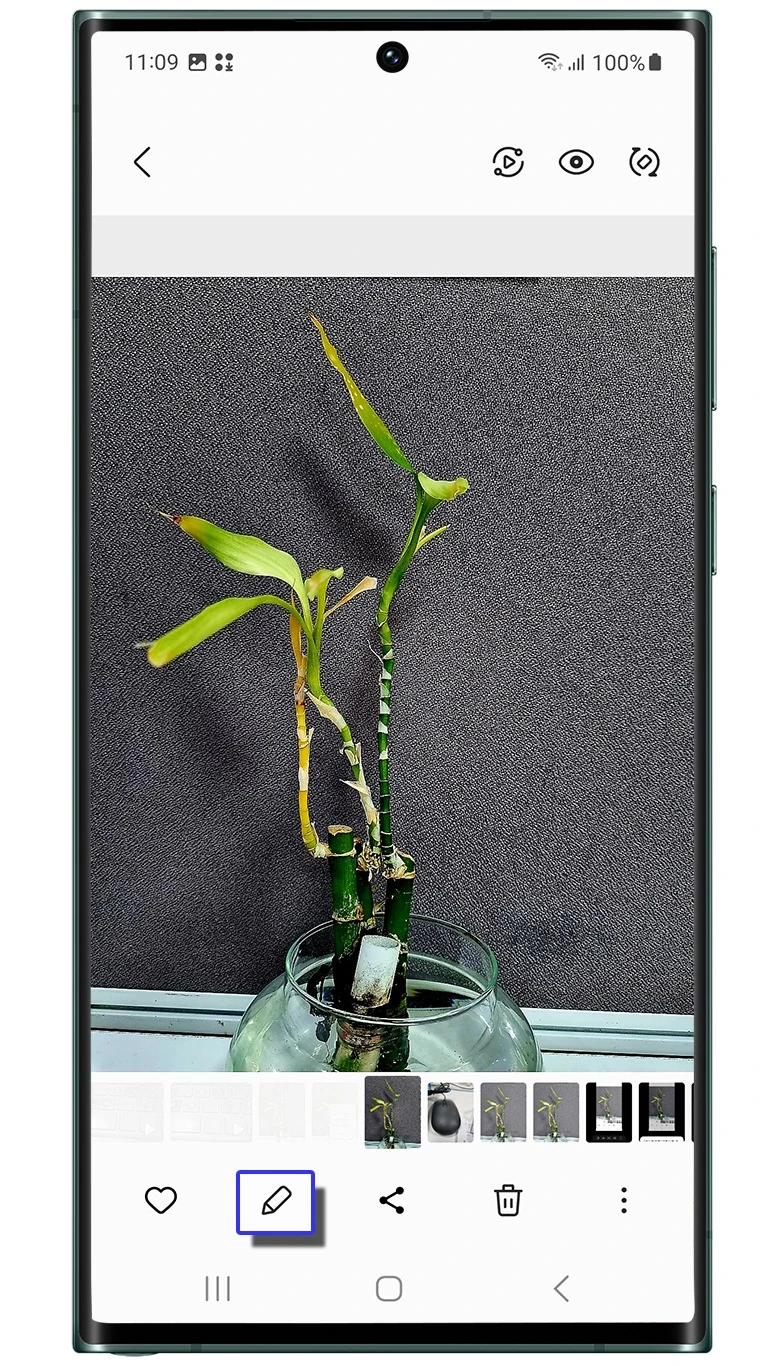
Choose the image carefully when the album contains similar copies. Compare the visible crop, colors or other changes that prompted you to restore it. Restoring a different copy can leave you thinking that nothing happened to the version you actually use.
If the photo is a screenshot, the initial capture and crop controls are a different workflow. Our Nice Shot screenshot guide explains those options without changing the Gallery restoration steps here.
Revert the photo and save the result
- Tap Revert.
- Select Revert to original when that confirmation appears.
- Check the image shown in the editor.
- Tap Save to retain the restored version in Gallery.
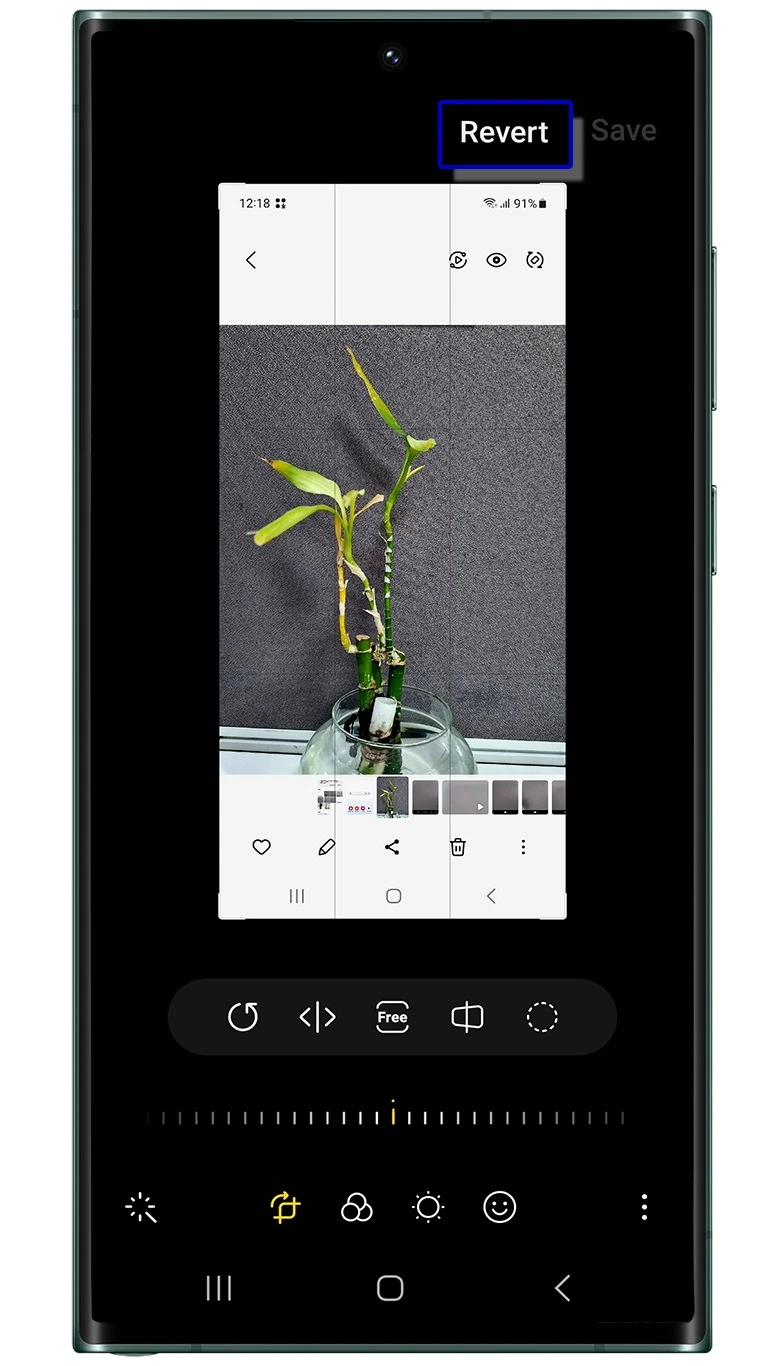
Samsung India's illustrated procedure includes saving after the restoration and finding the photo in the same Gallery location. Follow the confirmation shown on your phone rather than stopping as soon as the preview changes.
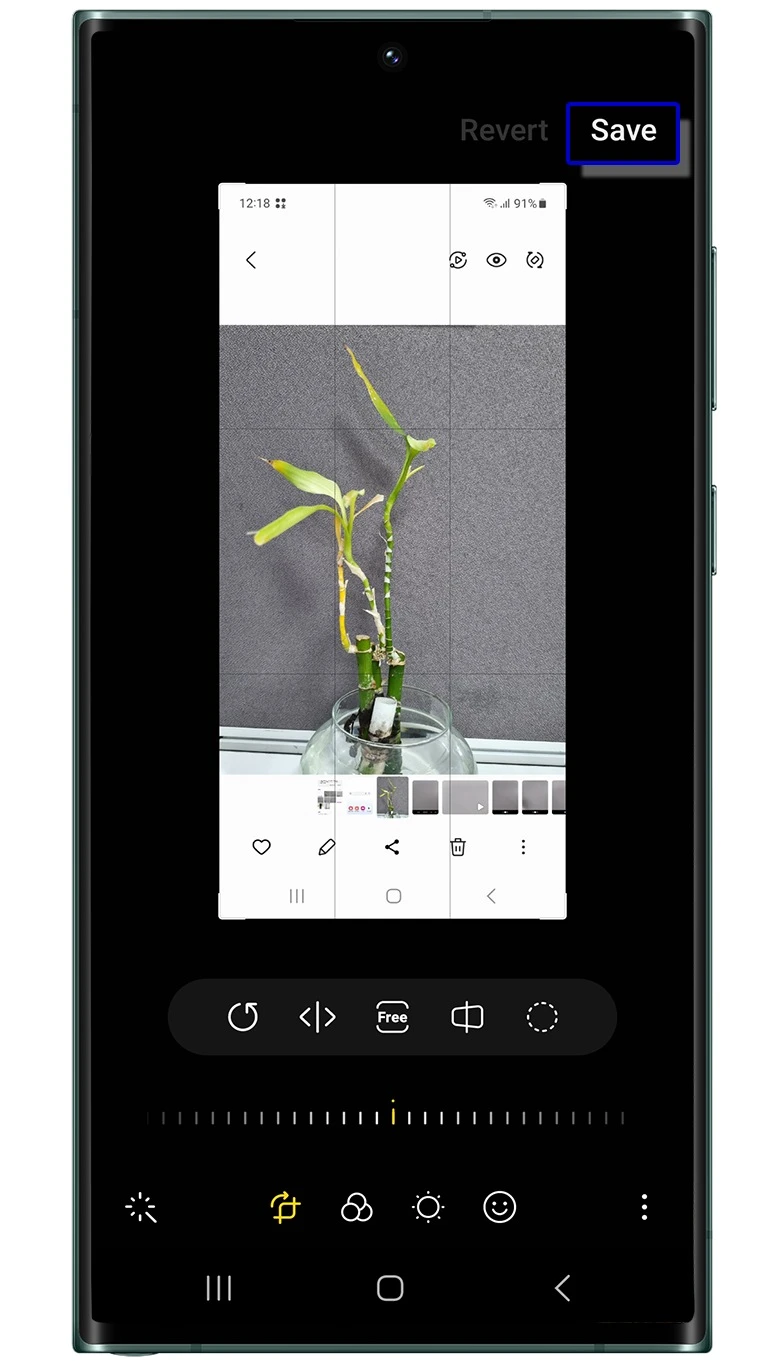
Open the saved photo again and inspect the part you wanted back. For the wide-photo example, check that the full scene is visible. A quick visual check is more useful here than assuming that the last button press produced the version you wanted.
Use Save as copy before you need the original again
Samsung Canada's photo-editing instructions document More options, represented by three vertical dots, followed by Save as copy. Samsung describes this as a way to keep the original while saving your edited photo.
- Open the photo in Gallery and enter the editor.
- Make the changes you want.
- Open More options and choose Save as copy when available.
- Return to Gallery and compare the original with the separate edited result.
If you're about to restore a previously saved edit that you still need, preserve that appearance as a separate copy first. Verify the copy before using Revert on the photo you want to restore. This puts the check before the action that changes its appearance.
A separate version in Gallery and a copy on another device serve different purposes. Our Quick Share transfer guide covers sending a photo to a nearby Android device. Open the received photo and check its appearance before relying on it as your saved copy.
When Revert isn't available
The Samsung restoration page only promises the feature on selected models and software. If the control is absent, note the Galaxy model, installed One UI version and whether this particular image was edited in Samsung Gallery or arrived from another app.
Also check whether you already have an original-looking copy elsewhere in the album or in a backup you can open. Compare the actual image before replacing anything. This guide doesn't establish a recovery method for a photo whose original information is no longer available.
There is no need to start with storage cleanup when your goal is to recover an original. First identify the versions you have and save the one you need. Avoid deleting photo-related files while you're still trying to work out which copy contains the wanted picture.
FAQ
Can I restore a photo I received from someone else?
Samsung's instructions cover supported Gallery restoration, rather than a guarantee for every edited image you receive. Check the available editor control and ask the sender for the original if necessary. A visible crop alone doesn't tell you whether this copy can be restored.
Which details help if the saved photo still looks wrong?
Tell me your Galaxy model, One UI version, the editing app you used and whether you selected Save or Save as copy. Describe the change you want to undo without posting a private photo. Those details help distinguish a version-selection problem from an unavailable restoration option.
Was this guide helpful?
Your answer helps us keep it accurate.
Comments (0)
Comments are moderated, and published only if they are relevant to the topic and add value in a constructive way. If you disagree with something, please be polite and respectful.