
To use Samsung Dual Audio on a supported Galaxy, connect two Bluetooth audio devices, open Media output from Quick settings, and select both devices under Audio output. Pairing the headphones alone does not finish the setup. Samsung's US connection guide says you can select up to two audio devices there.
This is the setup to use when two people want to hear the same music or video. I'll separate the pairing, output selection and volume checks so you can see where a connection is getting stuck.
Pair each headset with the Galaxy
Have both accessories ready, and use their own instructions to put them into pairing mode. Samsung's connection guide documents the Bluetooth route below; you do not need to install an equalizer or a music-sharing app to reach those controls.
- Open Settings > Connections > Bluetooth.
- Turn on Bluetooth and place the first headset in pairing mode.
- Select it from the available devices and complete any confirmation prompt.
- Repeat the pairing process for the second headset.
- Check that both intended audio devices are connected before opening Media output.
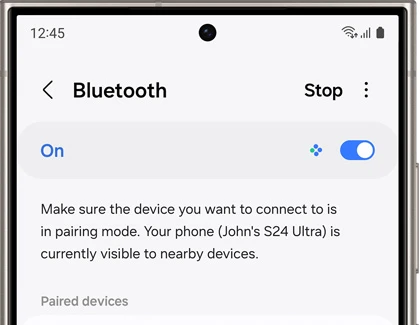
Use the accessory names to keep track of the two connections. If they are hard to tell apart, the same Samsung page explains how to rename a paired device using the settings icon beside its name. Give each one a recognizable label before you continue.
Select both devices in Media output
Open the output chooser after the Bluetooth connections are ready. The label on current Samsung instructions is Media output, although some support pages shorten it to Media.
- Open your Galaxy's Quick settings panel.
- Tap Media output.
- Find both connected audio devices under Audio output.
- Select the circle or checkmark beside each device.
- Play the music or video you want to share and check each headset.
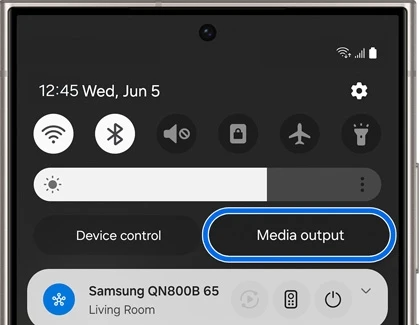
Samsung Canada's Media panel instructions describe checking the circles beside connected devices to play the same media through multiple outputs. Keep an eye on those selections if audio plays through only one headset after pairing.
Match the missing sound to the right check
Work from the connection toward playback. Re-pairing both headphones repeatedly makes it harder to tell whether the problem was finding an accessory or simply selecting it as an output.
| What you see | What to check next |
|---|---|
| The accessory is absent from Bluetooth scanning | Put that accessory in pairing mode and scan again. |
| Only one intended device is connected | Complete the other Bluetooth connection before checking audio output. |
| Both devices appear under Audio output, but one is not selected | Select that device as well. |
| Both are selected, but one sounds quiet | Look at that device's volume slider in the Media panel. |
There is also a two-device limit to account for. In its Dual audio instructions, Samsung says connecting a third Bluetooth device disconnects one of the paired devices. Check for another audio accessory connecting while you are setting up the pair you want.
Adjust the two listening levels
Samsung's Dual audio page distinguishes the phone's volume keys from the individual sliders in the Media panel. The keys adjust the outputs together; use each device's slider when one listener wants a different level.
Begin quietly and let each listener check their own headset before raising its level. There is no need to make both sliders look identical if the comfortable levels are different.
For the phone's broader sound levels, Samsung's sounds and vibration guide explains the separate media, ringtone, notification and system controls. You can expand the volume pop-up to inspect the sound types instead of changing an alert slider by mistake.
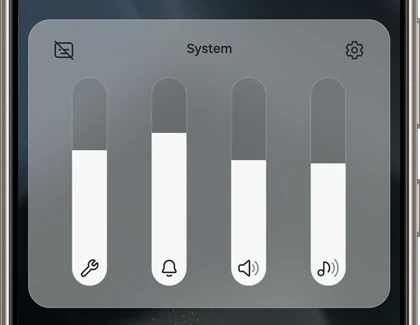
If the route and level are correct but you want to change the tone, our Samsung sound effects guide explains Equalizer and the headphone-dependent controls. Treat that as a separate adjustment from getting both outputs selected.
Go back to one headset
When you finish sharing, open Media output and uncheck the device you no longer want to use. That is the return-to-one-device method in Samsung's Dual audio instructions.
Unpairing is a different action. Samsung's connection page says it makes the devices stop recognizing each other and requires pairing again for a later connection. Leave that step for an accessory you actually want the phone to forget.
FAQ
Can the two headsets play different apps?
Dual Audio sends the same media to the selected outputs. If you want one app on a Bluetooth speaker and other media on the phone, follow our Separate app sound guide instead. It has a different app-and-destination setup.
Why does an older guide show a Bluetooth Advanced switch?
Samsung documents that switch for One UI 1 and earlier. Its newer instructions use the Media panel and output selections. Follow the route for your software; if your Galaxy lacks those controls, leave your model and One UI version in a comment so we can check the right device instructions.
Was this guide helpful?
Your answer helps us keep it accurate.
Comments (0)
Comments are moderated, and published only if they are relevant to the topic and add value in a constructive way. If you disagree with something, please be polite and respectful.