
To change Samsung sound quality settings, open Settings > Sounds and vibration > Sound quality and effects. Connect the headphones you plan to use before choosing an effect, because Samsung documents different controls and requirements for different audio devices. Start with the control that matches what you want to change, rather than enabling every option.
I'll walk you through that choice. An equalizer adjustment, a surround effect and a personalized listening profile each do a different job.
Pick a control for the change you want
Samsung Canada's sound settings guide lists Dolby Atmos, dialogue enhancement, loudness normalization and Adapt sound among the available effects. Its descriptions give you a better starting point than a list of switches to turn on.
| Your aim | Control to look for |
|---|---|
| Change the balance of bass and higher sounds | Equalizer |
| Try a surround-style effect | Dolby Atmos |
| Bring voices forward in videos | Boost dialogue, where available |
| Reduce changes in playback loudness | Loudness normalization, where available |
| Choose or create a listening profile | Adapt sound |
Choose one aim first. If a voice is hard to follow, try the dialogue control you have before changing several equalizer bands as well. You can then compare the same clip with the change enabled and disabled.
Open the effects page with your usual headphones
Use the same headphones for setup and comparison. Samsung's US sound settings page says some effects require a connected headset, so a speaker-only view may not show the choices you expect.
- Connect your headphones to the Galaxy.
- Open Settings and select Sounds and vibration.
- Tap Sound quality and effects.
- Note the options and current selections before changing them.
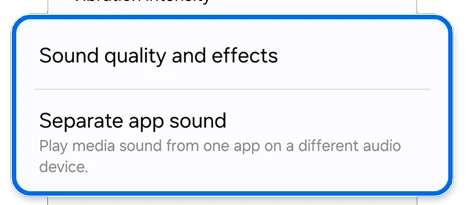
Writing down a preset name is enough for a simple comparison. For a custom curve, keep a screenshot of the sliders so you have something exact to return to.
Adjust Equalizer using a track you know
Samsung's Canadian audio guide documents preset choices and a Custom option. Preset names on your software may differ from the reference screen, so use the choices actually displayed on your device.
- Open Equalizer from Sound quality and effects.
- Play a familiar song at a comfortable volume.
- Try one preset and compare it with the selection you noted earlier.
- For manual adjustments, select Custom and move a slider a little at a time.
- Replay the same passage before deciding which arrangement you prefer.
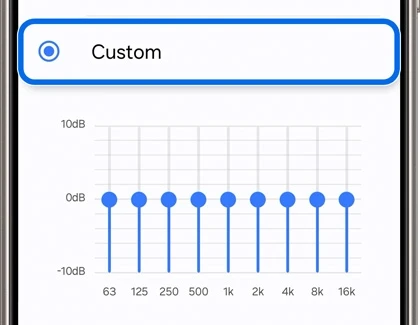
A screenshot of somebody else's curve can be a starting point for comparison, but choose the result by what you hear through your own headphones. Save your earlier settings before experimenting further.
Look for 360 Audio when Galaxy Buds are connected
A missing Dolby Atmos label can be a menu change associated with the connected accessory. Samsung's dedicated US audio instructions say that connecting Galaxy Buds replaces the Dolby Atmos option in Sound quality and effects with 360 Audio.
For Dolby Atmos itself, the same page documents a Quick settings tile. Tap it to toggle the effect, or touch and hold it to open the available settings. Check which headphones are connected before deciding that an effect disappeared after an update.
Use Adapt sound for a listening profile
Adapt sound is a separate choice from adjusting the equalizer. In Samsung's US advanced audio help, you can find it through Settings search, choose an age-group profile and preview it using the settings icon.
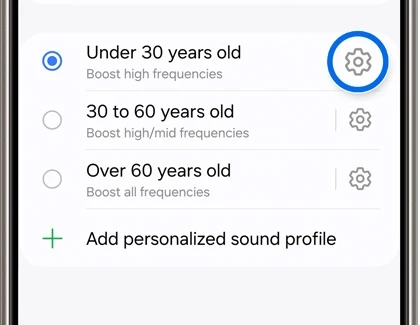
That guide also offers Test my hearing, followed by Start, to create a profile. Other software may use a profile-creation label instead. Follow your phone's prompts with the headphones connected, then compare the resulting profile using the same audio you used earlier.
Check the headset's own quality controls
Ultra high quality audio is not a wired-only feature across every Galaxy accessory. For a specific example, Samsung's Galaxy S25 and Buds3 instructions place it in Galaxy Wearable > Sound quality and effects > Advanced quality options.
Use that accessory-specific route for the combination described there, rather than trying to force a grayed-out phone setting. When checking a different combination, note the Galaxy model, headphone model and installed software. The fields in our firmware version guide help you identify the software you actually have.
FAQ
Will these effects send one app to another speaker?
For that job, use our Separate app sound setup. It selects a destination for an app's media. Sound quality and effects changes how audio is processed, so the output device is a different choice.
Do I need to change ringtone volume too?
Samsung provides separate volume controls for media, ringtones and notifications. For this comparison, adjust the media or connected-device level and leave your alert volumes where you want them. If your menus still differ, share your Galaxy and headphone model numbers below so we can look at the right combination.
Was this guide helpful?
Your answer helps us keep it accurate.
Comments (0)
Comments are moderated, and published only if they are relevant to the topic and add value in a constructive way. If you disagree with something, please be polite and respectful.