
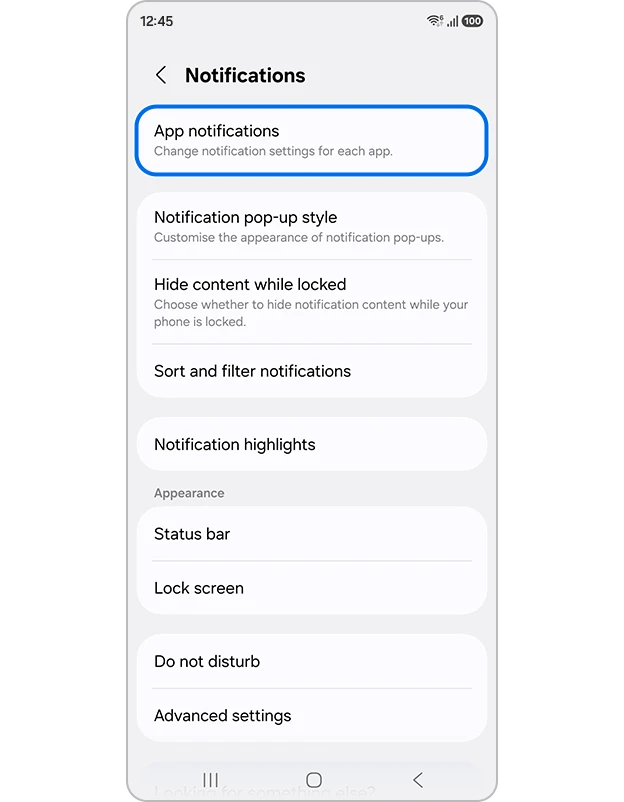
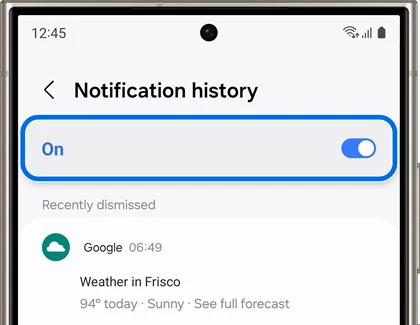
To see dismissed notifications on a Samsung Galaxy, open Settings > Notifications > Advanced settings > Notification history. Turn on the switch if it is off. Samsung's US notification instructions say the history starts collecting alerts from that point, so enabling it after you cleared an alert will not bring that earlier alert back.
I'll help you check the existing log first, then make sure future alerts are being recorded. You don't need another notification-saving app for this built-in option.
Open the history before changing anything
If you just swiped away something important, go straight to the history page. Leave the switch as it is while you look. The useful question is whether the feature was already recording when that notification arrived.
- Open Settings on your Galaxy.
- Select Notifications.
- Open Advanced settings.
- Tap Notification history.
- If the switch is on, look through the available notifications for the app you need.
The route is documented by Samsung Gulf as well. If your menus look different, search Settings for Notification history rather than following a shortcut from a different phone brand.
What can you find in notification history?
Notification history is a recent alert log. Google's Android notification help describes recently dismissed notifications, snoozed notifications and the day's history. It also refers to a Last 24 hours section. Samsung Gulf cautions that older alerts may not be stored and that behavior can vary by device.
Look for the app name and the notification's details, rather than expecting a complete record of everything inside that app. For example, a calendar alert can help you identify which calendar to open. It is still sensible to check the appointment in the calendar itself before changing your plans.
The log is useful for finding the source of a missed alert too. Once you identify the app, you can decide whether its notifications deserve a different sound or whether they should be quieter. That is a separate decision from recovering the dismissed notification.
Turn it on and try a new alert
An empty history immediately after enabling it is expected. Samsung's US page specifically tells you to return after receiving new notifications. Give the feature something new to record before treating a blank page as a fault.
- On the Notification history page, turn on the switch at the top.
- Wait for an ordinary notification from an app you use, or ask someone to send you a harmless test message.
- Note the app and the approximate time.
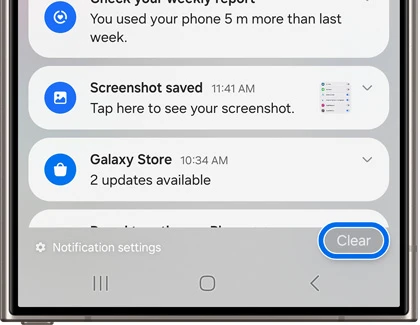
- Dismiss that notification from the notification panel.
- Return to Notification history and look for the new entry.
Use an alert you can afford to dismiss for this check. Write down what happened: whether the alert appeared normally, whether you dismissed it, and whether the log received it. Those observations make a support request much clearer than saying the feature never works.
If one app never appears
First check whether that app is sending a notification at all. In Samsung's US app notification guide, Settings > Notifications > App notifications includes a Most recent filter. The same page explains how to review apps with notifications turned off.
Use those controls to separate a delivery problem from a history problem. If the app's notifications are blocked, allow the alerts you actually want and repeat the new-alert check. If alerts appear in the panel but do not reach history, note that distinction when contacting Samsung support.
For a menu mismatch, include your Galaxy model and installed software version. Our Samsung firmware version explainer shows which software details are useful. Avoid changing several notification settings at once; otherwise, you won't know which change affected the result.
Keep the log and lock-screen choices separate
Samsung describes history as showing notifications as they appeared. Treat the saved entries as potentially personal when you let someone use your phone. You can inspect the log yourself without sharing a screenshot containing message previews or account details.
Also check which screen is bothering you. A notification history entry, a lock-screen notification and a Now bar activity are different places to look. If your aim is to remove a briefing from the lock screen while keeping music controls, use our Now Brief and Now bar instructions for that change.
FAQ
Can this restore a deleted conversation?
Use history to inspect the notification information it saved. For the conversation itself, check the messaging app and its own recovery options. An alert log is not a substitute for the app's message history or backup.
What details should I include when asking for help?
Tell us your Galaxy model, One UI version, the app involved and whether a newly received alert appears in the notification panel but not in history. Please leave private message text out of your comment.
Was this guide helpful?
Your answer helps us keep it accurate.
Comments (0)
Comments are moderated, and published only if they are relevant to the topic and add value in a constructive way. If you disagree with something, please be polite and respectful.