
Samsung Separate app sound lets you send selected apps' media to your phone or a connected Bluetooth device independently of the main audio output. Open Settings > Sounds and vibration > Separate app sound, choose the apps, then choose their destination. The condition in Samsung's US advanced audio guide is that this destination must differ from the main output.
That last choice is easy to miss. I'll explain the routing first, so you can get music where you want it without moving the rest of your media along with it.
Decide which sound belongs on which device
Think of Separate app sound as an exception for an app you choose. You are choosing both the app and the place its media should play. Turning on the switch without checking those two fields leaves the job unfinished.
For example, Samsung describes playing music on a speaker while watching a video on the phone. To build that arrangement, choose the music app for Separate app sound and Bluetooth device as its destination. The phone should remain the main output for the other media.
| Your intended arrangement | Selected app's destination | Main output |
|---|---|---|
| Music app on a Bluetooth speaker, other media on the phone | Bluetooth device | Phone |
| One selected app on the phone, other media through Bluetooth | Phone | The connected Bluetooth device |
These are routing examples, not a recommendation to select every app. Begin with the one app you actually want to separate. It is much easier to check an arrangement with a single exception than a long list of selected apps.
Connect the Bluetooth device first
Pair and connect the speaker or headphones you intend to use before opening the audio-device selector. Samsung's US multitasking instructions say the Bluetooth option may be available only while a Bluetooth device is connected.
If that choice is unavailable, check the connection before looking for a replacement app. A device being nearby is not the same as having it connected to your Galaxy. Use the device's own pairing instructions if it has not been paired yet.
Select the app and its destination
Once the Bluetooth connection is ready, follow the Settings route below. Samsung uses the labels App and Audio device for the choices you can revisit later.
- Open Settings and select Sounds and vibration.
- Tap Separate app sound.
- Enable Turn on now.
- Tap Select if the setup prompt appears.
- Choose the app whose media you want to route separately. Use Add apps if you need to find another app.
- Go back and select Phone or Bluetooth device as the destination.
- Return to the Separate app sound page and check the App and Audio device fields.
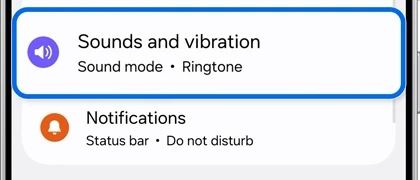
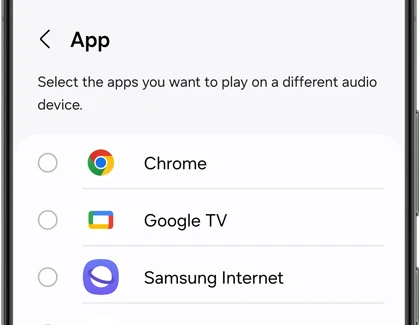
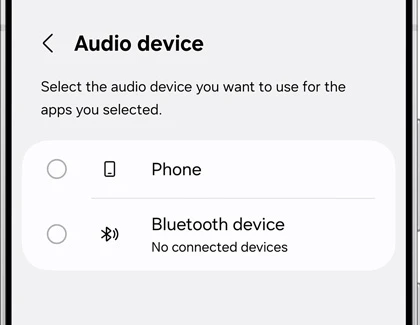
The reference images show where the controls are, not a completed configuration to copy blindly. Choose the app and connected device that fit your own arrangement.
When the sound still goes to the wrong place
Check the main audio output against the destination you just assigned. Samsung's Canadian Media panel guide explains how to open Media output from Quick settings and select an audio device there.
For the music-on-speaker example, confirm that the music app is selected under Separate app sound, its destination is Bluetooth device, and the main output is Phone. If both choices point at Bluetooth, return to Media output and correct the main route before trying again.
Play a short piece of media from the selected app, then check the other app you wanted to keep on the phone. Listen at a comfortable level. Change one field at a time if the arrangement is wrong; you will be able to tell which selection changed the result.
If your actual complaint is a missing music card on the lock screen, changing the audio destination addresses a different control. Our guide to keeping Now bar music controls explains the relevant lock-screen choices.
Change the arrangement or return to ordinary playback
You can return to Separate app sound and edit App or Audio device rather than starting the setup again. Switch off Turn on now when you no longer want an app-specific route.
Volume and routing are separate checks. Samsung's US sounds and vibration page places the volume sliders under Settings > Sounds and vibration > Volume. Check the relevant media or connected-device level if playback reaches the right output but sounds too quiet.
FAQ
Is this the setting for two pairs of headphones?
For the same media on two Bluetooth devices, Samsung documents Dual audio. Separate app sound instead assigns chosen apps a different destination from the main output. Decide which result you need before following either setup.
Will this improve the sound quality?
Use Separate app sound to choose where media plays. Samsung lists Sound quality and effects separately for options such as Dolby Atmos and Equalizer. A routing change should be checked by its destination, rather than by whether a song sounds different.
What should I share if my menus differ?
Let us know the Galaxy model, selected app, Bluetooth device and the App and Audio device choices you see. Add the installed software version from our firmware version guide so we can compare the right controls.
Was this guide helpful?
Your answer helps us keep it accurate.
Comments (0)
Comments are moderated, and published only if they are relevant to the topic and add value in a constructive way. If you disagree with something, please be polite and respectful.