
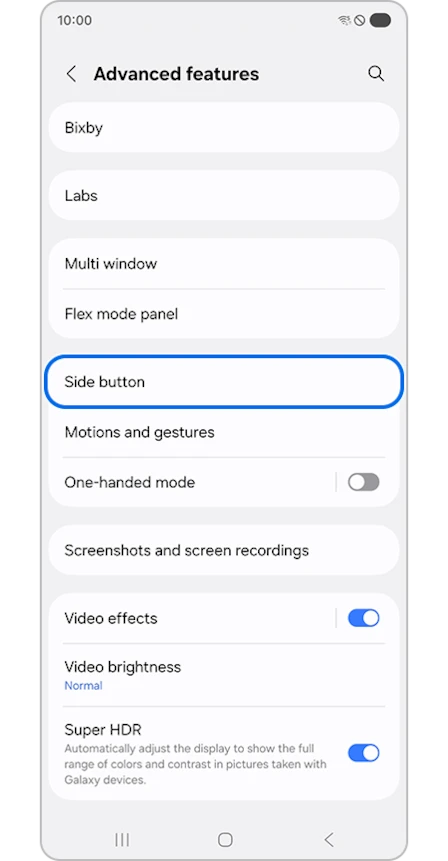
You can change your Samsung Galaxy Side button from Settings > Advanced features > Side button. Double press chooses the app or action you want to reach quickly, while Long press has its own setting for an assistant or the power menu.
I would set those two gestures separately, then check what each one actually opens. On supported software, selecting Camera or Voice Recorder can also reveal a second choice for a particular task inside that app.
Find the Side button controls
The Side button is the physical button used to wake or lock the screen. Samsung combines power and assistant functions in this button on many recent Galaxy models. Its US button guide distinguishes it from the dedicated Bixby key on older phones.
- Open Settings on your Galaxy phone.
- Tap Advanced features.
- Choose Side button.
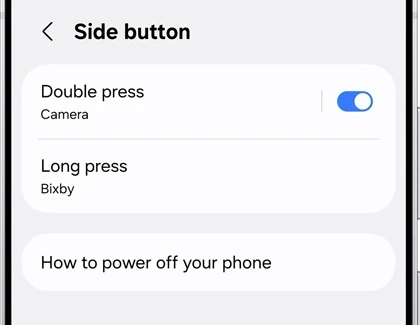
- Look for Double press and Long press, and note the action currently shown beneath each one.
That last check gives you a useful starting point. If Double press already says Camera, you can leave it there and change only Long press. There is no need to replace a shortcut you use just to reach the other setting.
Assign an app to Double press
Samsung's US instructions list Camera, Flashlight, Magnifier, Voice Recorder, Samsung Notes, Samsung capture, Modes and Routines, and Apps among the possible choices. The available list varies with your Galaxy model and software, so use the options your own screen offers.
- Tap Double press in the Side button menu.
- Turn on its switch if it is off.
- Select the action you want, or choose Apps to pick an available app.
- Return to the previous screen and check the action shown under Double press.
- Press the Side button twice quickly and check that the expected app or feature appears.
Choose something you want to reach without first finding its icon. For example, a flashlight assignment makes sense when you need light quickly, while a Camera assignment keeps the same button available for a photo. This is a choice between shortcuts you use, rather than a setting every Galaxy owner needs to change.
Use the gear beside a supported app
Some entries offer more than opening an app. Samsung Hong Kong explains the gear icon beside supported entries: it opens the available functions inside that app. This is where you choose the actual destination of the shortcut.
- Open Double press and select an app with a gear beside it.
- Tap that gear to see its supported actions.
- Select the task you want, then return to the Side button settings.
- Try the double press and compare the result with the task you selected.
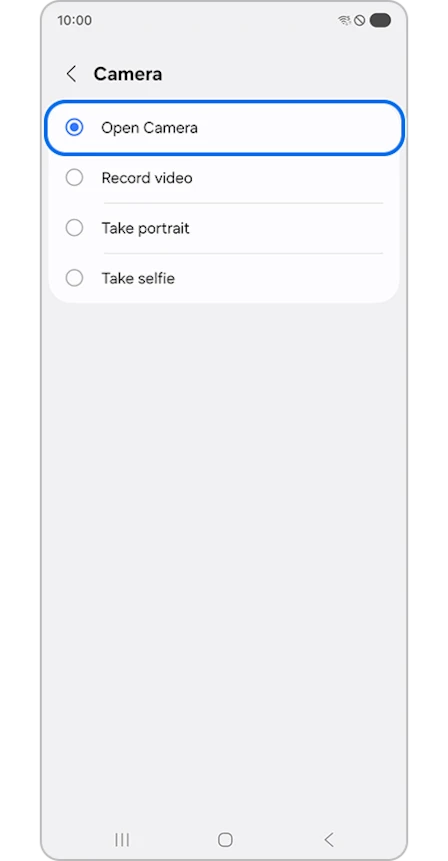
The pictured Camera menu offers Open Camera, Record video, Take portrait, and Take selfie. If you keep landing in a camera mode you did not expect, check this submenu before changing the whole button assignment. The selected function can explain the difference.
Voice Recorder provides another useful distinction in Samsung's instructions: starting a recording is a more specific action than simply opening the recorder. Read the action you select, especially when a shortcut can begin recording rather than wait for another tap.
Choose what a long press does
Open Long press to change the press-and-hold action. Samsung's US guide lists Digital assistant, Bixby, and Power off menu. If you want holding the button to show shutdown controls, select Power off menu here.
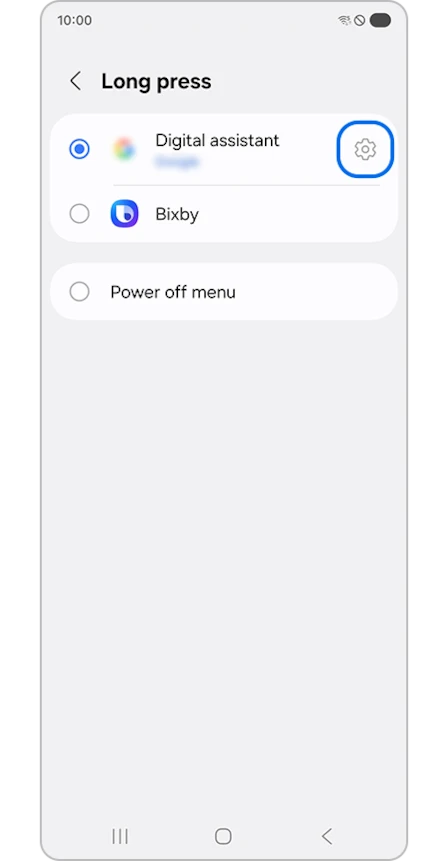
With an assistant assigned, holding the Side button opens that assistant instead. Samsung also provides other ways to reach shutdown controls: use the power icon in the Quick settings panel, or press and hold Side and Volume Down together. Follow the power-menu instructions shown on your device.
Check the gesture as well as the assignment. A short press of Side and Volume Down captures the screen, while holding the combination is a different action. Our Galaxy screenshot instructions explain the capture method if that is what you meant to do.
Try the flashlight assignment with the screen off
Samsung Canada documents a flashlight shortcut under Side button > Double press > Flashlight. Once selected, a double press turns the light on even with the screen off. Another double press turns it off.
After choosing it, check both directions of that action so you know how to switch the light off again. If you need a different brightness, touch and hold Flashlight in Quick settings. Samsung says its brightness slider becomes available when the flashlight is on.
FAQ
Does double-tapping the display use this shortcut?
No. These assignments use the physical Side button. Double-tapping the display belongs to the separate Galaxy screen wake and sleep gestures. Choose that control if you want to wake the screen without pressing a button.
Why are the available actions different on my Galaxy?
Samsung says menus vary by model, software, and region. Its US guide also tells Galaxy Z Flip owners to use the listed shortcuts with the phone open because closed-phone behavior can differ. Tell me your model, One UI version, and the choices under Double press or Long press if you need help identifying your layout.
Was this guide helpful?
Your answer helps us keep it accurate.
Comments (0)
Comments are moderated, and published only if they are relevant to the topic and add value in a constructive way. If you disagree with something, please be polite and respectful.