
To mirror your Samsung Galaxy on a compatible TV, open Quick settings, tap Smart View and select the TV. Tap Start now and approve the connection if prompted. Your phone and TV should be on the same Wi-Fi network, according to Samsung's US screen-mirroring guide.
Smart View mirrors the phone's screen. If you only want a movie to play on the TV while you use your phone for something else, check the video app's casting feature instead. I'll help you choose the right route before you connect.
Decide what you want the TV to show
Screen mirroring reproduces what you do on your phone. Opening another app or moving through its menus changes what appears on the larger display. That makes Smart View useful for walking someone through a setting, showing photos or displaying something that does not have its own casting button.
Before starting a whole-screen demonstration, close anything you do not want the room to see. Treat the TV as another view of the screen you are using, rather than expecting it to show only the first photo you opened.
Samsung describes app-based casting differently: your phone controls the media playing on the TV. With a supported service and receiving device, the video plays on the TV while your phone can do other things. Check the app and TV's support for that service instead of assuming every Cast button works with every television.
A desktop layout is another task again. If you need a separate workspace with windows on the TV or monitor, our Samsung DeX connection guide covers supported devices and that setup.
Connect the Galaxy with Smart View
Turn on your TV and connect it to the same Wi-Fi network as the phone. Samsung says some TVs need the correct input selected or screen mirroring enabled first. For a non-Samsung TV, check its manual for the supported mirroring method.
- Open Quick settings on your Galaxy. Samsung's current US instructions use a swipe down from the top right.
- Tap Smart View. Look for the control labeled Mirror screen, rather than the nearby SmartThings device-control button.
- Select your TV from the available-device list.
- Tap Start now when the phone asks you to begin.
- Enter the requested PIN or approve access if prompted. Check the TV as well as the phone for a connection request.
- Open the content you want to show once the phone's screen appears on the TV.
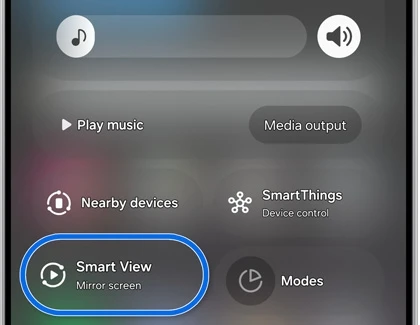
The opening gesture depends on your panel layout. If you have combined notifications and Quick settings, our combined-panel instructions explain that arrangement. The control you need for this connection is still Smart View.
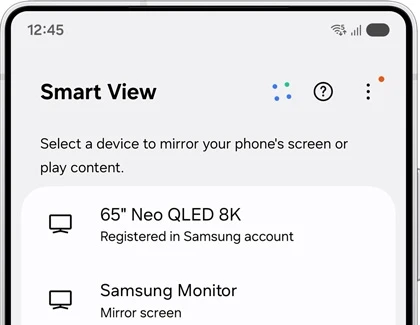
Keep the connection prompt enabled and approve the display you recognize. There is no need to turn off the TV's access notifications simply to complete this connection.
If the TV is already in SmartThings
You can also start mirroring through SmartThings. Samsung says the TV must be turned on and connected to your SmartThings account for this route.
- Open SmartThings on your phone or tablet.
- Select the TV you want to use.
- Open More options, the three-dot menu on the TV's settings page.
- Choose Mirror screen (Smart View).
- Tap Start now and grant the requested connection permission if needed.
This is an alternative way to launch the mirroring session. It does not mean that you should search Quick settings for a SmartThings button when the instructions ask you to tap Smart View. Use the full SmartThings route if that is where your TV is already set up.
Adjust the picture and disconnect when finished
A phone-shaped picture can leave unused space on a wide TV. Samsung provides an aspect-ratio control for that. Tap the Smart View control on the connected phone and look for Phone or tablet aspect ratio, or Change aspect ratio, depending on the displayed interface.
Samsung's main guide also documents a route through the Smart View menu's More options > Settings > Phone aspect ratio. Choose the available ratio that suits the material you are showing, then look at the TV to judge the result.
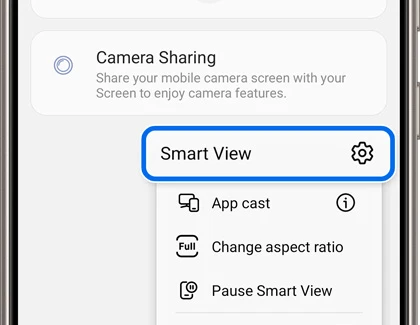
If the control menu has minimized, tap the Smart View icon on your phone to open it again. Samsung says the control menu appears on the connected device. To end the session, tap Smart View and choose Disconnect.
Check the connection before considering a reset
Samsung's Smart View troubleshooting page starts with the network, TV permission, software, aspect ratio and restarting the devices. Those checks are more specific than erasing your phone because a TV did not appear.
First, compare the Wi-Fi network selected on each device. Then repeat the connection and watch for Allow on the TV. If the devices see each other but fail to finish connecting, check their software and restart both before trying again.
Describe a missing TV separately from a black video. Samsung says DRM-protected content cannot be mirrored. If your phone's menus appear but a protected video does not, use the service's supported TV app or casting route rather than repeatedly changing the mirroring setup.
FAQ
Do I need to download a Smart View app?
No. Samsung describes Smart View as a built-in Quick settings feature, not an app you download. It is also unavailable on some Galaxy devices, so installing an unrelated app with the same name is not a way to confirm native support.
Can the TV screen be shown on my phone instead?
Samsung documents that reverse direction for TVs that support it. On the Smart View main page, choose the option for sending the other device's screen to the phone, then select the TV. Check that your TV supports this before expecting the option.
What details help when the TV never appears?
Let me know your Galaxy model, One UI version, TV model and whether you are starting in Smart View or SmartThings. Include any exact message shown on either screen, so I can help you narrow down the connection step.
Was this guide helpful?
Your answer helps us keep it accurate.
Comments (0)
Comments are moderated, and published only if they are relevant to the topic and add value in a constructive way. If you disagree with something, please be polite and respectful.