
If Samsung custom fonts have stopped working on your Galaxy, check the font app’s Knox approval status first. In an October 2, 2026 announcement, the SamFonts developer said Samsung had closed new approvals for the Knox method used to apply custom fonts without root.
That leaves a catch for anyone hoping an older security patch will keep the method available. An already approved installation and a fresh installation are different cases. I’ll walk you through the old steps and explain why the approval status matters.
How the custom-font loophole worked
The workaround gave you a way to apply a font from outside Samsung’s normal font-download route. In its announcement for zFont 3.9.2.3, zFont’s developer described restored support for One UI 8 and One UI 9 through a Device Admin workaround. The announcement also credited SamFonts.
This permission step was central to the method. zFont’s official Zalaxy documentation describes its companion utility as a bridge for applying custom fonts and emojis using Device Admin permissions. Downloading a font file was only part of the job; the app also needed access to apply it.
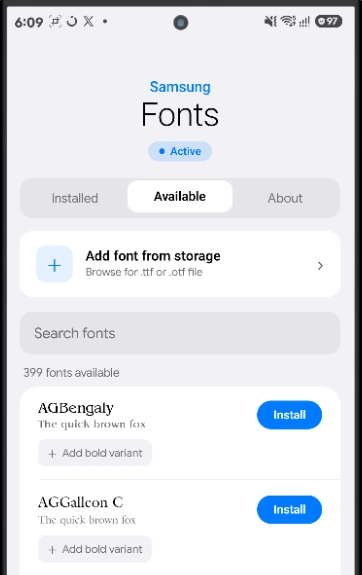
SamFonts handled the file preparation. Its developer documentation describes importing .ttf or .otf files and generating installable font packages on the device. That opened up choices beyond the fonts offered through Galaxy Store.
The steps users followed in SamFonts
This was the Normal-mode setup while Knox approval was still available. The developer’s version 4.2 notes describe the no-root option and its approval prompts.
- Download SamFonts from the developer’s official GitHub release page and install the app.
- Open the app’s Settings > Font method screen and choose Normal, its no-root method.
- Follow the administrator permission prompts and accept the Samsung Knox request using Agree. The app needed a successful approval before this method could work.
- Open Available and choose a font, or use Add font from storage to import a .ttf or .otf file.
- Use Install for the selected font to install its generated font package.
- Return to Installed and apply the font from there.
What Samsung blocked
The developer’s October 2 notice identifies the blocked stage as Knox approval on Samsung’s end. It says working, previously approved installations could continue, but disabling that access and requesting approval again would result in refusal.
That explains why an app can still install while its font-changing method fails. Where an app reports Knox error 203, Samsung’s official API reference defines that code as ERROR_LICENSE_TERMINATED. It means the license used for that operation has been terminated and cannot be used.
I’d read that specific error before treating the font file as damaged. A failed license approval points to the app’s access, even if the font has already downloaded or appears in a list.
Does staying on an older security patch help?
An older patch alone doesn’t guarantee a fresh setup will work. That is the practical implication of the developer describing an approval block on Samsung’s side: keeping old firmware doesn’t ensure Samsung will approve a newly installed app.
There is evidence for some older approvals surviving. In the October 3 version 4.3.1 notes, the developer specifically describes providing the original SamFonts variant for people whose old app was already Knox-approved. SamFonts and SamFonts Pro are separate apps with different package names, as the version 4.0 announcement explains.
Samsung’s October 2026 security bulletin lists firmware fixes but doesn’t name this Knox font-approval change. Some entries remain undisclosed, so the bulletin leaves the exact firmware cutoff unresolved.
When comparing two phones, record both the software and the app’s approval status. Our security patch checking guide helps you find the installed patch date, and our firmware version guide explains where to read the build number.
You can still change fonts through Samsung’s settings
Samsung still documents font changes through its built-in controls. Its US font-settings guide gives this route:
- Open Settings and search for Font size and style.
- Open that setting and tap Font style.
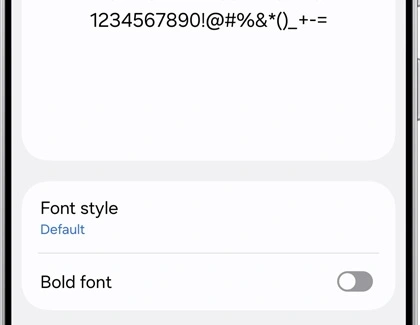
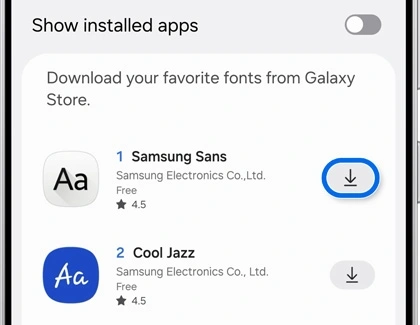
- Choose an available font, or tap Download fonts to open Galaxy Store.
- Install a font offered there, then return to Font style to select it.
Samsung also documents separate controls for font size and bold text. Use those if readability is your main concern. The company notes that screens and settings can vary by device, carrier and software version.
FAQ
Can I fix Knox error 203 by granting Device Admin again?
Device Admin permission and a usable Knox license are separate requirements. Samsung defines 203 as a terminated license; granting a local permission doesn’t replace that license. Check the exact error instead of repeatedly toggling access.
Are custom fonts permanently impossible on Samsung now?
The evidence supports a block on this approval method, not a permanent ban on every custom-font approach. SamFonts’ documentation describes a separate Shizuku route requiring UID 1000 system privileges. That is a different setup from ordinary Normal mode, and the documentation isn’t a guarantee for every Galaxy.
Which details should I share if my font stopped working?
Tell me your Galaxy model, firmware build, security patch date, font-app version and exact approval error. Also mention whether the same app was already working or was recently reinstalled. That gives us a useful comparison beyond the patch month alone.
Was this guide helpful?
Your answer helps us keep it accurate.

Comments (0)
Comments are moderated, and published only if they are relevant to the topic and add value in a constructive way. If you disagree with something, please be polite and respectful.