
Samsung DeX puts supported Galaxy apps into a desktop-style workspace on a TV or monitor. Connect a compatible Galaxy with a USB-C to HDMI adapter, or use wireless DeX with a supported Miracast display.
Check the connection you want before buying an adapter or installing a PC app. Samsung no longer supports DeX for PC on Galaxy devices released with or updated to One UI 7 or later. That restriction is different from using DeX directly on an external display.
Match your Galaxy to the connection method
Samsung's current DeX compatibility FAQ separates wired displays, wireless displays, and the older PC connection. Look up your exact model in the section for your intended connection.
| Your destination | What to check first |
|---|---|
| A TV or monitor through HDMI | Your Galaxy supports wired DeX and the cable or adapter supports that connection. |
| A TV or monitor without a cable | Your Galaxy supports wireless DeX and the receiving display supports Miracast. |
| A Windows laptop or desktop | Check the One UI restriction on DeX for PC. For supported Windows integration instead, see our Phone Link guide below. |
Model suffixes matter. Samsung excludes the Galaxy Z Flip7 FE from DeX, while listing the Galaxy Z Flip7. It also excludes the Galaxy Tab S9 FE and Tab S10 FE families from HDMI output and wireless DeX. A similar name or a USB-C port alone is not the compatibility check.
If you found an older dock secondhand, check the software too. Samsung explicitly says DeX Pad and DeX Station are not supported on Android 16 with One UI 8. Follow the supported cable route rather than buying one from an old compatibility list.
Connect a supported Galaxy by HDMI
Samsung's DeX setup instructions support a compatible USB-C to HDMI adapter or cable. Begin with a display whose HDMI input you can select.
- Connect the adapter or cable to the USB-C port on your Galaxy.
- Connect the HDMI end to the TV or monitor and select that input on the display.
- Enter your Galaxy screen-lock credentials if prompted.
- Read the DeX startup prompt and tap Start when you are ready.
- If DeX does not start automatically, open Quick settings and select the DeX icon.
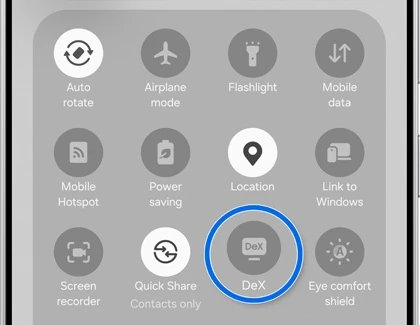
Save your work before disconnecting the cable. Samsung warns that removing the HDMI connection restarts DeX. Finish changes in the apps you are using before unplugging the display.
If the monitor only mirrors your phone
A copy of the phone screen is a different result from the extended DeX workspace. Samsung has specific guidance for mirroring after One UI 8: enable DeX, then check the connected-display mode.
- On the Galaxy, open Settings > Connected devices > Samsung DeX.
- Open Connected display.
- Select Extend on the documented layout.
- Check whether the external screen now shows the DeX workspace.
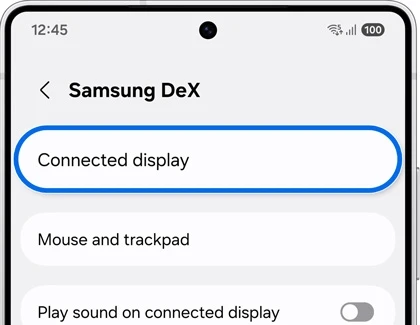
Use the choices your software presents. If the supported mode still does not appear, Samsung recommends checking the compatible adapter and trying another monitor or TV. Record the Galaxy model, software, adapter, and display before changing several parts of the setup.
Start a wireless DeX session
Samsung's Smart Monitor instructions provide a Settings route as well as the Quick settings shortcut. Use the receiving display's connection prompt to approve the device you actually want to connect.
- Open Settings > Connected devices > Samsung DeX on the Galaxy.
- Tap Connect wirelessly.
- Select your compatible TV or monitor from the device list.
- Tap Start now on the Galaxy.
- Use the display's remote to choose Allow if a connection request appears.
- Read any remaining Galaxy prompt and tap Start to begin.
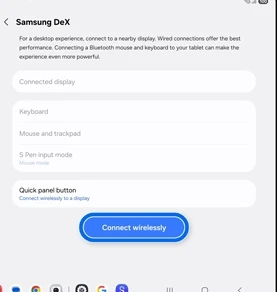
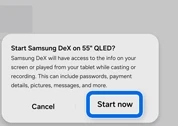
Keep the Galaxy and receiving display close while checking a wireless session. Samsung recommends a short distance for a smoother connection. Use a wired connection as a comparison if your supported setup is noticeably laggy.
Control the workspace and adjust the display
Samsung lets you use the Galaxy as a touchpad through the Touchpad icon or notification, depending on the layout. You can also pair a Bluetooth keyboard or mouse in Settings > Connections > Bluetooth and use it with DeX.
For the redesigned One UI 8 display controls, Samsung's FAQ uses Settings > Connected devices > Samsung DeX > Connected display. Review the available resolution and rotation choices there. Check the text at the size you normally read before deciding whether to change the resolution.
FAQ
Should I install DeX for PC on my newer Galaxy?
Samsung directs devices on One UI 7 or later to Link to Windows instead. Our Galaxy Phone Link setup guide covers that route. Choose it when the destination is your Windows PC rather than a separate DeX monitor.
Do I need DeX just to copy files to a computer?
For an ordinary USB file connection, our Galaxy USB file-transfer guide explains the cable and transfer-mode checks. Tell me your exact Galaxy model, One UI version, and the device you want to connect if you are unsure which type of connection you need.
Was this guide helpful?
Your answer helps us keep it accurate.
Comments (0)
Comments are moderated, and published only if they are relevant to the topic and add value in a constructive way. If you disagree with something, please be polite and respectful.