
You can make a Samsung Galaxy ask for your PIN, pattern or password before anyone turns it off. Go to Settings > Lock screen > Secure lock settings, enter your PIN, and turn on Lock network and security. Then lock the phone and test the power menu, because the result can differ by model and One UI version.
Why bother? A thief’s first move is usually to switch the phone off so you can’t track it. If the power menu needs your PIN, the phone stays on and stays visible in Find My Mobile a lot longer.
I’ll walk you through the setting, how to check that it’s really working on your phone, and what changes with One UI 9.
How do you require a PIN to power off a Samsung Galaxy?
Open Settings, tap Lock screen (Lock screen and AOD on newer One UI versions), then tap Secure lock settings and confirm your PIN, pattern or password. Turn on Lock network and security. While the phone is locked, network and security functions stay locked too, and on many Galaxy phones that includes the Power off option.
You need a secure screen lock first. Swipe or None won’t show Secure lock settings at all.
- Open Settings on your Galaxy.
- Tap Lock screen. On newer One UI versions, it’s called Lock screen and AOD.
- Make sure Screen lock type is set to PIN, Pattern or Password.
- Tap Secure lock settings.
- Enter your PIN, pattern or password.
- Turn on Lock network and security.
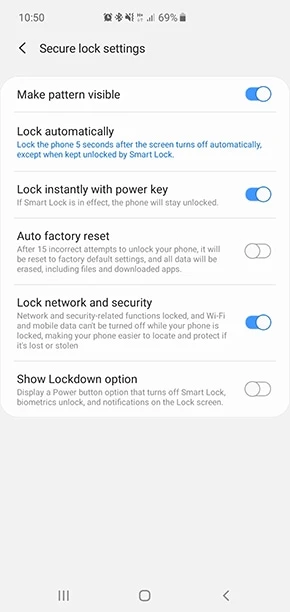
Samsung explains each option on its Secure lock settings support page. It says Lock network and security keeps network and security features locked while the phone is locked, which helps you find a lost or stolen device.
How do you check if the power off lock is working?
Lock your Galaxy, wait a few seconds, then press and hold the Side key or open the quick panel and tap the power icon. Tap Power off. If the phone asks for your PIN, pattern or password before shutting down, the protection is active. If it switches off right away, your model or firmware doesn’t apply it.
Don’t skip this test. Galaxy owners on the Samsung Community report mixed results, with some getting the PIN prompt and others seeing the phone shut down with no prompt at all. You can read one of those threads here.
- Press the Side key to lock the screen.
- Wait about five seconds.
- Press and hold the Side key until the power menu shows up.
- Tap Power off.
- Check if your Galaxy asks you to verify your PIN, pattern or password.
- Cancel the prompt so the phone stays on.
Run the test again from the quick panel. Swipe down from the lock screen and tap the power icon at the top. Both paths should ask for verification.
If you set the Side key to open Bixby or another app, the power menu opens from the quick panel only. That’s fine for this test.
Why can’t I find Lock network and security on my Galaxy?
The option only shows up when you have a PIN, pattern or password set as your screen lock. It also depends on the model, region and One UI version, so some phones show different option names. Use the search bar at the top of Settings and type “Secure lock” to jump straight to it.
If search finds nothing, check your software version. Go to Settings > About phone > Software information and note the One UI version. Older Galaxy phones may not have the option, and carrier models sometimes hide it.
It’s also worth checking your security patch level while you’re there. I explained where to find it and what it means in my guide on how to check the security patch level on a Samsung Galaxy.
Does One UI 9 ask for a PIN before turning off the phone?
Yes, in the One UI 9 beta. Android Central reported that tapping Power off or Restart now asks for your PIN, password or pattern, and fingerprint or face recognition can’t be used for it. If you back out of the power menu, the phone goes back to the lock screen.
That’s a big change. On One UI 9, this protection looks set to work out of the box instead of hiding behind a setting most people never open.
Want to see when your phone gets it? Keep an eye on our One UI 9 update tracker. If you’d rather try it early, I covered how to join the One UI 9 beta on supported Galaxy phones.
Which other Secure lock settings should you turn on?
Secure lock settings has a few more options worth a look. Lock instantly with power key locks the phone the moment you press the Side key. Show Lockdown options adds Lockdown to the power menu. Auto factory reset wipes the phone after 15 failed attempts to get in, so only use it if you back up often.
Here’s what each one does, based on Samsung’s support page:
- Make pattern visible shows the pattern as you draw it. Turn it off if people can see your screen.
- Lock automatically sets how long the phone waits to lock after the screen turns off.
- Lock instantly with power key locks the phone as soon as you press the Side key.
- Lock network and security keeps network and security features locked while the phone is locked.
- Auto factory reset erases the phone after 15 failed attempts to open it.
- Show Lockdown options adds Lockdown to the power menu.
Lockdown is handy in a tight spot. Tap it and the phone turns off fingerprint and face recognition and hides notifications on the lock screen until you enter your PIN, pattern or password.
Can a thief still turn off a locked Galaxy?
Yes, in some cases. A forced restart with the hardware keys can still reboot the phone, and the PIN prompt only covers the on-screen power menu. After a restart, though, your Galaxy needs your PIN, pattern or password before biometrics work again, so your data stays locked.
That’s why the power off lock works best with Find My Mobile turned on. Check it under Settings > Security and privacy > Lost device protection on newer One UI versions, or under Settings > Biometrics and security > Find My Mobile on older ones.
With both on, you get more time to locate, lock or erase the phone remotely from SmartThings Find.
FAQ
Does the power off PIN work with fingerprint or face recognition?
On the One UI 9 beta, no. Android Central reports that only your PIN, password or pattern works for power off and restart. On older One UI versions, test it on your phone, since the prompt can vary by model.
Will Lock network and security stop me from turning off Wi-Fi?
Only while the phone is locked. Once you open your Galaxy with your PIN, pattern, password or biometrics, you can change Wi-Fi, mobile data and Airplane mode like normal.
Does this setting drain the battery?
No. It only adds a verification step when someone tries to change network or security settings from the lock screen. I haven’t seen any battery difference with it on.
Can I still restart my Galaxy normally?
Yes. Open the power menu while your phone is unlocked and tap Restart or Power off as usual. On older One UI versions, the PIN prompt only shows when the phone is locked. On the One UI 9 beta, Samsung asks for your PIN, pattern or password every time you power off or restart.
Was this guide helpful?
Your answer helps us keep it accurate.

Comments (0)
Comments are moderated, and published only if they are relevant to the topic and add value in a constructive way. If you disagree with something, please be polite and respectful.