
Set up Samsung Secure Folder from Settings > Security and privacy > More security settings > Secure Folder, then choose its lock method. Once it opens, use Add apps for a separate app copy or Add files for private files. If you want a photo removed from its ordinary folder, pay attention to the difference between Copy and Move.
I would make those choices before adding sensitive content. A protected folder, an account sync setting, and a backup each do a different job, and the distinction matters if you later replace or reset your Galaxy.
Create the folder and choose access settings
Samsung's US setup instructions use the following route. Read the permission and lock prompts on your own phone as you go.
- Open Settings and tap Security and privacy.
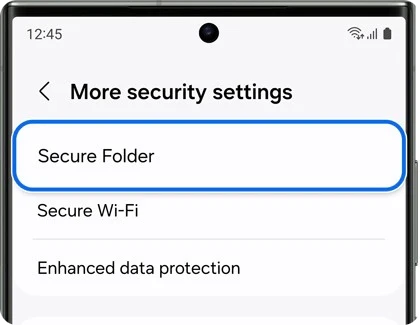
- Select More security settings > Secure Folder.
- Tap Continue and review the requested permissions. Continue with setup and sign in to your Samsung account if prompted.
- Choose the PIN, password, or pattern you will use to access the folder.
- Review the Reset with Samsung account prompt and decide whether to enable account-based lock recovery.
- Finish setup and enter the folder using the security method you selected.
Samsung warns that leaving account reset off prevents access recovery if you forget the passcode. Make that decision during setup, while you can still enter the folder. A familiar fingerprint routine should not be your only plan for remembering the underlying lock method.
Add an app as a separate copy
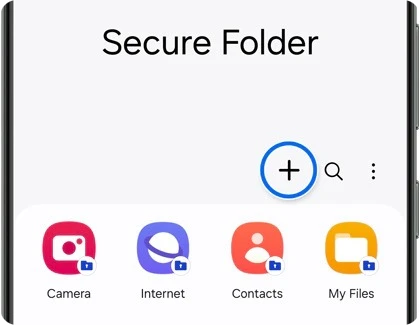
Open Secure Folder and tap Add apps, shown as a plus sign. Select the installed app you want to add and tap Add. The new icon appears inside Secure Folder.
Samsung UK's Secure Folder guide explains that adding an already installed app creates a copy. The original app outside the folder remains a separate installation. You can sign into the inside copy with a different account.
That is useful when you want separate app use, but it also explains why the original icon is still on the ordinary Apps screen. Adding it to Secure Folder does not move that outside installation or automatically hide it.
Samsung also offers downloads from Play Store or Galaxy Store within Secure Folder. An app downloaded directly there exists in that protected space. When setting it up, check which account the inside app actually uses instead of assuming it inherits the outside app's sign-in.
Choose Copy or Move when adding files
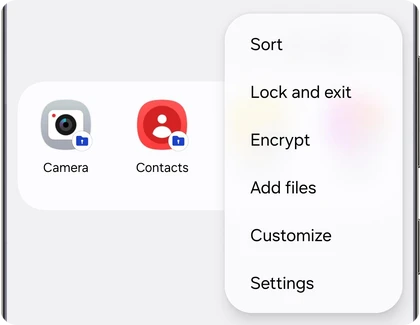
For a file, open the three-dot menu in Secure Folder and select Add files. Choose the type of content, select the items, and continue to the available Copy or Move choice.
Samsung Philippines explains the file choices: Move removes the selected item from its original folder and places it in Secure Folder. Copy leaves the original in place and creates another version inside.
| Choose | Result to check |
|---|---|
| Copy | A protected copy is added; the ordinary original remains outside. |
| Move | The selected original is moved into Secure Folder. |
If your aim is privacy, a successful copy alone does not remove the outside file. Check both locations before assuming the original is hidden. For an item held only in cloud storage, Samsung's US instructions say it must first be saved to internal storage or an SD card before moving it into Secure Folder.
You can also select a file in Samsung Gallery, open More, and use Move to Secure Folder. Choose the file itself rather than expecting an entire cloud account to become protected through that command.
Keep a backup plan separate from account sync
Samsung Canada explicitly says new Secure Folder backups are no longer supported. The same page still documents restoring previous backups and managing Auto sync Secure Folder data. Turning on sync should therefore not be treated as creating a new, complete folder backup.
Samsung documents a phone-to-phone Smart Switch transfer as another way to bring Secure Folder to a new Galaxy. Review the Secure Folder selection in that transfer, then open the folder on the receiving phone to verify the contents before clearing the old device.
If storage blocks that move, our Smart Switch space guide explains which device to check. For the rest of your phone, our Galaxy backup guide covers the broader backup choices. Check the protected content separately rather than assuming a general backup includes it.
FAQ
Can I move a file back out later?
Yes. Samsung Canada says to open My Files inside Secure Folder, select the file, tap More, and choose Move out of Secure Folder. Images and videos can also be selected from Gallery inside the folder. Moving content out places it back in ordinary device storage, where it no longer has the folder's separate access boundary.
Why is Secure Folder absent from my settings?
Samsung says unsupported devices will not show the feature under Security and privacy. Menu availability also varies by device and software. Tell me your exact Galaxy model, One UI version, and which security menu you see, and we can help compare the instructions that apply.
Was this guide helpful?
Your answer helps us keep it accurate.
Comments (0)
Comments are moderated, and published only if they are relevant to the topic and add value in a constructive way. If you disagree with something, please be polite and respectful.