
To take a Samsung screenshot on a Galaxy with Side and Volume buttons, press Side and Volume down together, then release both buttons right away. If you prefer a gesture, enable Palm swipe to capture under Settings > Advanced features > Motions and gestures. For a long page, take the first screenshot and use Scroll capture when it appears.
You do not need to try every capture method. I would choose the buttons first, use the gesture if it suits how you hold the phone, and check the saved image before sharing it.
Use a brief press of the two buttons
Samsung UK's screenshot guide distinguishes a brief press from a long hold. Holding the buttons too long can bring up the power menu on models that use the brief-press method.
- Display the page or app screen you want to save.
- Press the Side button and Volume down at the same time.
- Release both after the brief press and look for the screen flash.
- If the power menu opens instead, dismiss it and try a shorter simultaneous press.
Button positions vary by Galaxy model. Locate the actual Volume down control before trying again, rather than pressing the top half of the volume rocker. Samsung also documents a longer hold for some devices, so check your model's instructions if the brief method does not match.
Enable Palm swipe to capture
The palm gesture uses the edge of your hand moving across the display. Samsung Canada's instructions show the switch under Motions and gestures and note that the gesture is not supported on every Galaxy.
- Open Settings and select Advanced features.
- Tap Motions and gestures.
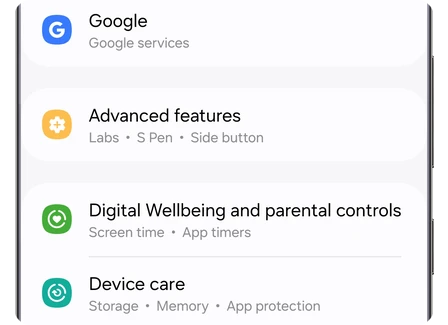
- Find Palm swipe to capture and turn its switch on.
- Return to the content you want to capture.
- Swipe the edge of your hand across the screen from one side to the other.
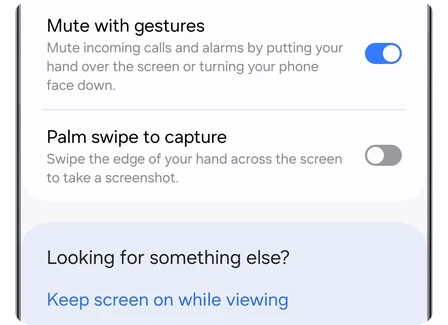
Close the keyboard before checking the gesture. Samsung's US motion-controls page specifically says Palm swipe to capture is unavailable while the keyboard is showing. If you have just typed into a search field, hide the keyboard and try the same screen again.
Extend a screenshot down a long page
Scroll capture joins more of a scrollable page into the captured image. Samsung Gulf's capture instructions describe taking a normal screenshot first and then extending it with the Scroll capture control.
- Open the long webpage or document at the point where the image should begin.
- Take a screenshot using the button or palm method.
- Tap Scroll capture on the toolbar that appears.
- Continue using that control until the image includes the portion you need.
- Open the saved result and check the beginning and end.
The button is conditional. Samsung Canada's page says it appears for content extending beyond one screen and may be unavailable on certain apps or websites. A short page or a Home screen is a poor place to check whether long capture works.
Rather than capturing an entire conversation or document by default, stop at the part the recipient needs. Review what was included below the first screen, especially if the page contains contact details or account information.
Crop or mark the image before sharing
After capture, the toolbar can provide editing and sharing controls. Samsung's US screen-capture page identifies Draw for editing, Add tag for organization, and Share for sending the image to another app or contact.
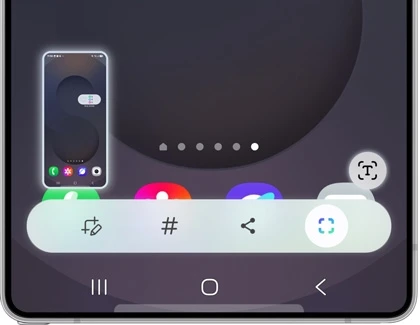
Use Draw if you want to crop the image or add a mark, then save the result. Reopen it to check that the important text remains readable. A very long screenshot can become awkward for someone to read on a small display, so a smaller crop may communicate the point more clearly.
For supported S Pen devices, Samsung also documents Screen write: open Air command, choose Screen write, annotate the captured screen if needed, and save it. Use that option when you want to mark the image with the pen.
FAQ
Where are screenshots saved on a Galaxy?
Samsung's US guide points to Gallery > Albums > Screenshots. You can also look in My Files > Images. For a computer copy, our Phone Link setup guide explains current Windows access, while our Galaxy USB file-transfer guide covers a cable connection.
What does a screenshot security warning mean?
Samsung UK says certain apps and screens block capture to protect information, including some banking screens. Try a normal screen outside that app to compare. Do not reset the phone just because one protected screen refuses capture. If an ordinary screen also fails, tell me your Galaxy model, software version, and the exact message displayed.
Was this guide helpful?
Your answer helps us keep it accurate.
Comments (0)
Comments are moderated, and published only if they are relevant to the topic and add value in a constructive way. If you disagree with something, please be polite and respectful.