
To send a file from your Galaxy to a nearby Android phone, select it in Gallery or My Files, tap Share > Quick Share, and choose the receiving device. Keep Bluetooth and Wi-Fi on, and ask the other person to keep their screen unlocked and allow the transfer. If their phone is absent from the list, check receiving visibility before trying again.
Quick Share includes nearby transfers and other sharing options. I will use the nearby Android route here, then explain the visibility and QR-code choices that can make two Quick Share screens behave differently.
Prepare the receiving phone
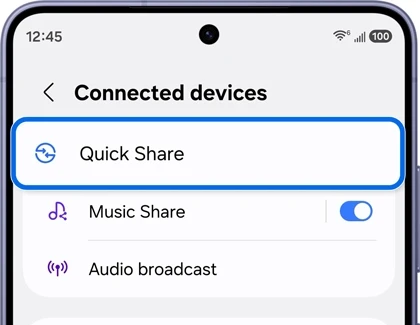
On your Galaxy, Samsung's current US Quick Share guide places the receiving controls in Connected devices. It recommends Your devices or Contacts for ordinary use, with the temporary Everyone option when sharing with someone outside your contacts.
- Open Settings on the receiving Galaxy.
- Tap Connected devices > Quick Share.
- Open Who can share with you.
- Choose a visibility option appropriate for the sender.
On a different Android brand, the menu can look different. Google's Android instructions suggest searching Settings for Quick Share. The receiver can also open Quick Share in Receive mode while you look for the device.
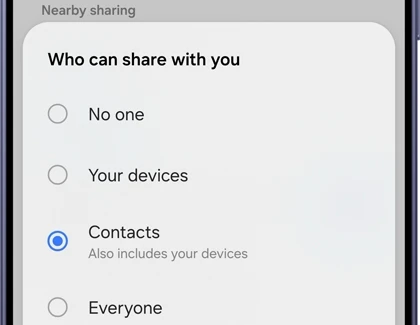
A temporary receiving screen makes the phone discoverable more broadly while that screen is open. Exit Receive mode when you finish. The setting matters on the destination phone; repeatedly opening the sender's file picker will not change who the destination allows.
Send the selected file and confirm its arrival
Samsung Canada's file-sharing guide starts from the file's Share control and distinguishes Share to devices nearby from its QR code or link option. Choose the nearby device name for a direct transfer.
- On your Galaxy, open Gallery for a photo or My Files for a document.
- Select the item you want to send and tap Share.
- Choose Quick Share from the sharing sheet.
- Find the intended phone among the nearby devices and tap its name.
- Ask the recipient to review and accept the incoming request if prompted.
- Wait for completion and have the recipient open the file.
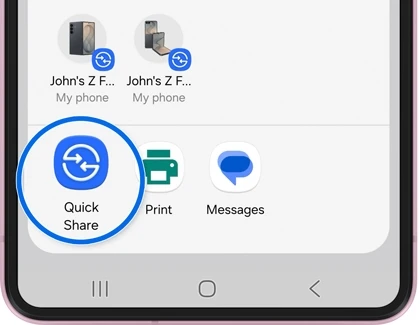
Compare the receiver's device name before selecting it, especially in a room with several visible phones. For the first attempt, one recognizable photo is easier to verify than a large mixed selection. Check that the recipient can open that photo before sending the rest.
Samsung's US instructions describe Sent appearing below the destination after a completed transfer. Google points receiving Android users to the default Files app's Downloads > Quick Share folder. The receiving screen or notification can also provide a way to view the item.
Choose visibility for the person you are sharing with
Samsung and other Android phones can describe their account-based choices differently. Use the labels on the receiver rather than assuming a Google-account choice and a Samsung-account choice mean the same thing.
| Sharing situation | Useful receiving choice |
|---|---|
| Your own Galaxy devices | Check Your devices and the Samsung account used on each device. |
| A contact sending to your Galaxy | Samsung's Contacts option applies to contacts using a Samsung account. |
| A nearby person outside that group | Use the temporary Everyone option, or the available Receive mode. |
The Samsung UK Quick Share page says devices using the same Samsung account can share regardless of the ordinary visibility selection. It also explains that the ten-minute Everyone choice returns to Contacts only or No one, depending on Samsung-account sign-in.
If the destination still does not appear
Bring the phones close, verify Bluetooth on both, and keep the recipient's screen unlocked. Google also advises checking Location on a device running Android 12 or earlier. That older-version requirement should not become a blanket instruction to change Location on every Galaxy.
Samsung lists an active mobile hotspot, Wi-Fi Direct session, or Smart View session as conflicts for Quick Share. If one is running, finish that activity before retrying the file transfer. Change one condition at a time so the next result tells you something useful.
If the transfer completes but the recipient cannot find it, check the receiving folder before repeating the whole send. For files you instead want to copy to your Windows PC, our Galaxy and Phone Link guide explains that connection. A cable is another option covered in our Samsung USB transfer instructions.
FAQ
Does nearby Quick Share need mobile data?
Samsung says Share to devices nearby can transfer without mobile data. Its QR code or link and contact-sharing methods use a different route and can require an internet connection. For a large file, read which sharing option you selected instead of assuming all Quick Share transfers have the same data use.
Why does Google describe a different QR-code option?
Google describes a Use QR code option that nearby Android devices scan to connect and receive content. Samsung's Canada page separately describes QR code or link downloads using Wi-Fi or mobile data. Follow the option shown on your device. If you need help choosing, share both phone models and the exact Quick Share button labels you see.
Was this guide helpful?
Your answer helps us keep it accurate.
Comments (0)
Comments are moderated, and published only if they are relevant to the topic and add value in a constructive way. If you disagree with something, please be polite and respectful.